 InSnap
How to Remove Text or an Object From a Screenshot Cleanly
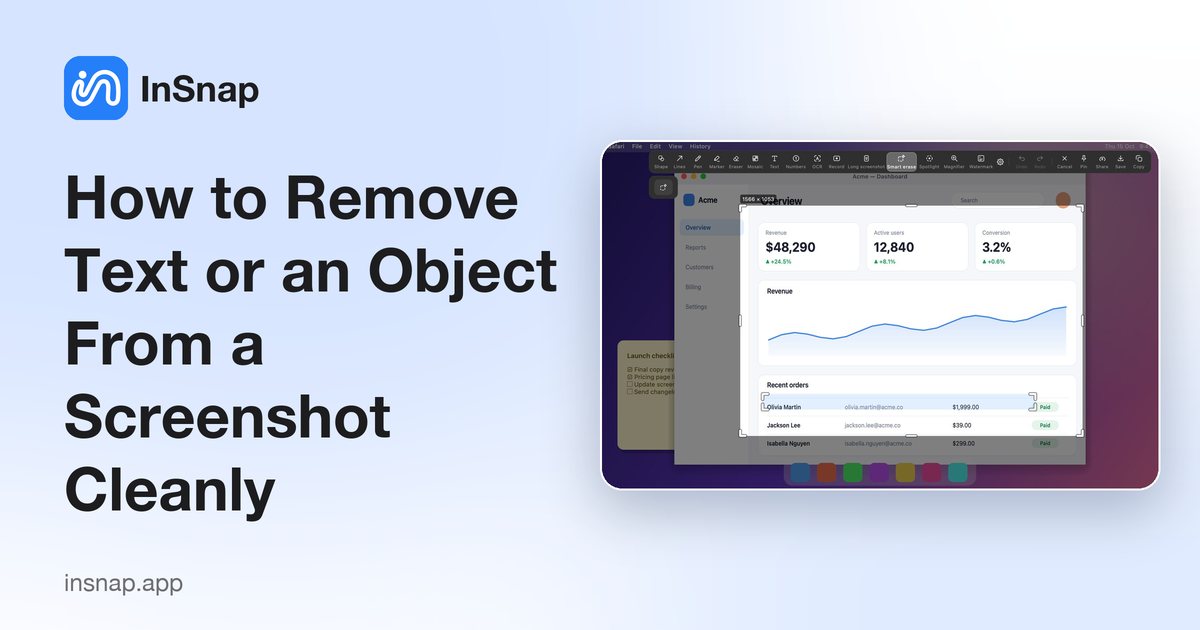
Remove a name, icon or text from a screenshot and fill the gap from the surrounding background. When it works best, what to expect, and how to do it with InSnap Smart Erase.
Sometimes a screenshot has something in it you would rather not show: a username, a stray icon, a line of text. A blur draws attention to the spot. Removing the item and filling in the background looks cleaner.
How it works
The idea is simple: look at the pixels around the thing you want to remove, and use them to fill the gap. On plain or gradient backgrounds, which is most of what a user interface looks like, the result can be indistinguishable from the original. On busy photographic backgrounds the fill is a best guess.
Remove an item with InSnap Smart Erase
- Press the capture hotkey (Command-1 on Mac, Ctrl+1 on Windows) and select the area.
- Open the advanced tools on the toolbar and choose Smart Erase.
- Drag a box over the text or icon. InSnap fills it in from the surrounding background.
- In the attributes, pick whether to keep the background around the item or fill the whole box. You can move or resize the box and the result updates.
- Copy, save or pin the result.
Smart Erase runs locally with an algorithm that reads the area around the box; there is no AI model and nothing is uploaded. It is an InSnap Pro feature (a one-time $15 purchase).
What it is good at, and what it is not
- Good: text, icons and small objects on flat colors, gradients, tables and interface backgrounds.
- Less reliable: an item whose color is very close to the background it sits on, or a large object over detailed photographic texture. The tool tells the object from the background by color, so close colors are harder.
- Tip: draw the box a little larger than the item, since anything outside the box is never changed.
When you still need a blur or cover
Erasing hides the item, but if the picture is a document where a gap would look odd, a mosaic or a solid cover may read more clearly as "redacted".
FAQ
How do I remove text from a screenshot without leaving a blur?
Use an eraser that fills the gap from the background, such as InSnap Smart Erase, instead of a blur.
Does Smart Erase use AI or upload my screenshot?
No. It is a local algorithm and nothing leaves your computer.
Will it change the rest of the screenshot?
No. Only pixels inside the box you draw are changed.
More from the blog

How to Add Text to a Screenshot (and Make It Readable)
Add labels, titles and callouts to a screenshot with readable contrast, the right size and clean placement — plus how to edit them later on Mac and Windows.
October 25, 2026
Auto Zoom for Screen Recordings: What It Does and When to Use It
How InSnap's auto zoom follows your clicks in a screen recording, how the strength settings change the result, and when a static recording is better.
October 25, 2026
How to Make a Before-and-After Comparison Image
One image beats two attachments: capture both states at the same size, stitch them side by side, label them, and send a comparison the reader can scan.
October 25, 2026