Screenshot, recording and how-to tips
Practical guides for capturing, annotating and recording your screen on Mac and Windows.

How to Add Text to a Screenshot (and Make It Readable)
Add labels, titles and callouts to a screenshot with readable contrast, the right size and clean placement — plus how to edit them later on Mac and Windows.
October 25, 2026
Auto Zoom for Screen Recordings: What It Does and When to Use It
How InSnap's auto zoom follows your clicks in a screen recording, how the strength settings change the result, and when a static recording is better.
October 25, 2026
How to Make a Before-and-After Comparison Image
One image beats two attachments: capture both states at the same size, stitch them side by side, label them, and send a comparison the reader can scan.
October 25, 2026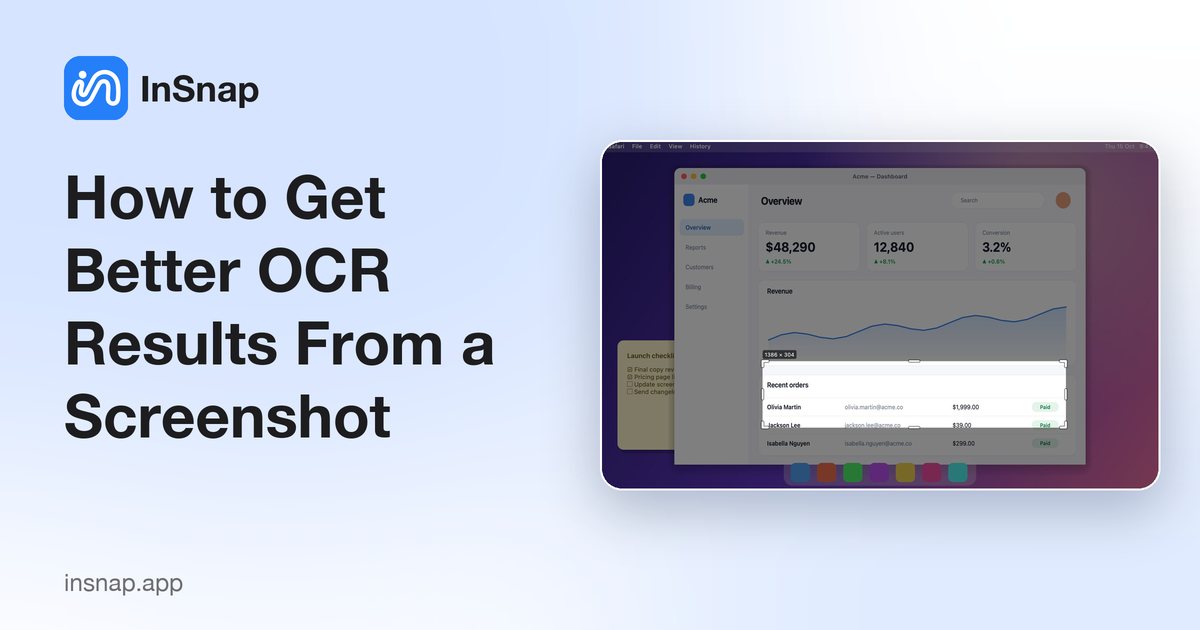
How to Get Better OCR Results From a Screenshot
Text recognition is only as good as the pixels you give it. Crop tightly, keep the resolution, avoid skew and busy backgrounds, and know the language limits.
October 25, 2026
How to Blur Private Data Across an Entire Guide
One mosaic, applied to every step: how to use Blur in all steps, check alignment, and cover what must never be visible in a recorded guide.
October 25, 2026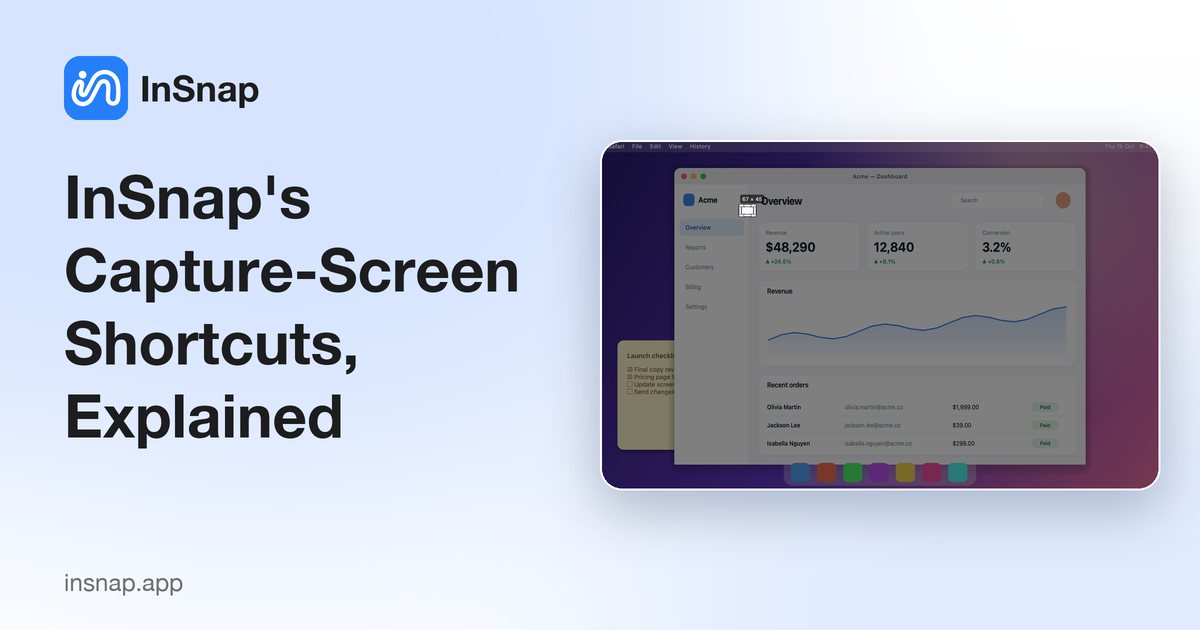
InSnap's Capture-Screen Shortcuts, Explained
Two shortcuts work only while the capture overlay is open: select the full screen and copy the selection. How they differ from global hotkeys.
October 25, 2026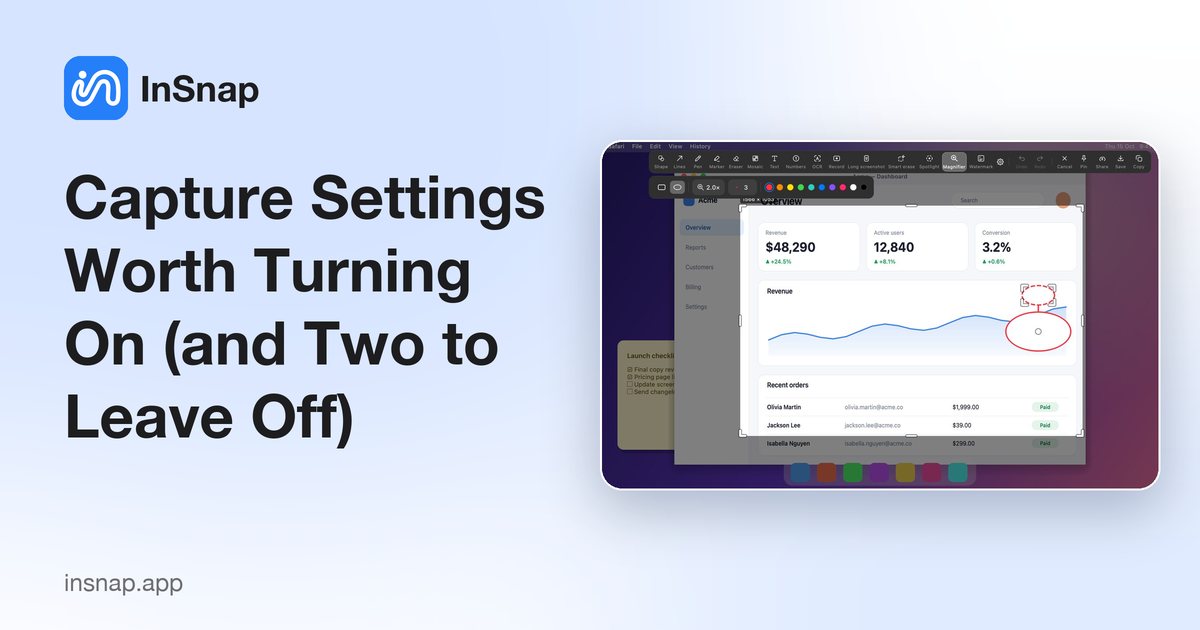
Capture Settings Worth Turning On (and Two to Leave Off)
Auto-detection, element detection, the magnifier, the color panel and text indexing: which capture settings earn their keep, and which add noise or permissions.
October 25, 2026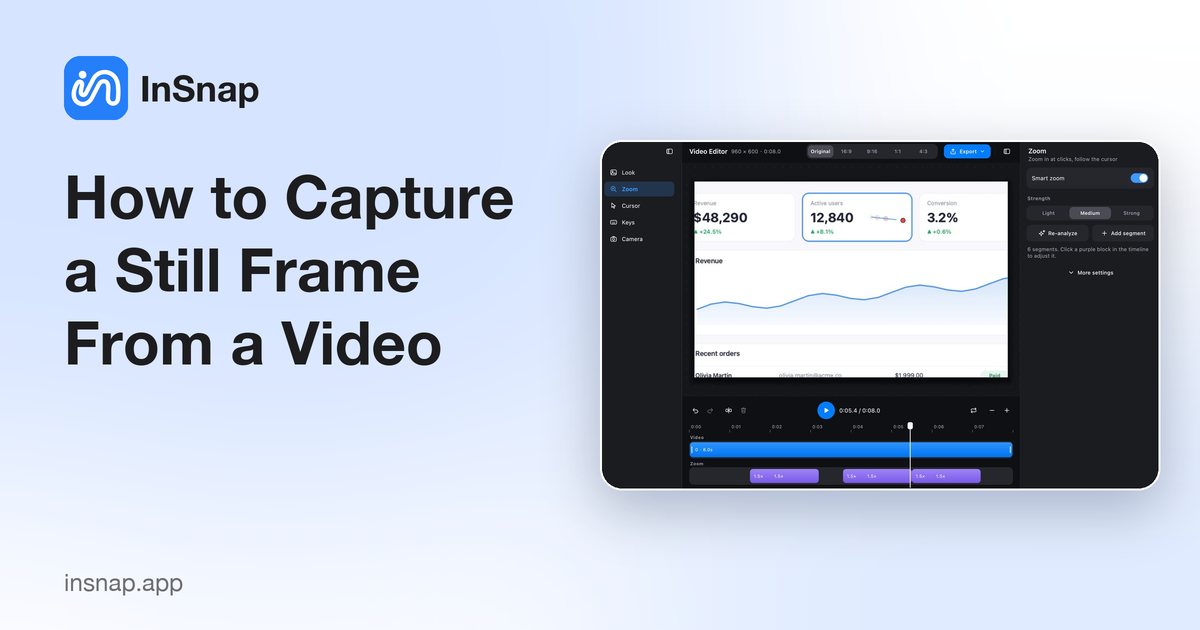
How to Capture a Still Frame From a Video
Grab a clean frame for a thumbnail, a bug report or a document: pause precisely, capture the player area, and when a command-line frame grab is better.
October 25, 2026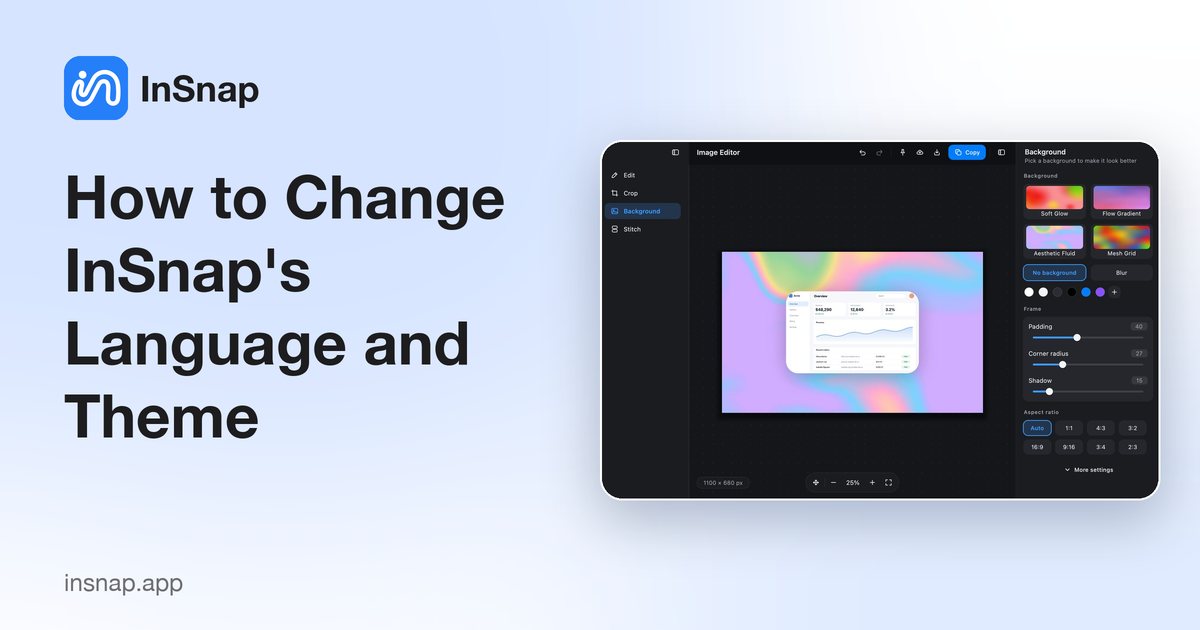
How to Change InSnap's Language and Theme
Eleven interface languages, three appearance modes and a scroll direction setting. How to switch them, what follows the system, and what changes immediately.
October 25, 2026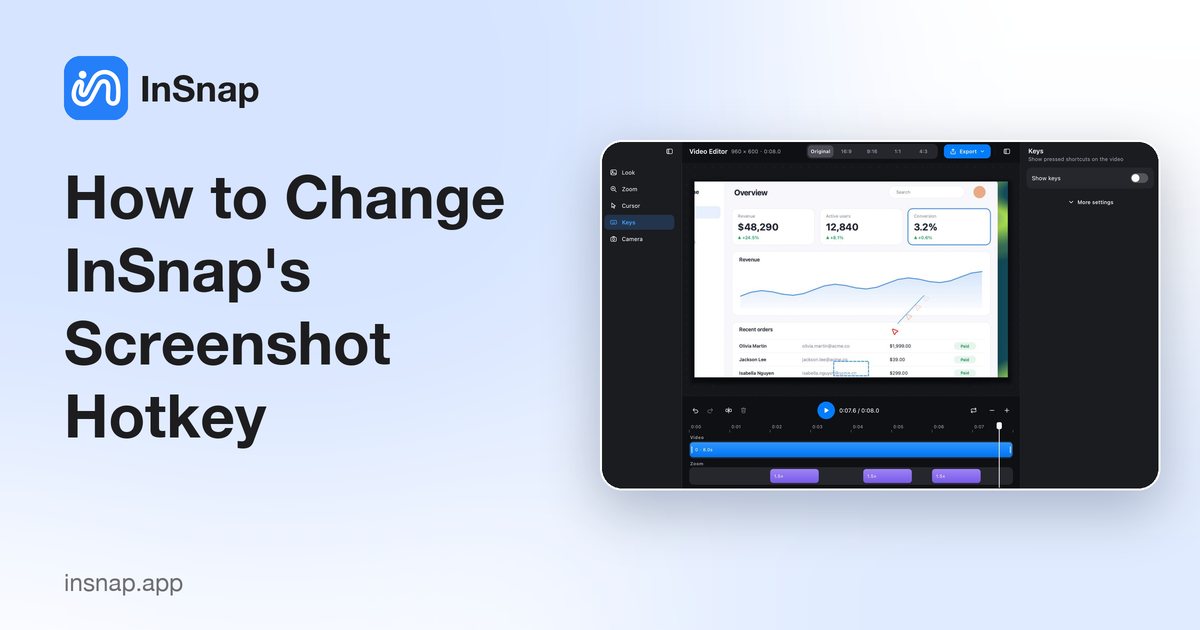
How to Change InSnap's Screenshot Hotkey
The default Command-1 is convenient until it collides with a browser tab. How to rebind capture and pin shortcuts, read conflict warnings, and keep both hands free.
October 25, 2026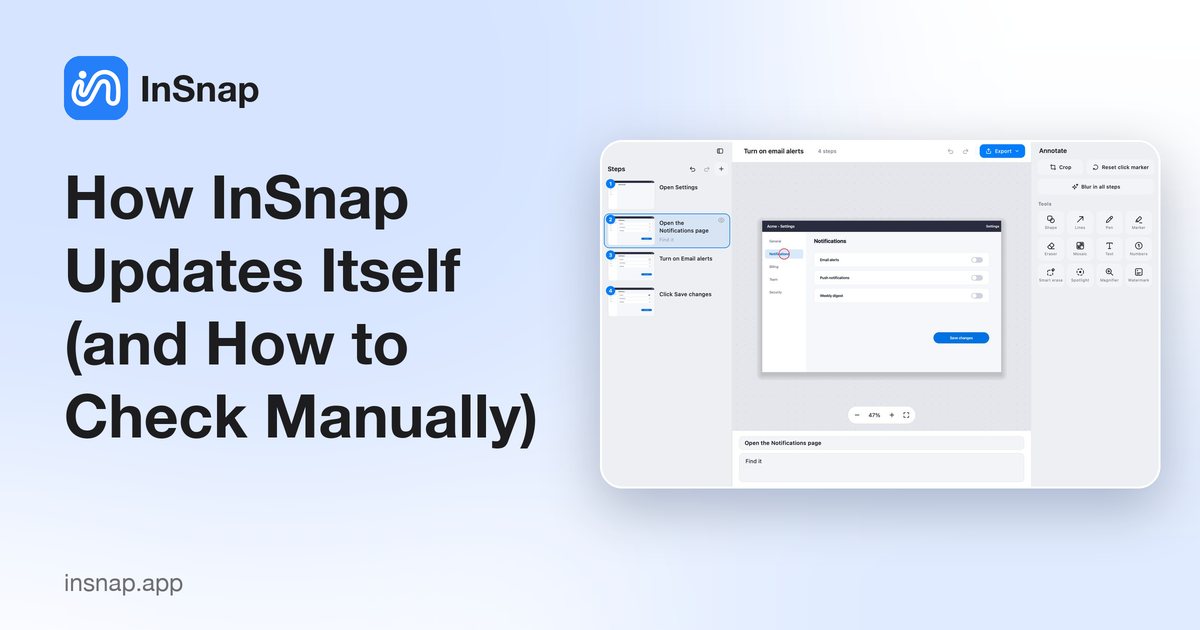
How InSnap Updates Itself (and How to Check Manually)
Automatic checks, the manual menu item, and the difference between the installed and portable Windows builds. What an update keeps, and what to do if it fails.
October 25, 2026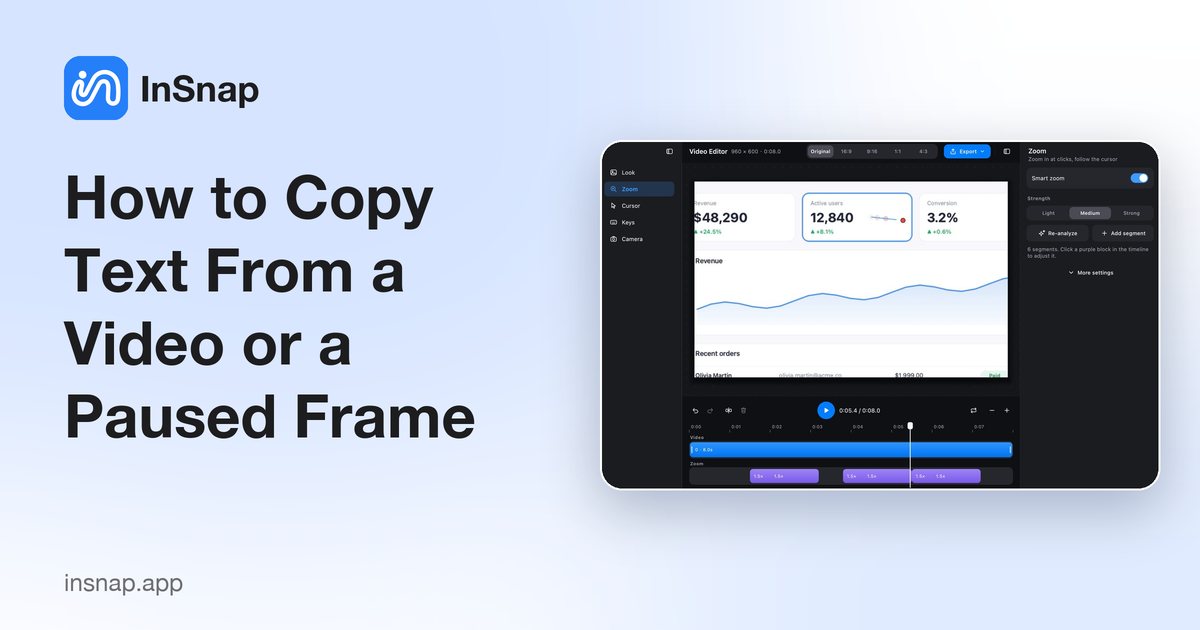
How to Copy Text From a Video or a Paused Frame
Subtitles, slides, error messages and code in a video are still text. Pause on the frame, capture the area, and run OCR to copy it out — no retyping.
October 25, 2026
How to Take Screenshots of Dark-Mode Apps That Stay Readable
Dark interfaces punish careless markup: thin strokes vanish, colors clash and text callouts disappear. Practical settings for screenshots that survive a dark theme.
October 25, 2026
How to Review a Website or Design With Annotated Screenshots
A lightweight design review loop: capture the state, annotate precisely, compare versions, and hand over one focused set of notes instead of a vague thread.
October 25, 2026
How to Document a Support Session With Screenshots and Short Clips
A repeatable way for support teams to capture what went wrong: annotate the state, hide customer data, record a short repro and share a single link.
October 25, 2026
Filename Template Variables: Name Screenshots Automatically
Window title, app name, date, counter and random suffix: how InSnap's filename template works, what the preview shows, and patterns that stay sortable.
October 25, 2026
Guide Recording Defaults: Editor, Markers and Key Trigger
Open the editor after recording, mark each click with a red circle, and use a key to record only the moments you choose. What the three guide defaults change.
October 25, 2026
Guide Recording Missed a Step? Here's Why
Drags, floating-bar clicks, app scope and hidden steps: the common reasons a recorded guide skips a step, and the fastest way to add the missing one.
October 25, 2026
How to Highlight a Screenshot So the Text Stays Readable
Highlight the point without hiding it: use the marker's translucent blend, snap highlights to whole lines, and keep colors meaningful rather than decorative.
October 25, 2026
InSnap Free vs Pro: What You Get on Each Plan
A clear breakdown of what is free in InSnap, what Pro unlocks, and how the optional Cloud subscription fits in — with no account required for Pro activation.
October 25, 2026
How to Install InSnap on a Mac
Download the disk image, drag InSnap into Applications, and grant the two permissions it needs. What the macOS version requirement means and how updates work.
October 25, 2026
How to Install InSnap on Windows
Run the installer, get past the SmartScreen warning, and choose between the installed and portable builds. What each option means for updates and file associations.
October 25, 2026
How to Show Keystrokes in a Screen Recording
Turn on the key overlay, choose a corner, and drag the keys in the preview. What the overlay captures, which permission it needs, and when to leave it off.
October 25, 2026
How to Set Up macOS Permissions for InSnap
Screen Recording, Accessibility, Input Monitoring, Microphone and Camera: what each permission enables, which are optional, and how to grant them without restart loops.
October 25, 2026
How to Measure Colors and Spacing From a Screenshot
Check a hex value, a 1px border or the exact gap between two elements without opening a design tool. The magnifier, color picker and selection size do the work.
October 25, 2026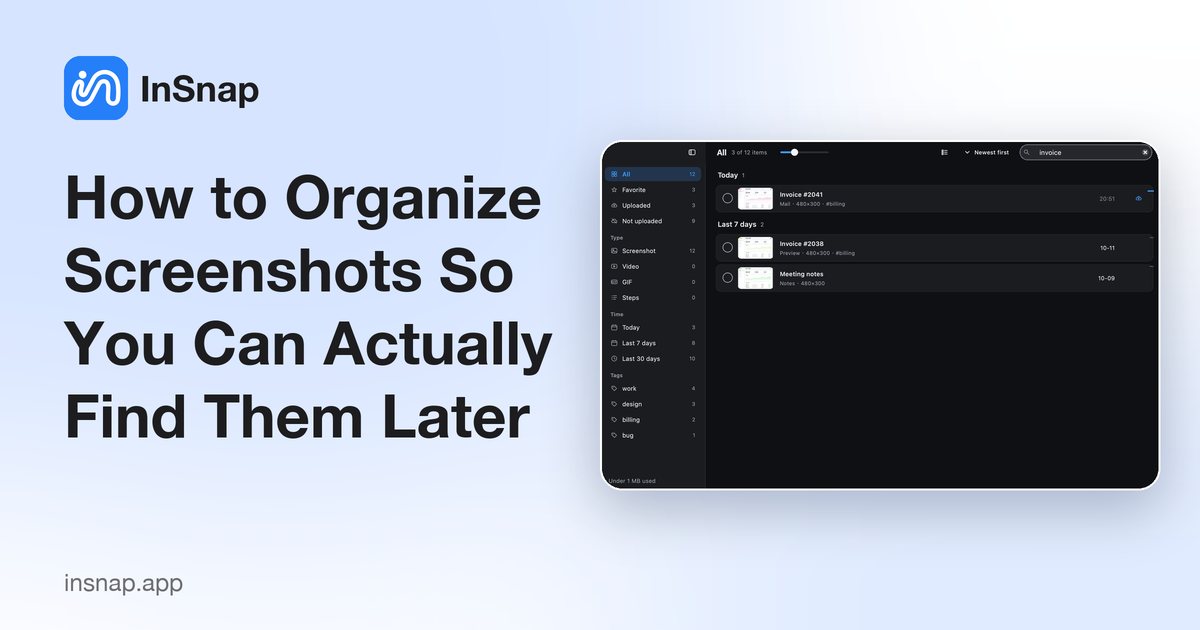
How to Organize Screenshots So You Can Actually Find Them Later
Screenshots pile up on the Desktop and in the clipboard. Simple habits — naming, folders, tags and searchable history — that make old shots easy to find.
October 25, 2026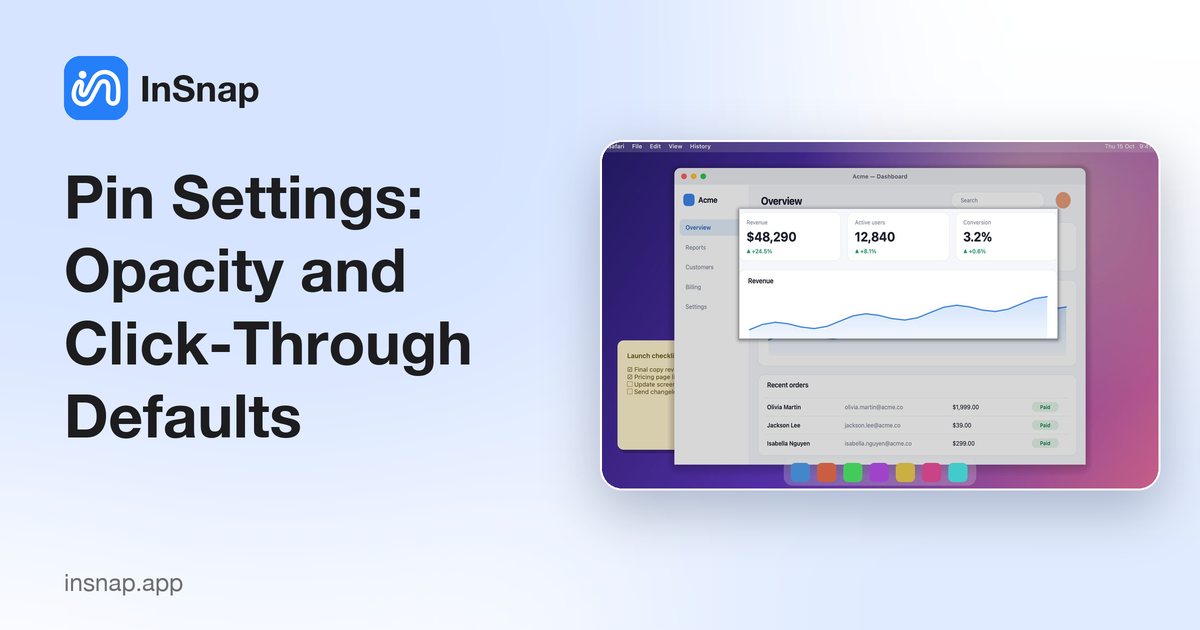
Pin Settings: Opacity and Click-Through Defaults
Initial opacity, click-through for new pins and the per-pin overrides: how to keep pinned screenshots readable without letting them block your clicks.
October 25, 2026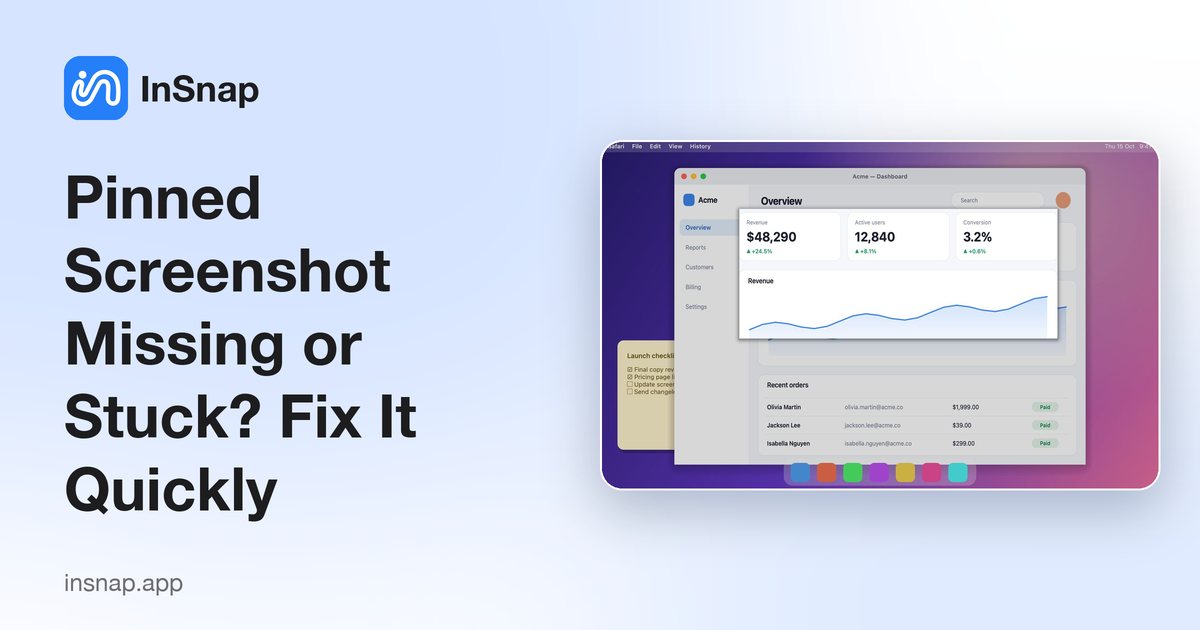
Pinned Screenshot Missing or Stuck? Fix It Quickly
A pin that will not move, click or stay visible is usually click-through, lock or an off-screen window. The four checks that bring a pinned screenshot back.
October 25, 2026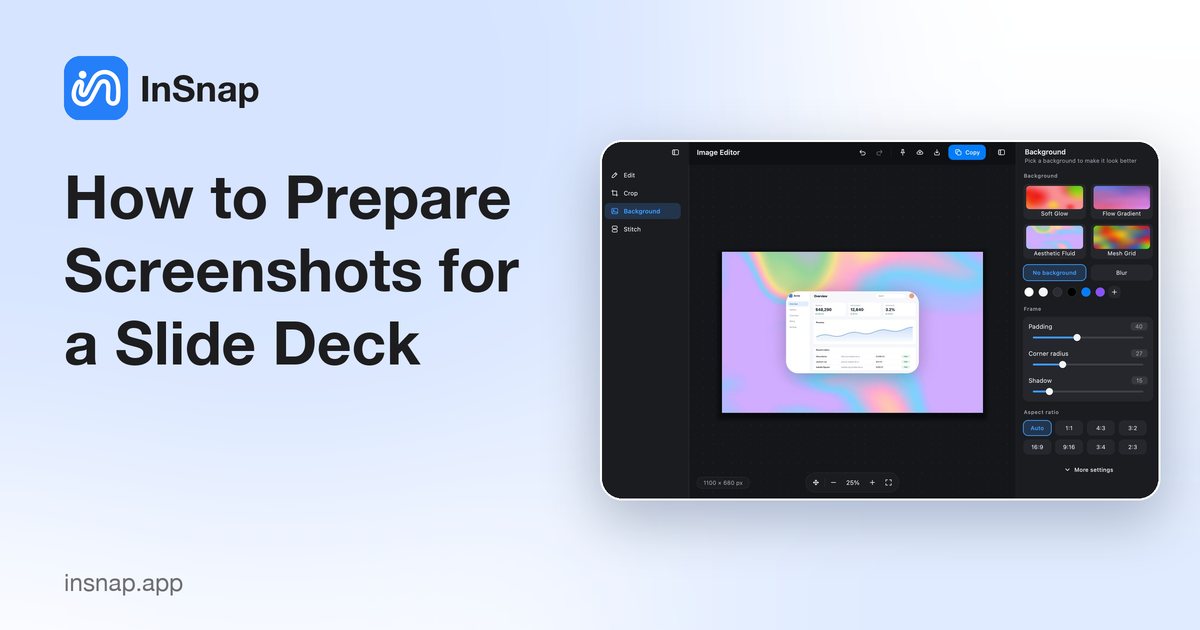
How to Prepare Screenshots for a Slide Deck
Make screenshots that hold up on a projector: crop the noise, give every image the same backdrop and frame, and choose a slide-friendly aspect ratio.
October 25, 2026
From Purchase to Activation: Getting Pro Running
What the Pro license includes, where the activation code arrives, how to enter it without an account, and what to do when the three-device limit is reached.
October 25, 2026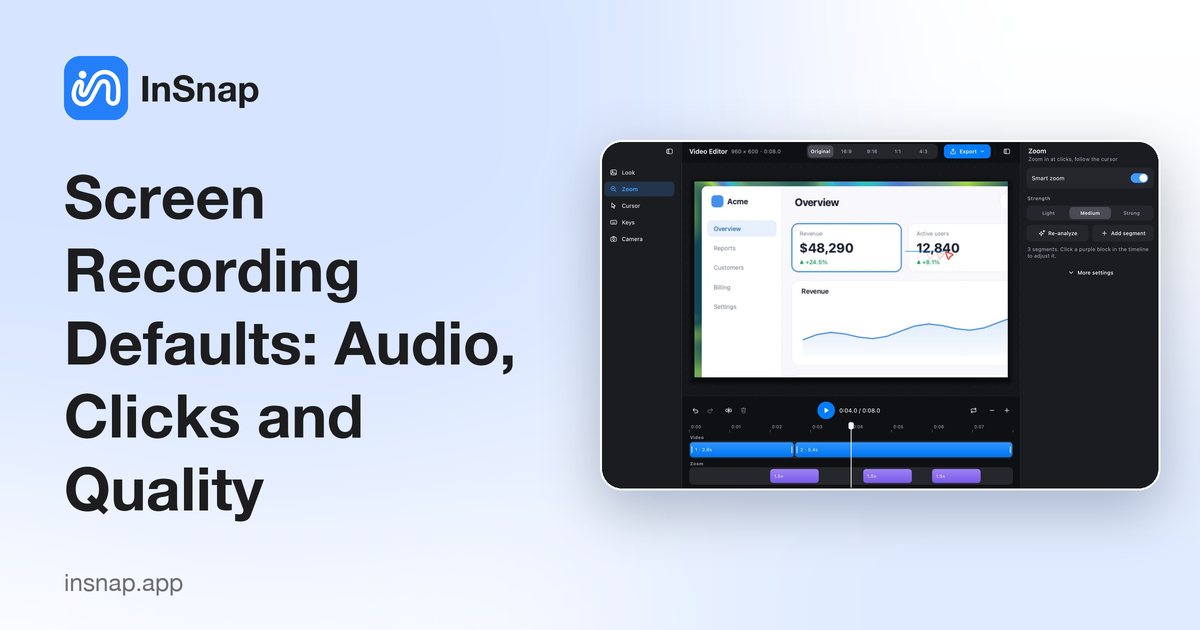
Screen Recording Defaults: Audio, Clicks and Quality
System audio, click effects, key hints and high-quality recording are defaults for the recording panel, not global switches. What each one changes before you record.
October 25, 2026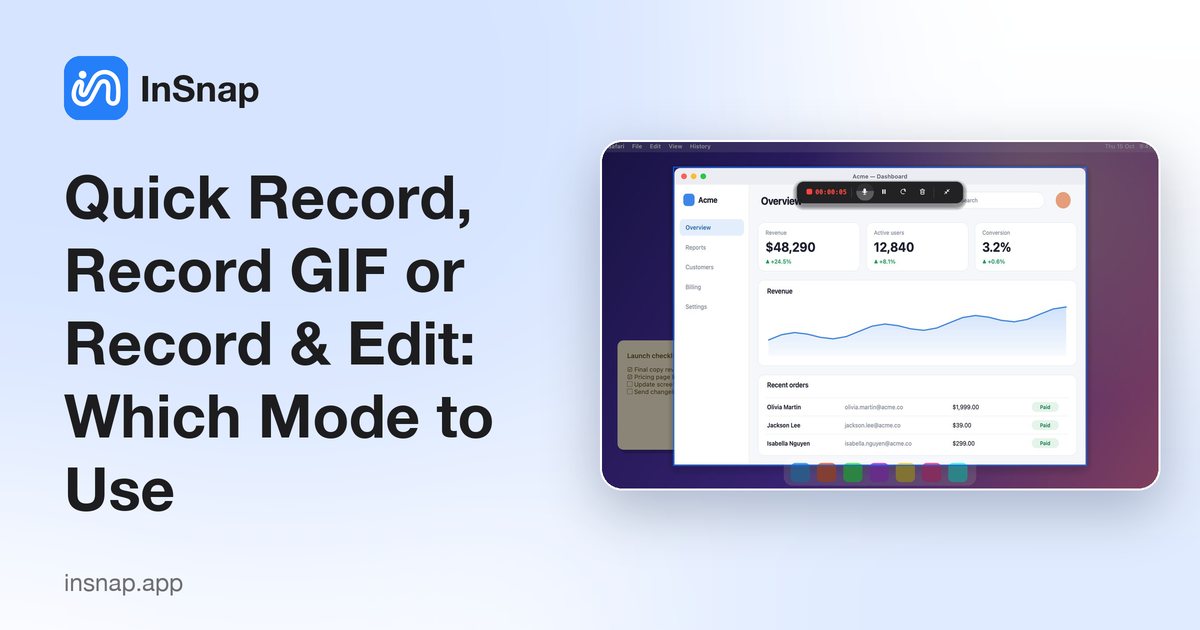
Quick Record, Record GIF or Record & Edit: Which Mode to Use
Three recording modes, three outputs: an MP4, a GIF or an editable project. What each one saves, what it costs, and how to choose before you press record.
October 25, 2026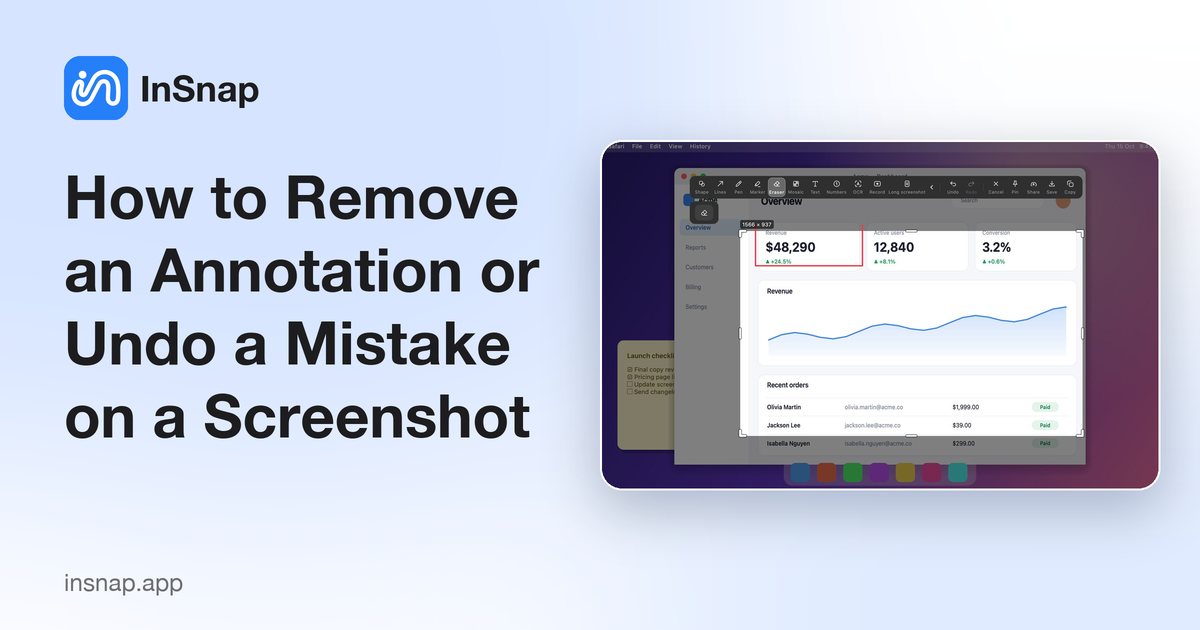
How to Remove an Annotation or Undo a Mistake on a Screenshot
Annotations are a separate layer: undo a stroke, erase part of a shape, or delete a selected arrow without touching the screenshot underneath.
October 25, 2026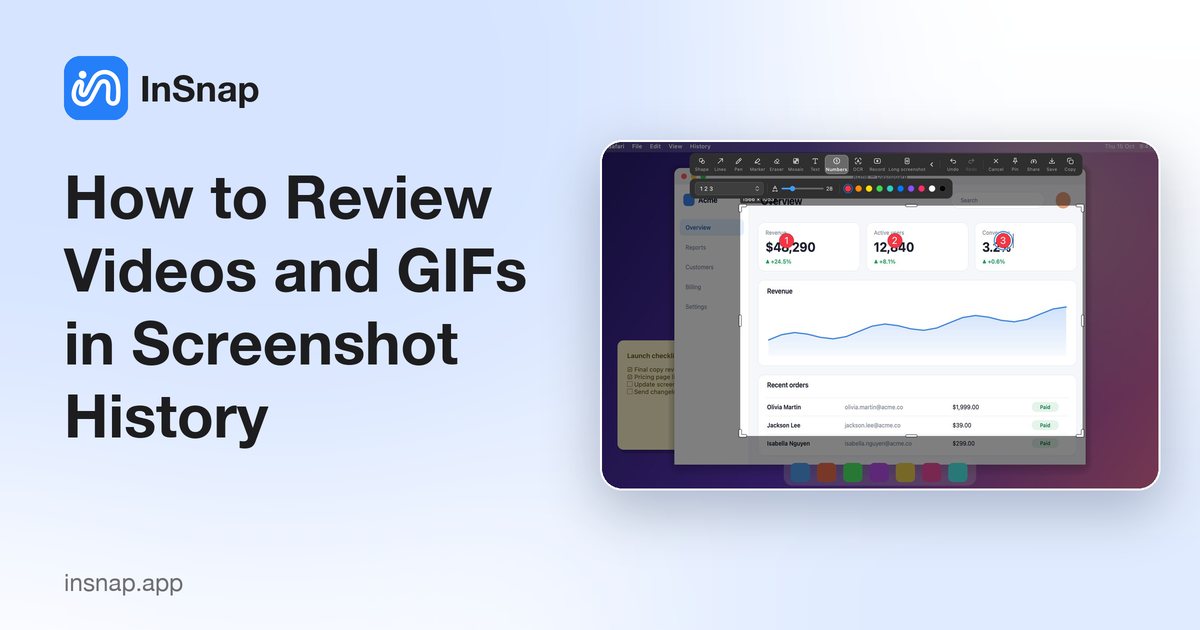
How to Review Videos and GIFs in Screenshot History
The history is not only screenshots. Videos, GIFs and guides open in the same viewer with playback, file actions and editing — here is what each type can do.
October 25, 2026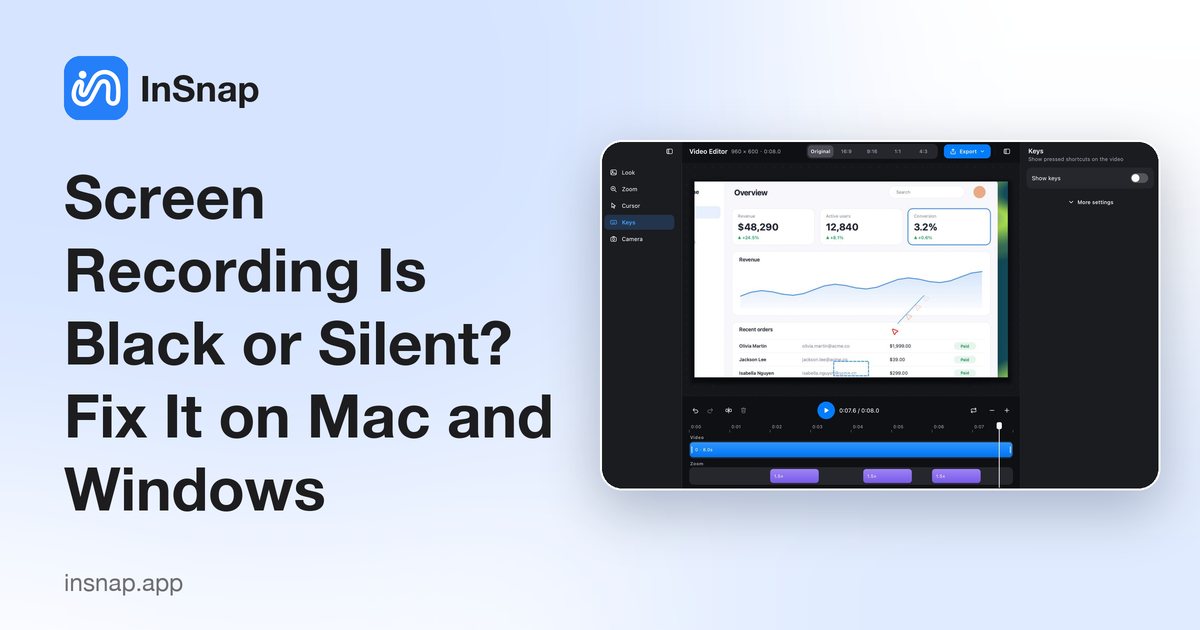
Screen Recording Is Black or Silent? Fix It on Mac and Windows
Why screen recordings come out black or with no sound, and how to fix permissions, audio sources, protected video and graphics issues on macOS and Windows.
October 25, 2026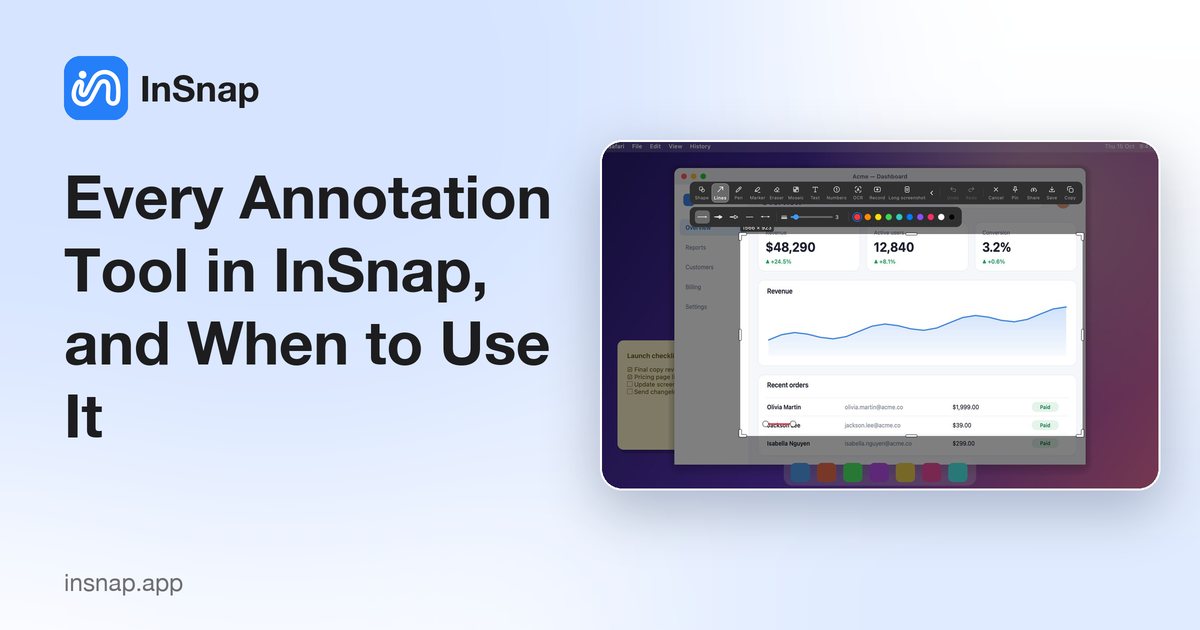
Every Annotation Tool in InSnap, and When to Use It
A quick reference to every annotation tool in InSnap: what each one is for, which are free, which need Pro, and the options worth adjusting.
October 25, 2026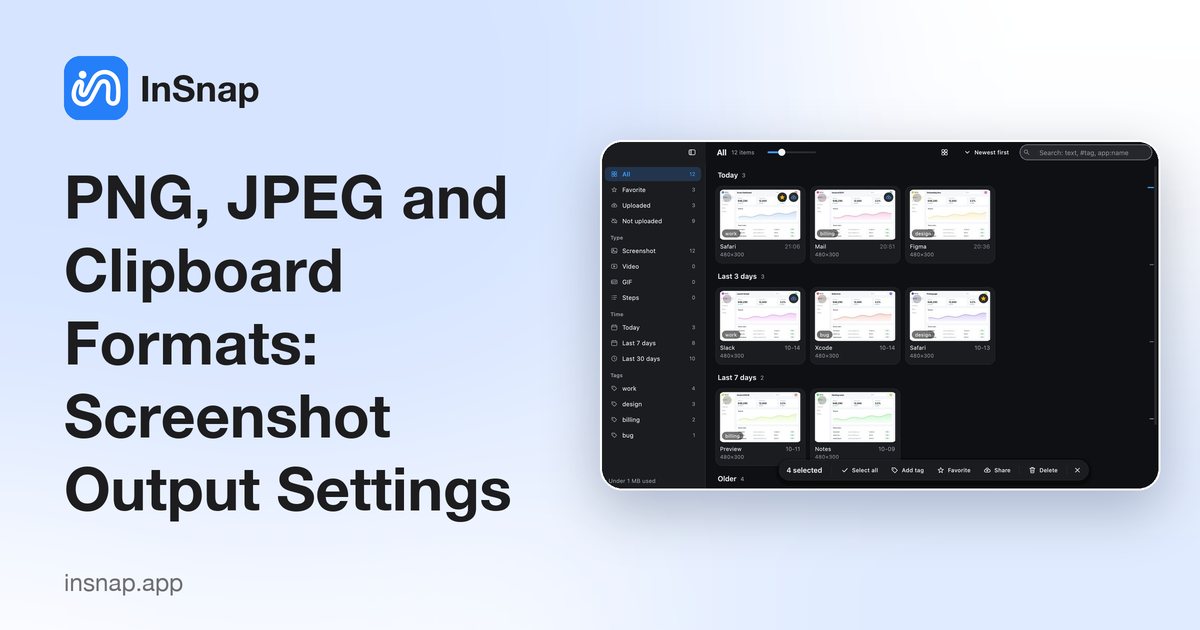
PNG, JPEG and Clipboard Formats: Screenshot Output Settings
Save as PNG or JPEG, scale Retina captures to 1x, add a border, and choose whether Copy puts an image or a file on the clipboard. What each setting changes.
October 25, 2026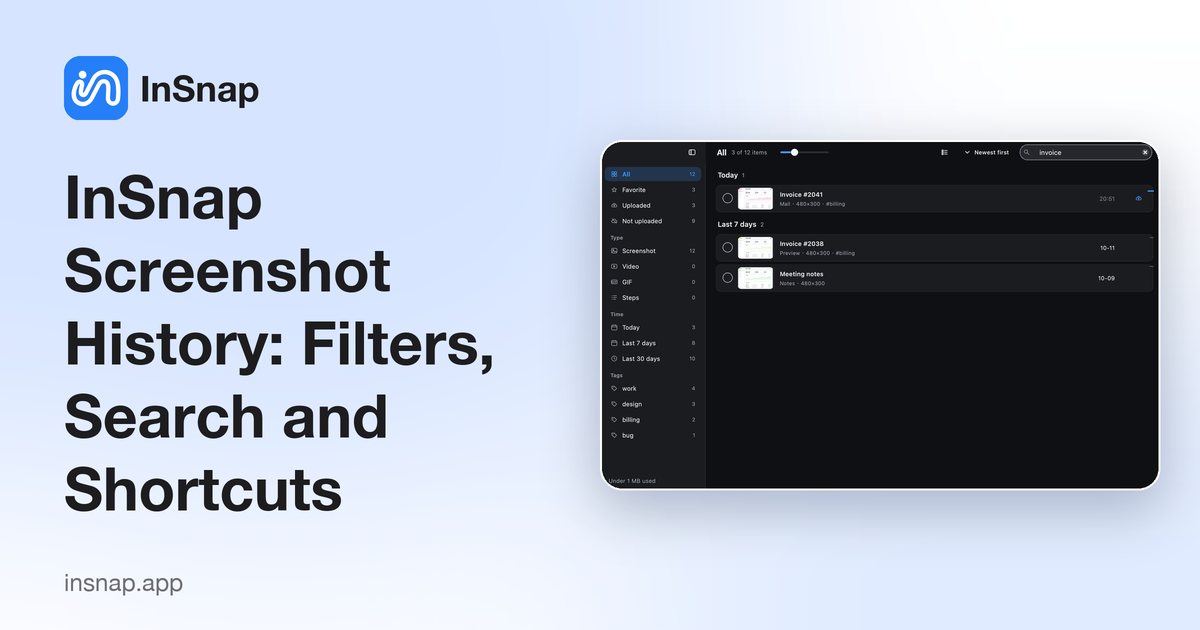
InSnap Screenshot History: Filters, Search and Shortcuts
A reference to the screenshot history: every sidebar filter, the search syntax, layouts, batch actions and the shortcuts that get you around it faster.
October 25, 2026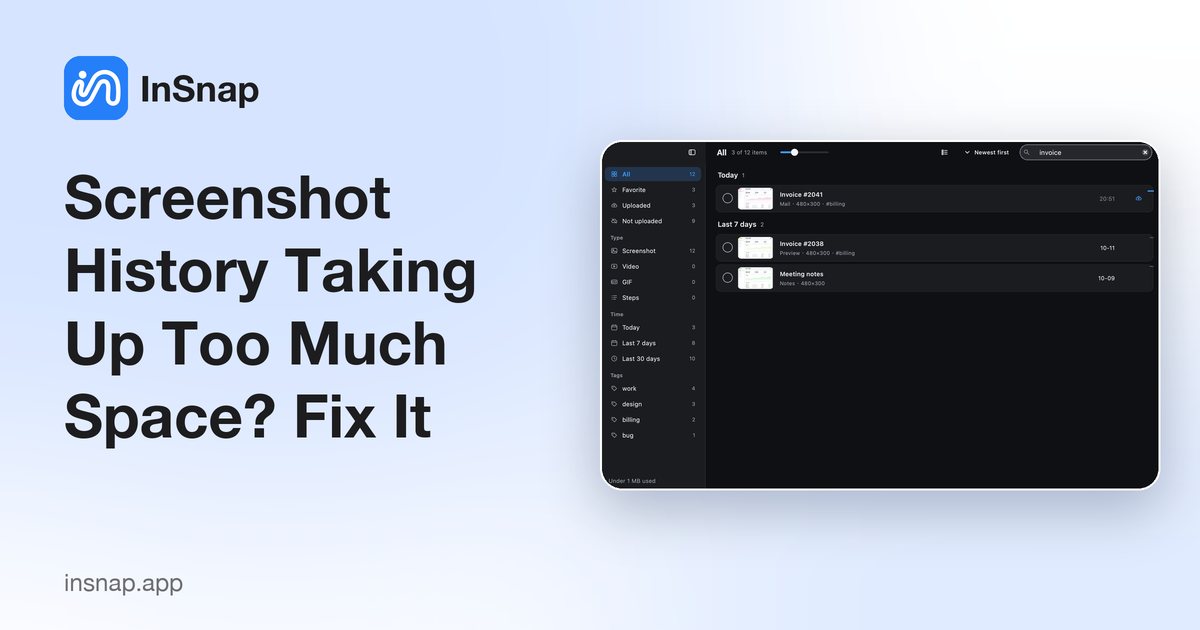
Screenshot History Taking Up Too Much Space? Fix It
Full-screen originals and thumbnails add up. How retention, size limits, favorites and manual deletion interact, and what is safe to remove.
October 25, 2026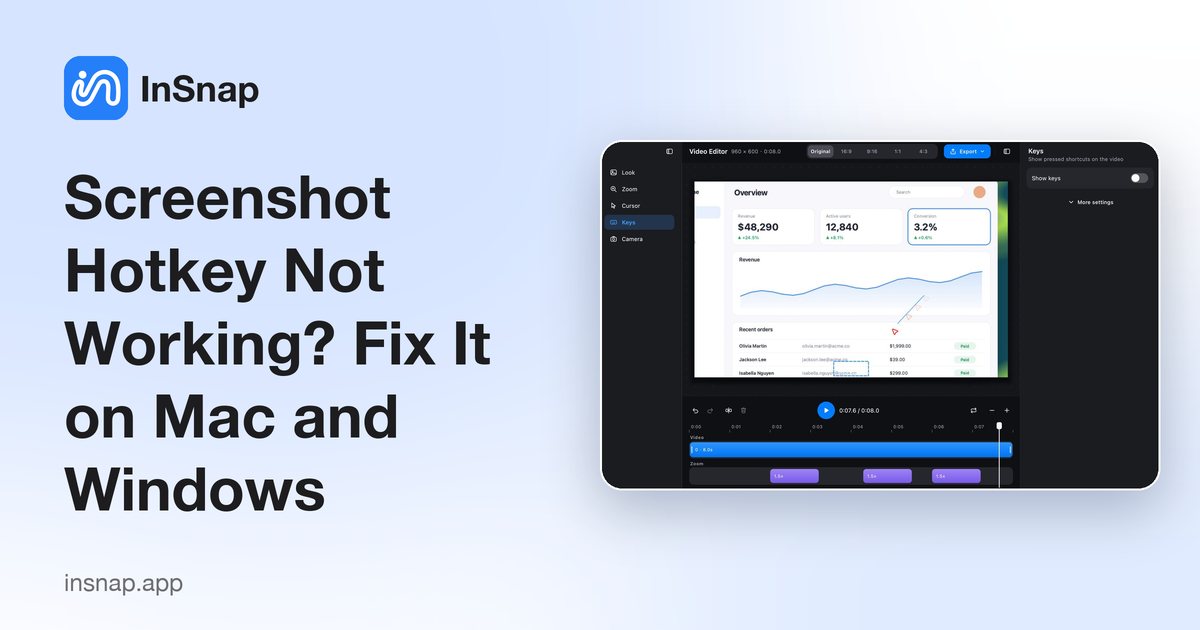
Screenshot Hotkey Not Working? Fix It on Mac and Windows
If Command-1 or Ctrl+1 does nothing, the cause is usually a conflict, a changed setting or the app not running. A short checklist to get the shortcut back.
October 25, 2026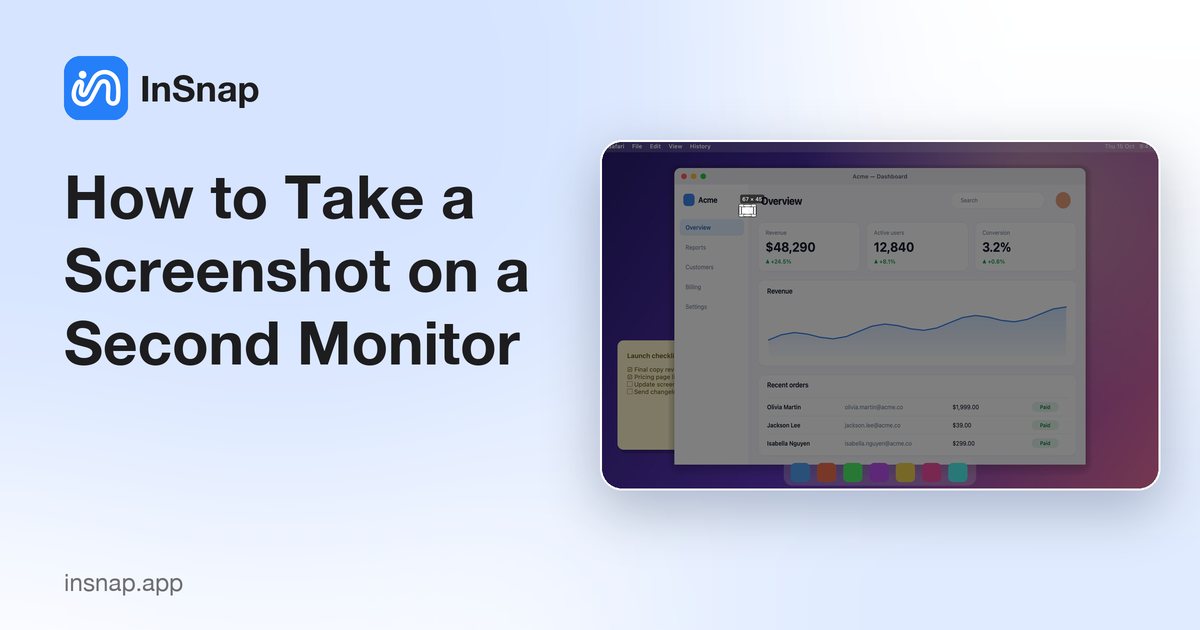
How to Take a Screenshot on a Second Monitor
Capturing on a second display is easy once the app knows which screen you mean. How multi-monitor capture works, including mixed Retina and low-DPI displays.
October 25, 2026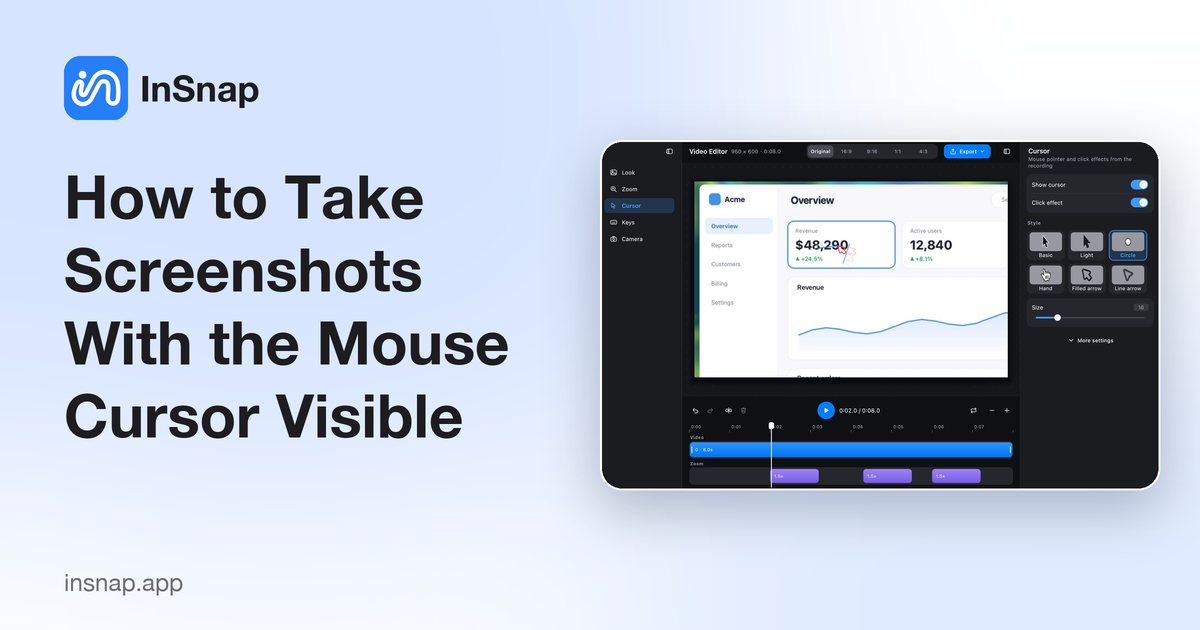
How to Take Screenshots With the Mouse Cursor Visible
When the pointer is the point: turn on the cursor in captures, keep it out of the way when it is not, and position it deliberately before you capture.
October 25, 2026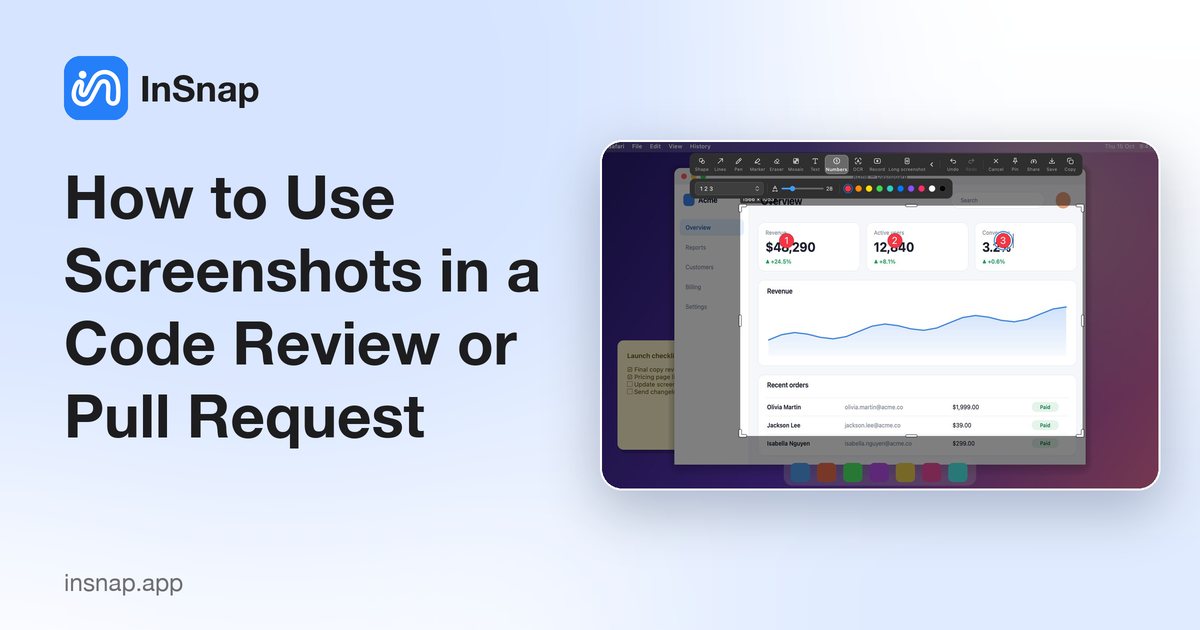
How to Use Screenshots in a Code Review or Pull Request
UI changes are hard to review as a diff alone. A small screenshot set — before and after, annotated, with the state that matters — makes a pull request reviewable.
October 25, 2026
How to Send Feedback From InSnap (and What Gets Attached)
The in-app feedback form, the support page and what environment information is included. How to send a useful report without leaking screenshots or logs you did not choose.
October 25, 2026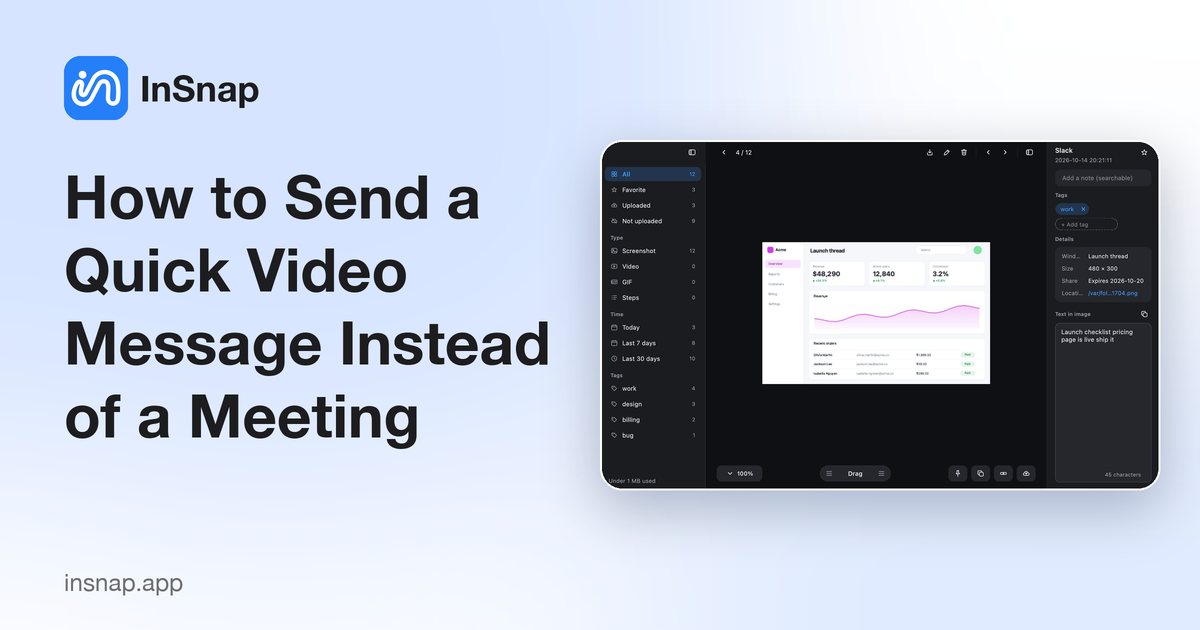
How to Send a Quick Video Message Instead of a Meeting
A two-minute recording often replaces a thirty-minute call. Plan one point, record the screen and voice, keep it short, and send it where people already work.
October 25, 2026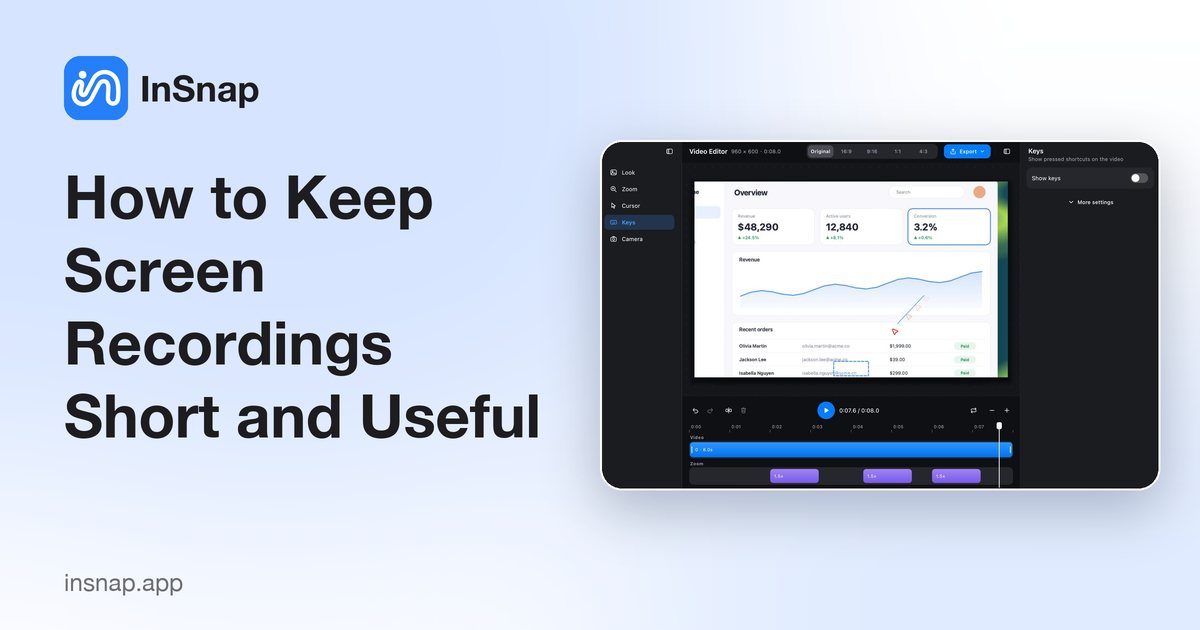
How to Keep Screen Recordings Short and Useful
Short recordings get watched. Plan the outcome, write three lines, prepare the screen and stop early — a practical routine for clips that people actually finish.
October 25, 2026
How to Sign In to Your InSnap Account (and When You Need To)
Signing in happens in the browser, not with a password in the app. What the account unlocks, why Pro activation does not need it, and how to sign out.
October 25, 2026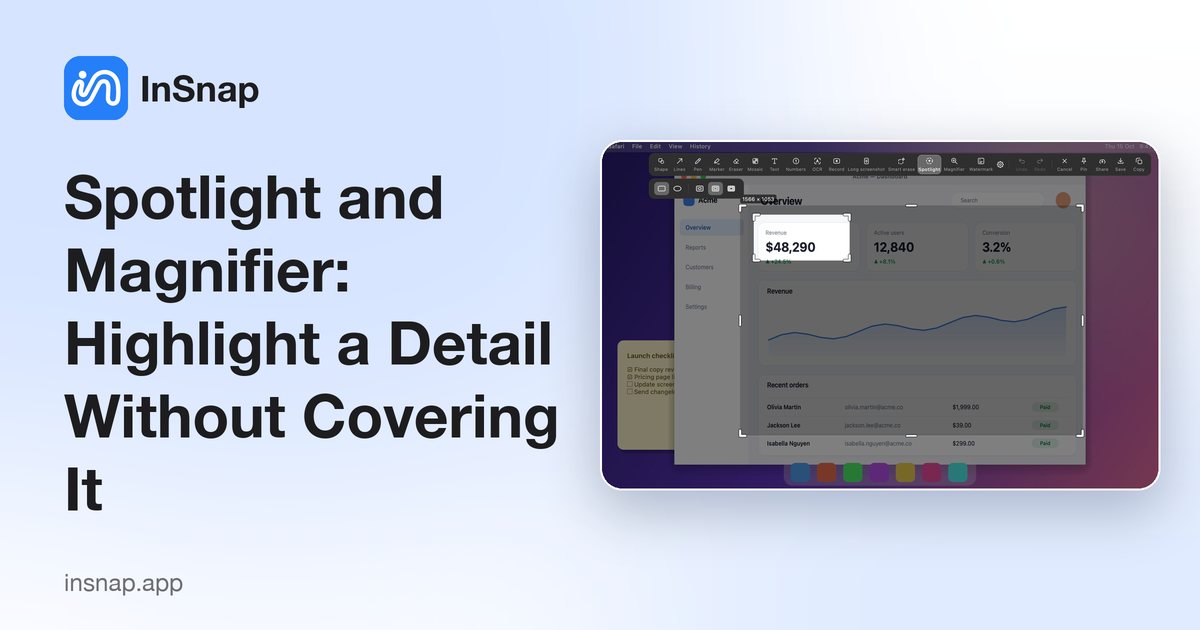
Spotlight and Magnifier: Highlight a Detail Without Covering It
Two InSnap Pro tools that point without painting over the evidence: Spotlight dims everything around an area, Magnifier shows a zoomed lens. When to use each.
October 25, 2026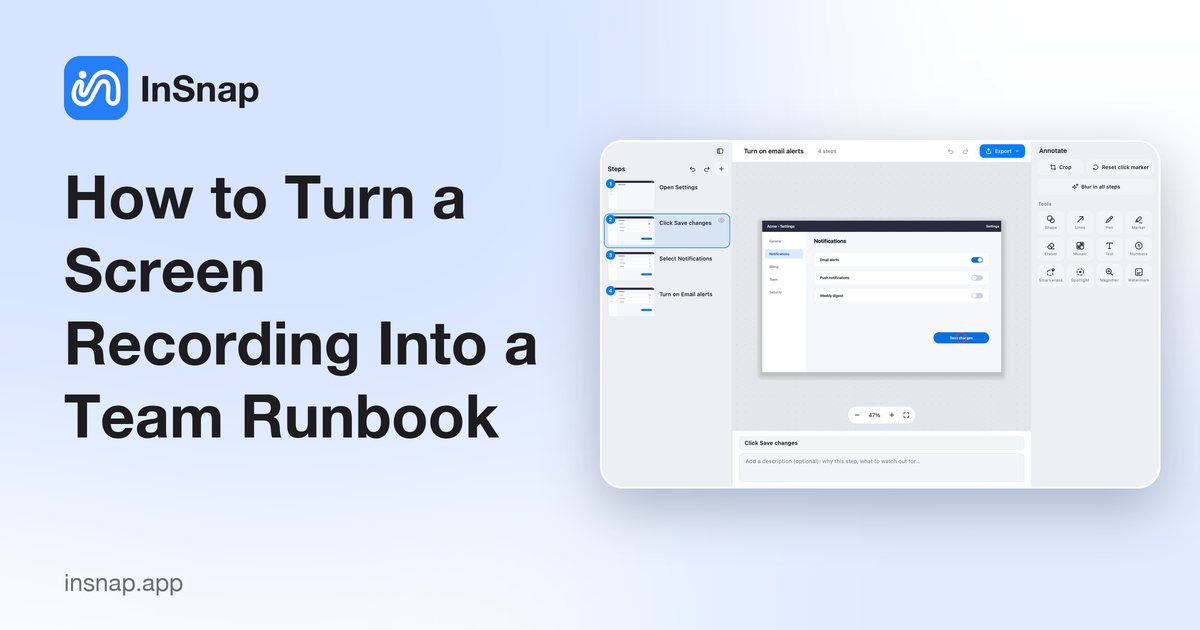
How to Turn a Screen Recording Into a Team Runbook
Record the process once, shape it into a guide with clear steps, warnings and sub-steps, then export it where your team already works.
October 25, 2026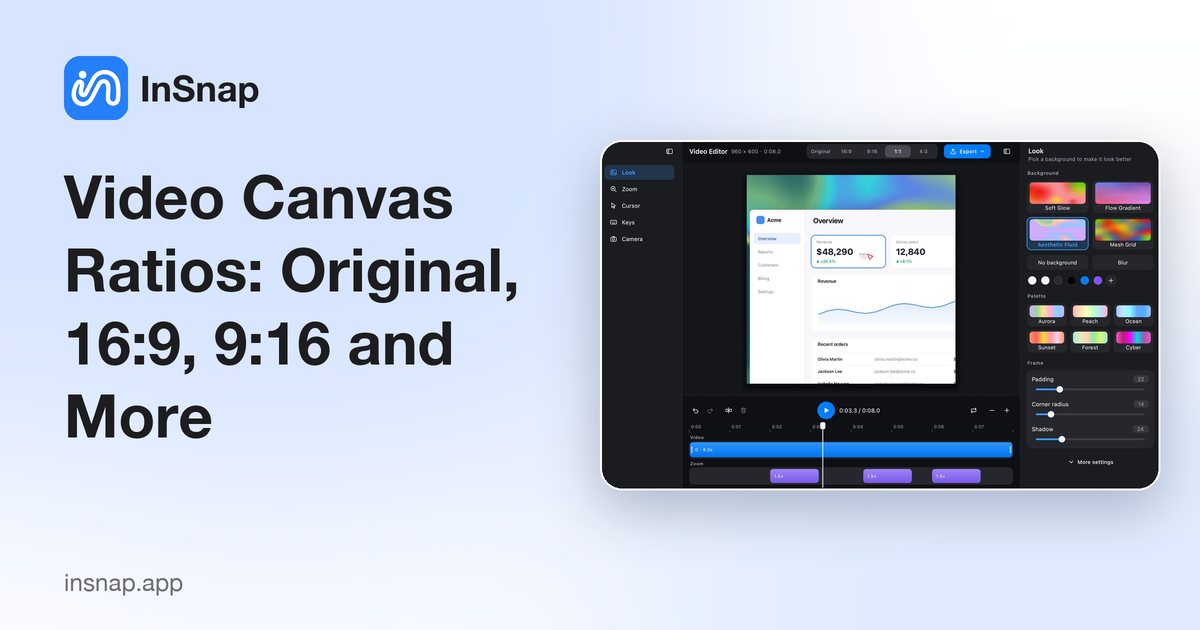
Video Canvas Ratios: Original, 16:9, 9:16 and More
The ratio buttons change the canvas, not the recording. How Original, 16:9, 9:16, 1:1 and 4:3 affect padding, backgrounds and the exported video.
October 25, 2026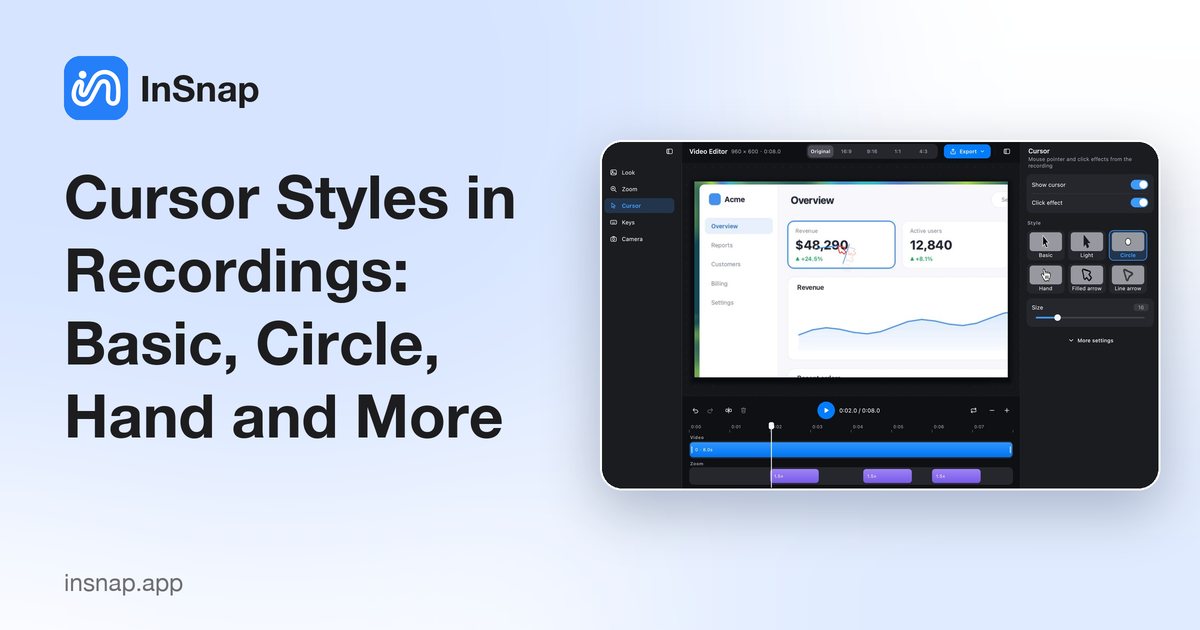
Cursor Styles in Recordings: Basic, Circle, Hand and More
Show or hide the pointer, add clicks and trails, and choose a cursor style that stays visible on a busy screen. What each option changes in the exported video.
October 25, 2026
Video Export Options: Quality, Size and Format Explained
What Low, Medium and High actually do, when InSnap can copy the original video without re-encoding, and how to choose between MP4 and GIF.
October 25, 2026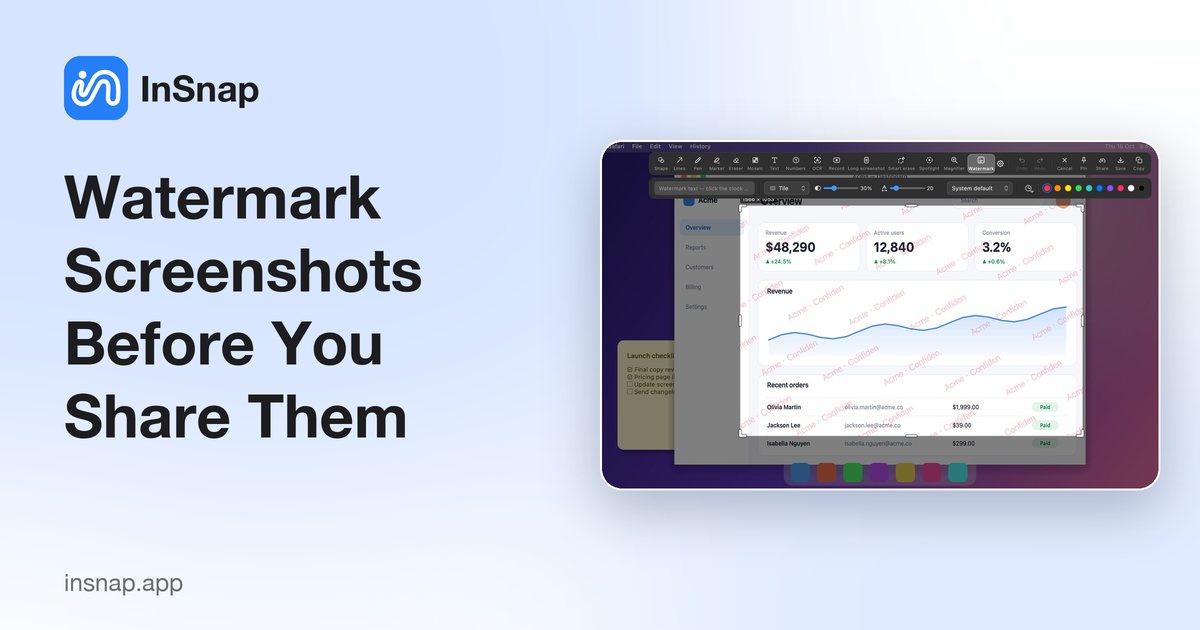
Watermark Screenshots Before You Share Them
How InSnap's Watermark tool works: text and timestamps, tiled or corner layouts, opacity and size — and what a watermark can and cannot protect.
October 25, 2026
What Is a .insnap File? Open, Share and Edit Recordings
A .insnap file is a recording package, not a video. What is inside it, how to open it on Mac and Windows, and when to send the MP4 instead.
October 25, 2026
How to Write Step Titles and Notes People Actually Read
Recorded guides write the first draft of every step title. Turn those titles into instructions, add the reason and the warning, and keep each step short.
October 25, 2026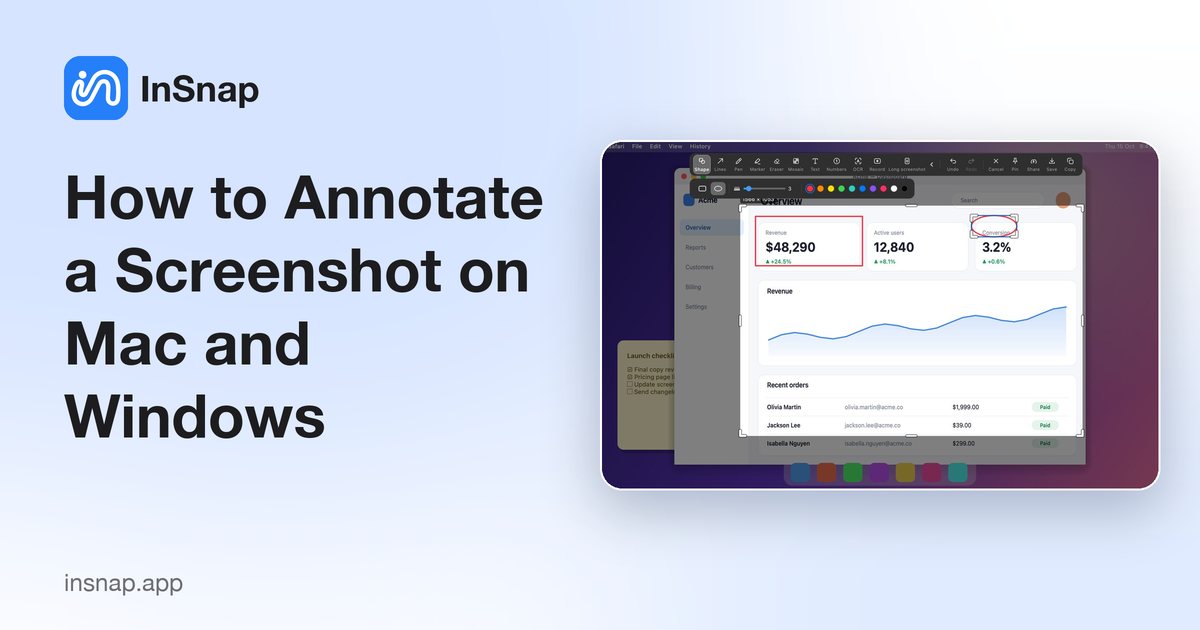
How to Annotate a Screenshot on Mac and Windows
Arrows, boxes, text, numbered steps or blur: which mark to use for each job, and how to annotate a screenshot on Mac and Windows without a design app.
October 24, 2026
How to Choose a Screenshot Tool for Mac and Windows
A practical checklist for picking a screenshot tool that fits how you work, with an honest look at built-in tools, single-platform apps and InSnap.
October 24, 2026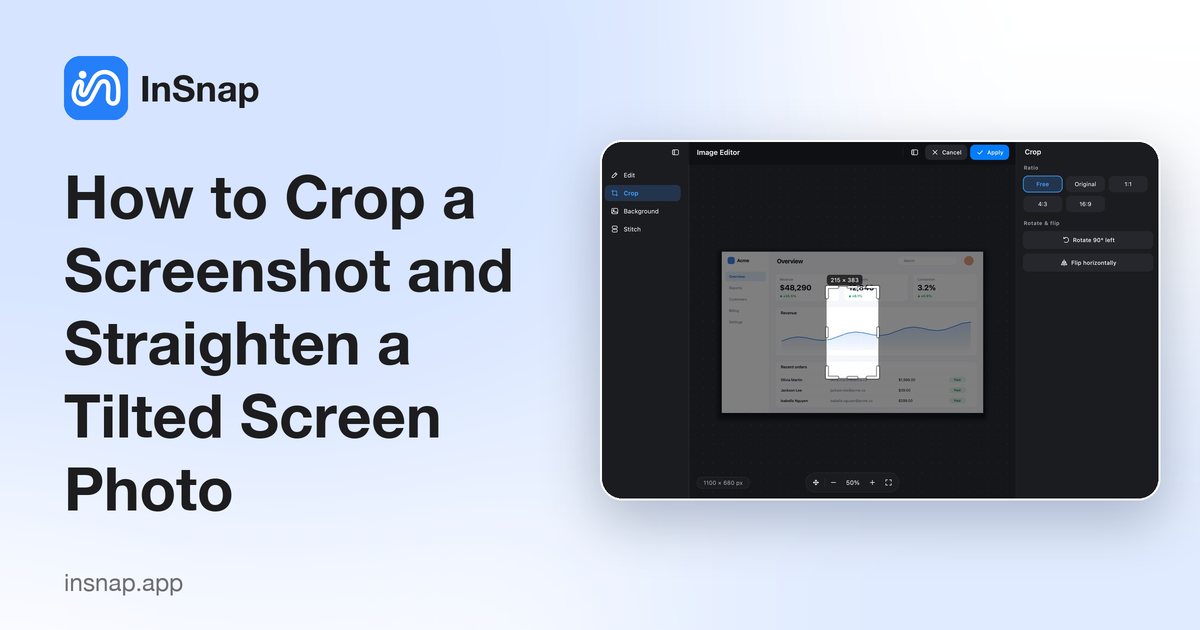
How to Crop a Screenshot and Straighten a Tilted Screen Photo
Crop a screenshot, rotate or flip it, and fix a tilted photo of a screen — plus what cropping does to your annotations and how it differs from trimming a recording.
October 24, 2026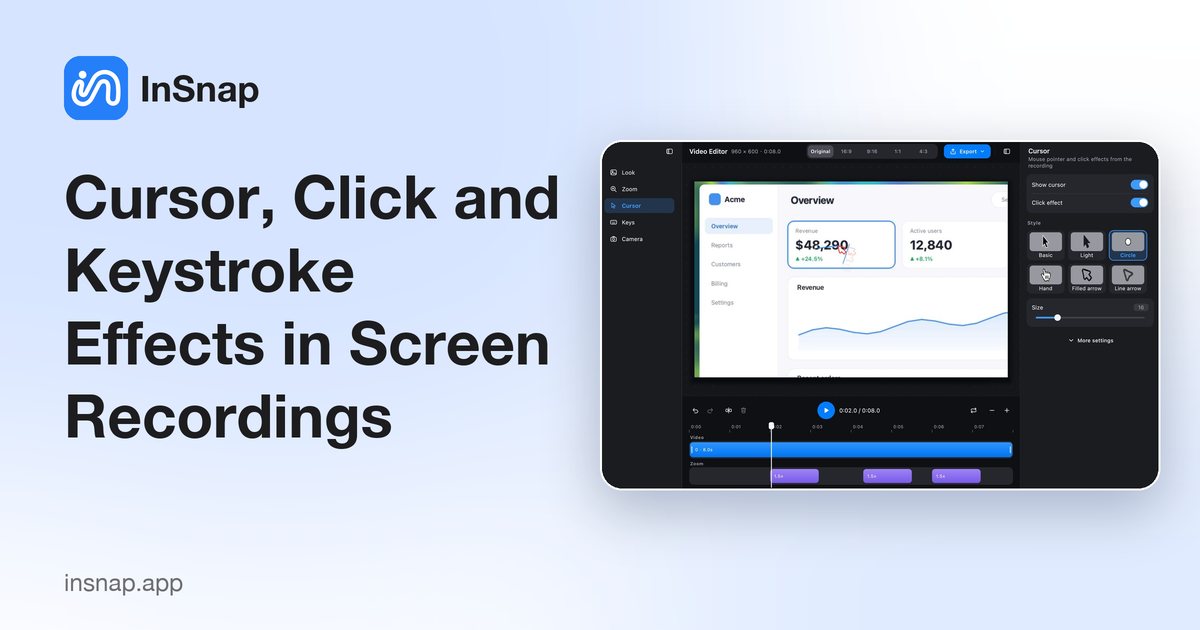
Cursor, Click and Keystroke Effects in Screen Recordings
Cursor highlights, click ripples and keystroke overlays make a screen recording easy to follow. What each effect is for, how to keep it subtle, and what to turn off.
October 24, 2026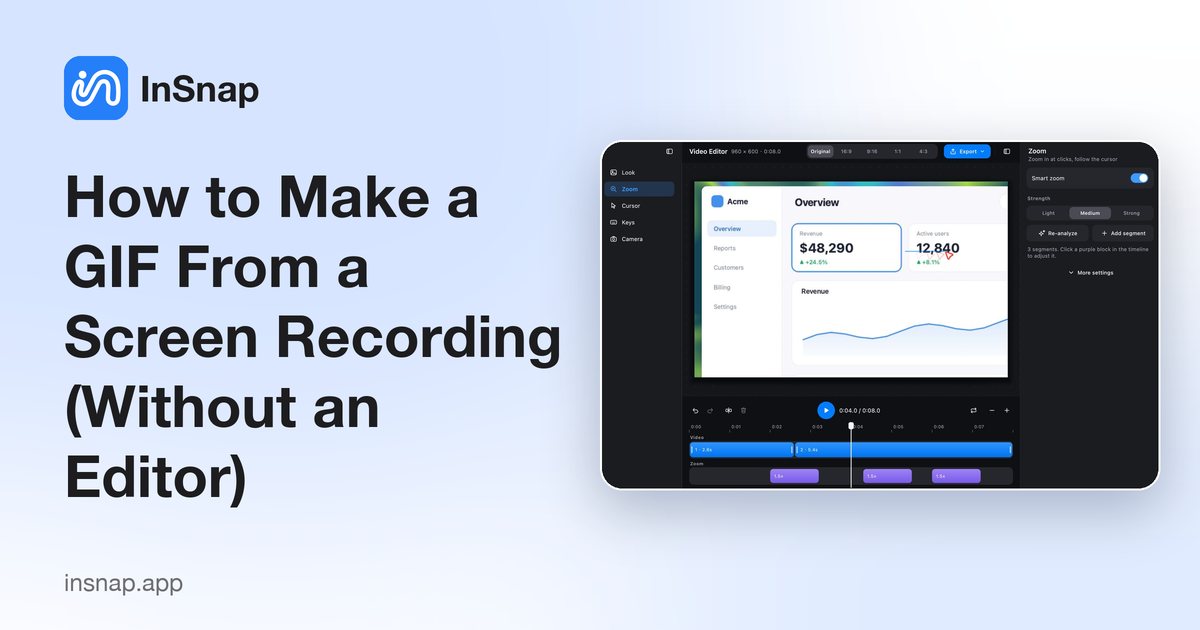
How to Make a GIF From a Screen Recording (Without an Editor)
Record a short area of your screen as a small, looping GIF for chat, a bug report or a doc: what to record, how to keep the file small, and when to trim.
October 24, 2026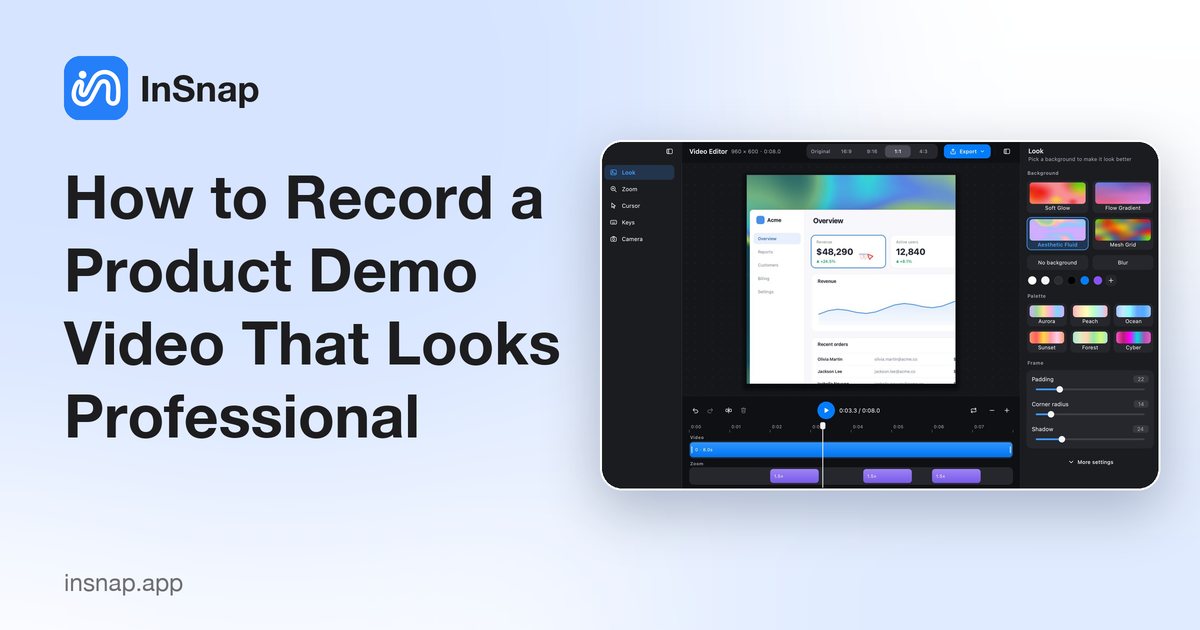
How to Record a Product Demo Video That Looks Professional
Plan the click path, record only the app window, add auto zoom that follows the click, frame the video for each channel, and export a polished demo.
October 24, 2026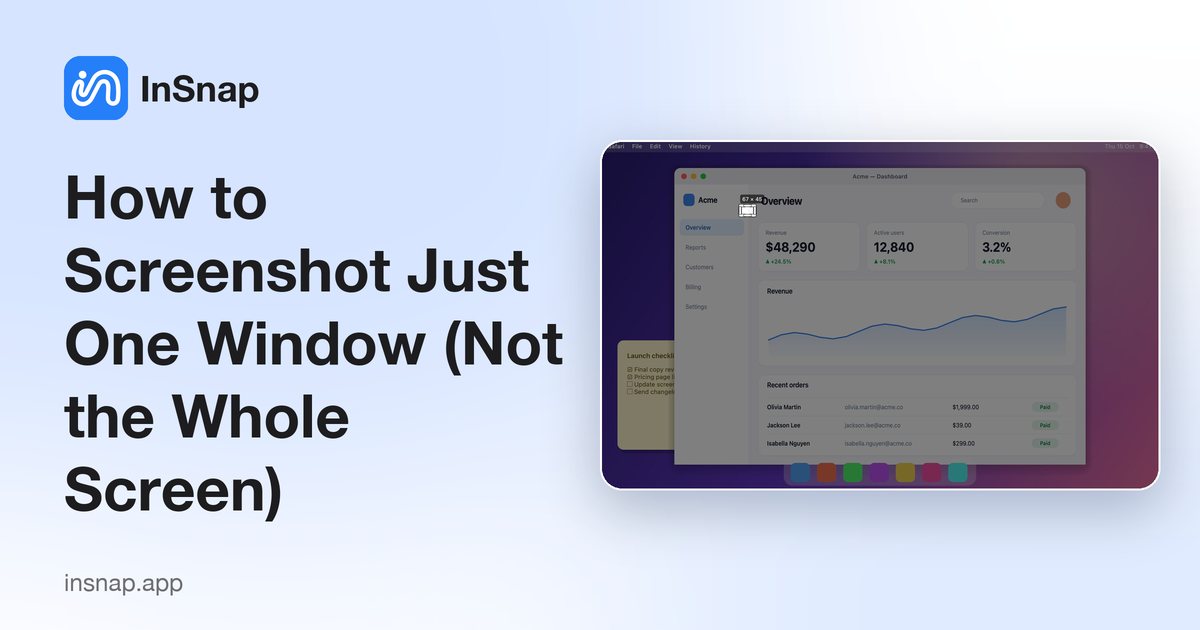
How to Screenshot Just One Window (Not the Whole Screen)
Capture a single window on macOS and Windows with the built-in shortcuts, why a hand-drawn box picks up clutter, and how to grab menus that close on a key press.
October 24, 2026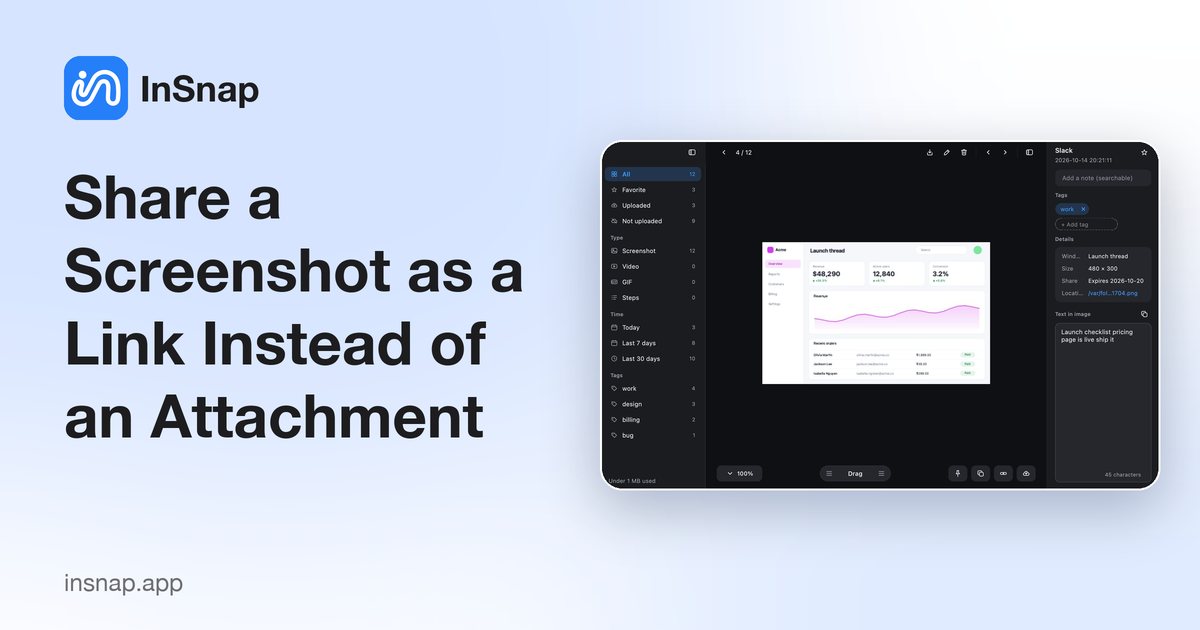
Share a Screenshot as a Link Instead of an Attachment
When a screenshot is too big for chat or needs to reach several reviewers, a share link works better. What to check, and how expiry and passwords work.
October 24, 2026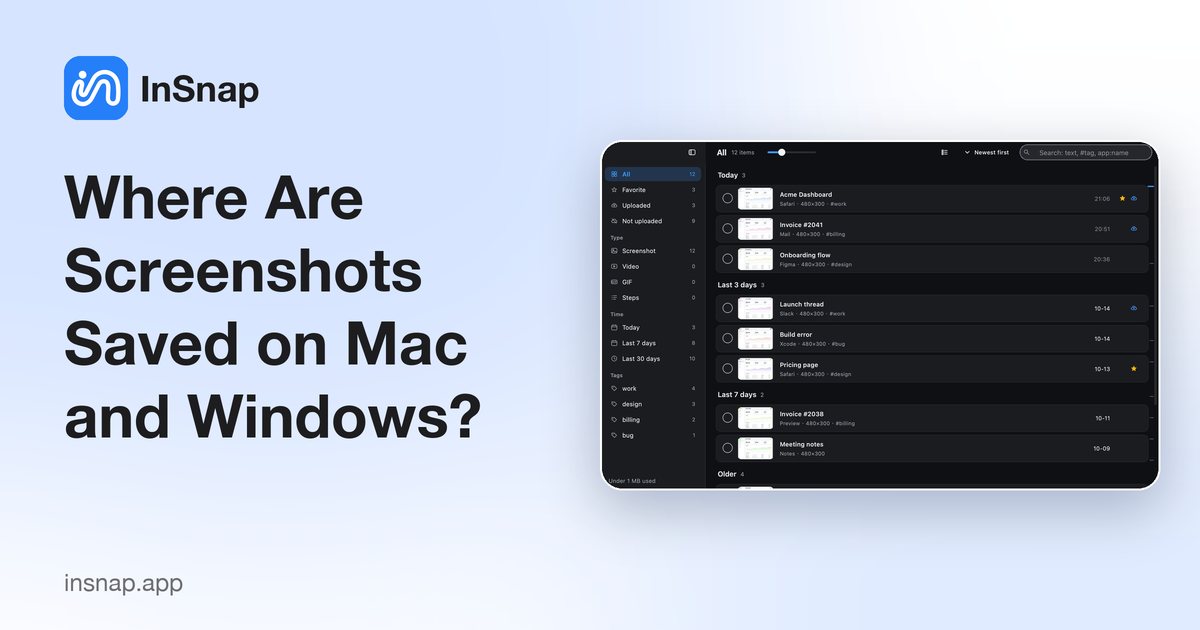
Where Are Screenshots Saved on Mac and Windows?
On a Mac, screenshots land on the Desktop by default; on Windows they go to Pictures › Screenshots. How to find them, change the folder, and stay organized.
October 24, 2026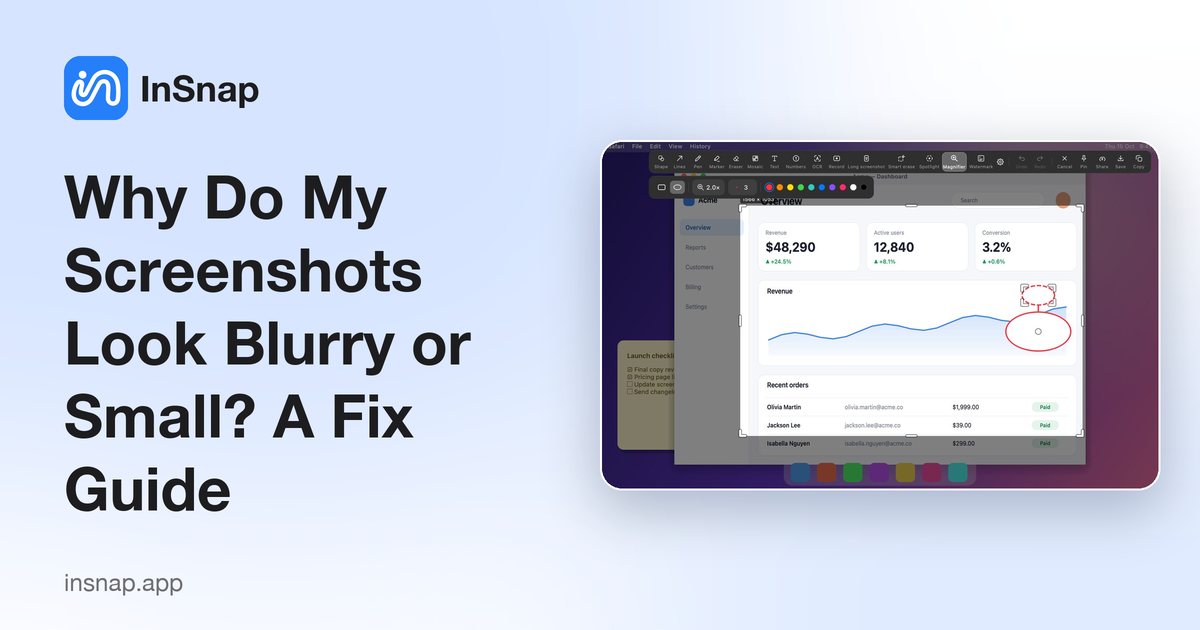
Why Do My Screenshots Look Blurry or Small? A Fix Guide
Screenshots look soft in Slack, Docs or a slide deck? How Retina and device pixels, resampling and JPEG compression blur text — and how to fix it.
October 24, 2026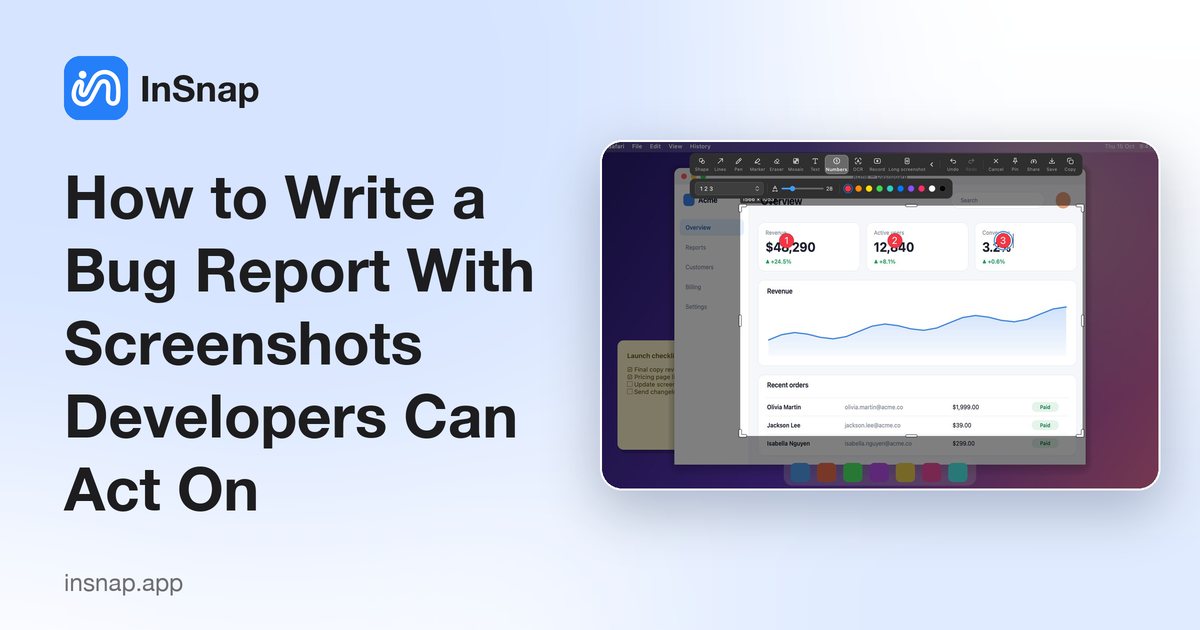
How to Write a Bug Report With Screenshots Developers Can Act On
A bug report a developer can act on has the exact steps, a full-window screenshot, the error text and a short recording. A practical guide for QA, support and PMs.
October 24, 2026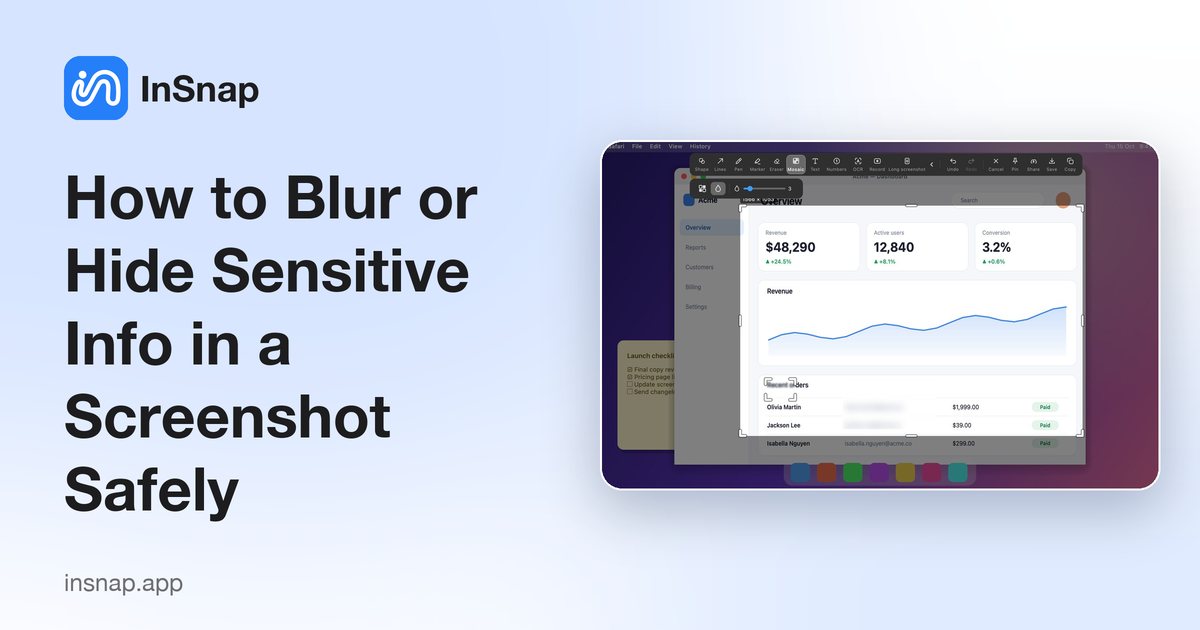
How to Blur or Hide Sensitive Info in a Screenshot Safely
Blur, pixelate or cover? How to hide emails, names, keys and numbers in a screenshot so they cannot be recovered, and how to do it quickly with InSnap.
October 23, 2026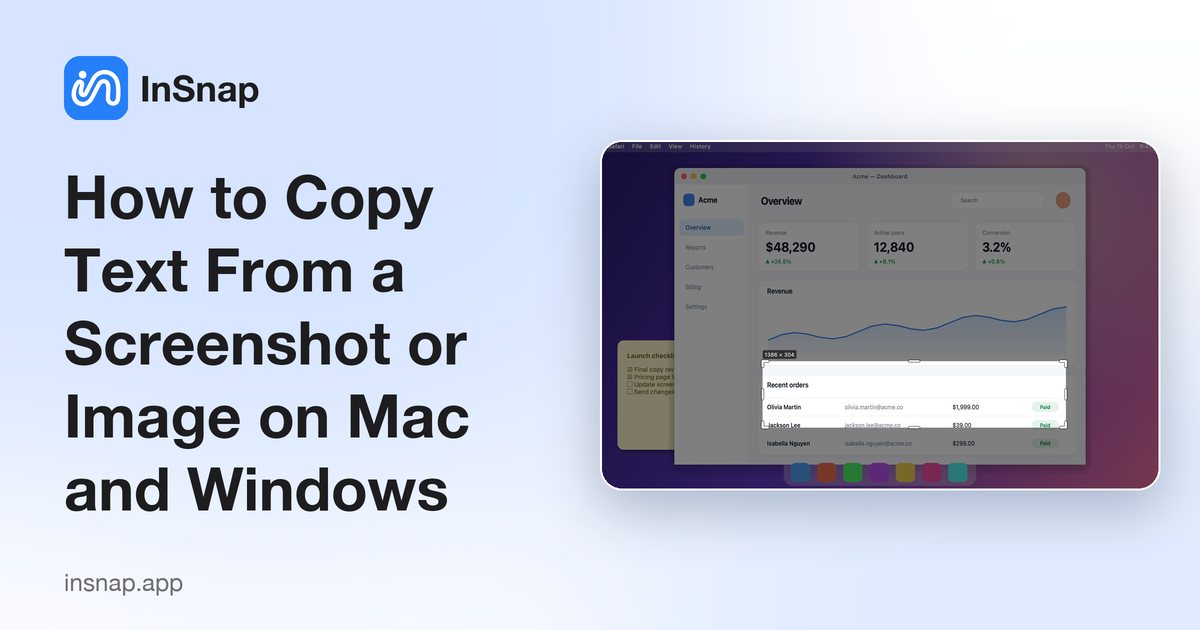
How to Copy Text From a Screenshot or Image on Mac and Windows
Turn the words in a screenshot into text you can copy. Built-in options on Mac and Windows, plus a fast on-device OCR workflow with InSnap.
October 23, 2026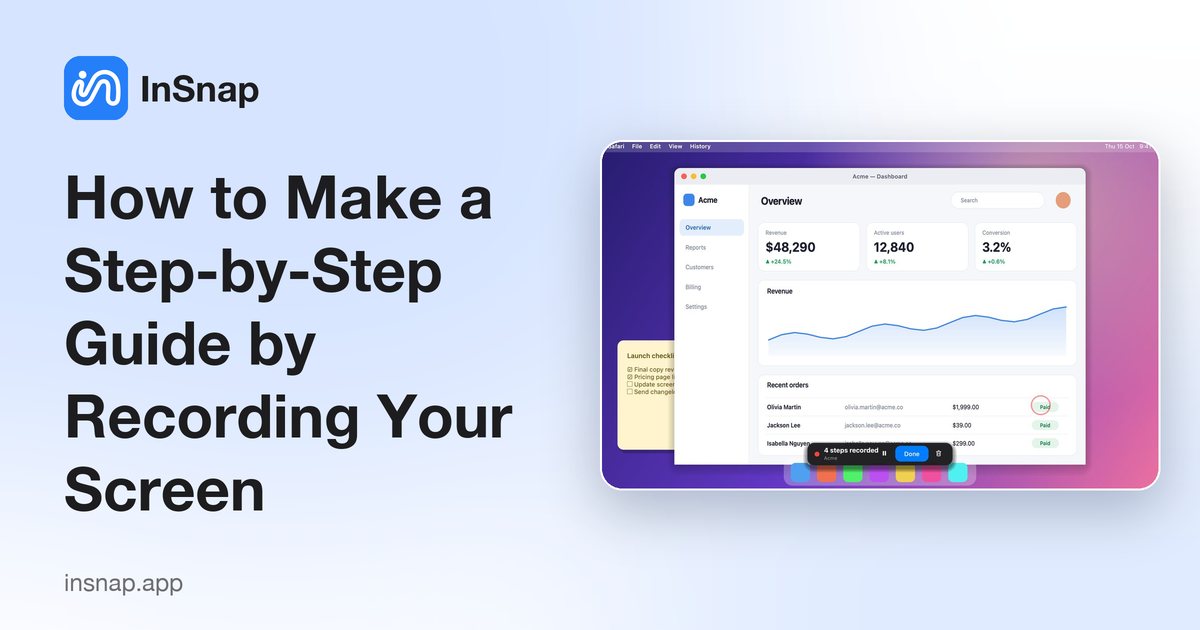
How to Make a Step-by-Step Guide by Recording Your Screen
Turn a task into a how-to guide with screenshots and titles by simply doing it once. Record, edit the steps, and export to PDF, Word, PowerPoint, HTML or Markdown.
October 23, 2026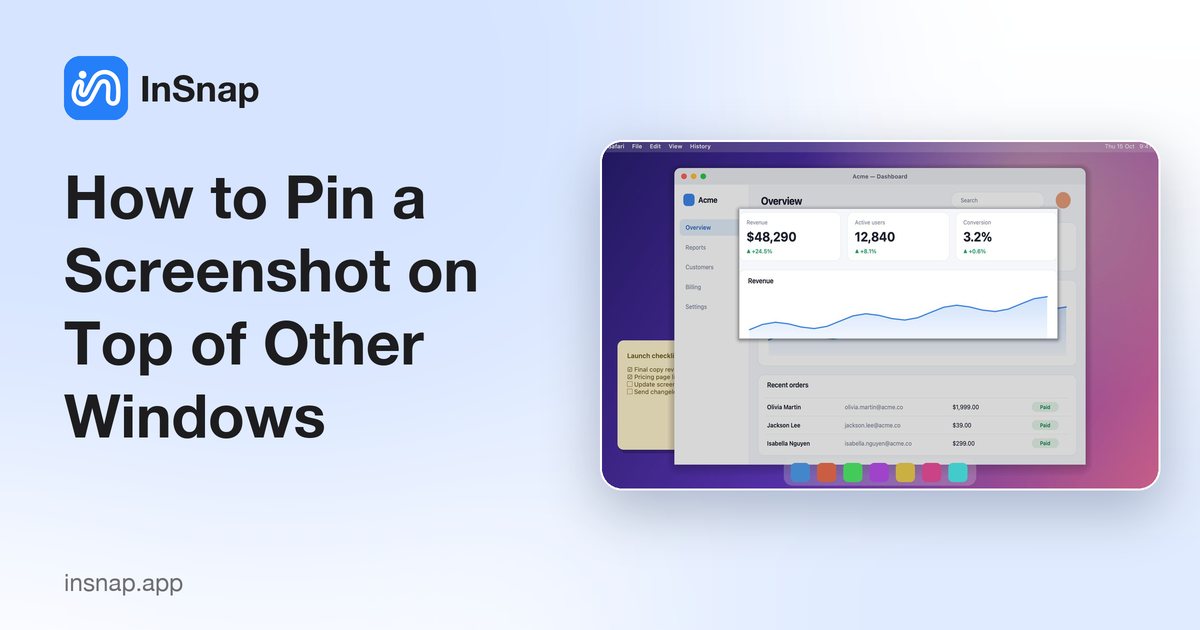
How to Pin a Screenshot on Top of Other Windows
Keep a screenshot or image floating above your other windows as a reference while you work. How it works on Mac and Windows, and how to do it with InSnap.
October 23, 2026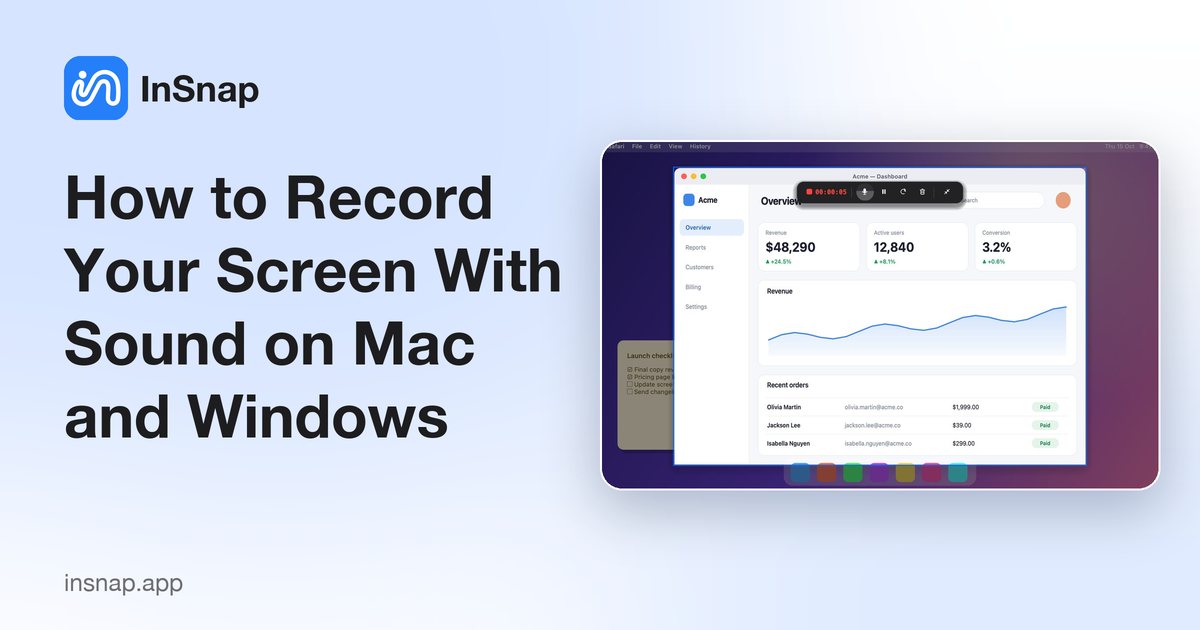
How to Record Your Screen With Sound on Mac and Windows
How to record your screen with system audio and microphone on Mac and Windows: what the built-in recorders can and cannot capture, and how to do it with InSnap.
October 23, 2026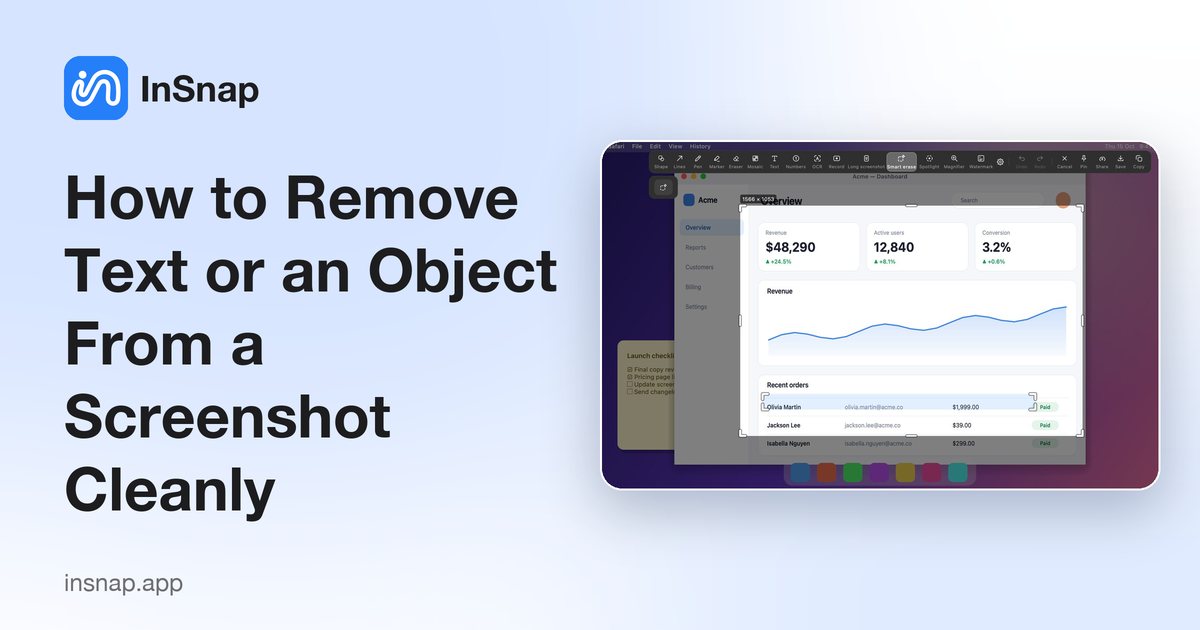
How to Remove Text or an Object From a Screenshot Cleanly
Remove a name, icon or text from a screenshot and fill the gap from the surrounding background. When it works best, what to expect, and how to do it with InSnap Smart Erase.
October 23, 2026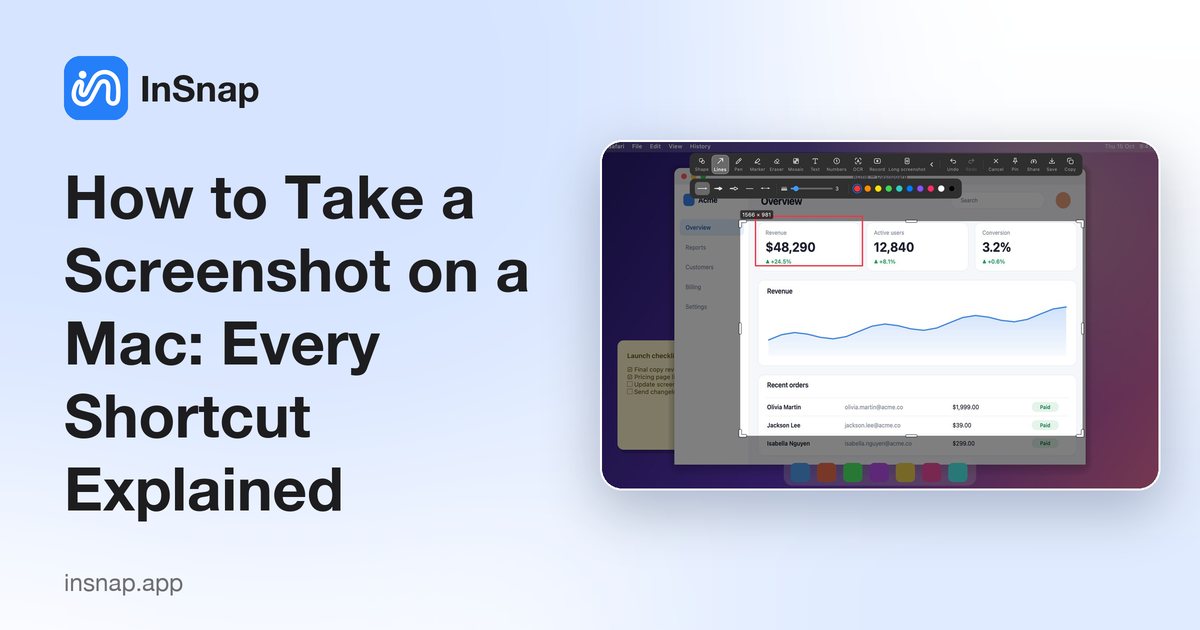
How to Take a Screenshot on a Mac: Every Shortcut Explained
All the macOS screenshot shortcuts in one place: full screen, a selection, a single window, copy to clipboard, record the screen, and where the files go.
October 23, 2026
How to Take a Screenshot on Windows 10 and 11: Every Shortcut
The Windows screenshot shortcuts that matter: Print Screen, Win+Shift+S, Alt+Print Screen, where files are saved, and how to record the screen.
October 23, 2026
How to Take a Scrolling Screenshot on Mac and Windows
Neither macOS nor Windows has a built-in scrolling screenshot. Here are the practical ways to capture a long page, chat or document as one image on Mac and Windows.
October 23, 2026
Your next screenshot is one hotkey away.
macOS 14.4+ (Apple Silicon & Intel) · Windows 10+ (64-bit)