 InSnap
How to Make a Before-and-After Comparison Image

One image beats two attachments: capture both states at the same size, stitch them side by side, label them, and send a comparison the reader can scan.
Before-and-after screenshots are the fastest way to show a change, but two loose attachments force the reader to switch back and forth and remember what they saw. A single side-by-side image removes that work.
Capture both states the same way
The comparison is only fair if the two images are comparable:
- Same viewport and zoom. A before at 100% and an after at 80% makes spacing and type size lie.
- Same crop. Capture the same region, not a tighter crop of the part that changed.
- Same window size and theme. A dark-mode after next to a light-mode before compares two changes at once.
- Same state. If the page has hover or focus effects, keep the pointer out of both captures.
For responsive layouts, make a pair per breakpoint rather than mixing widths.
Crop to the same aspect ratio
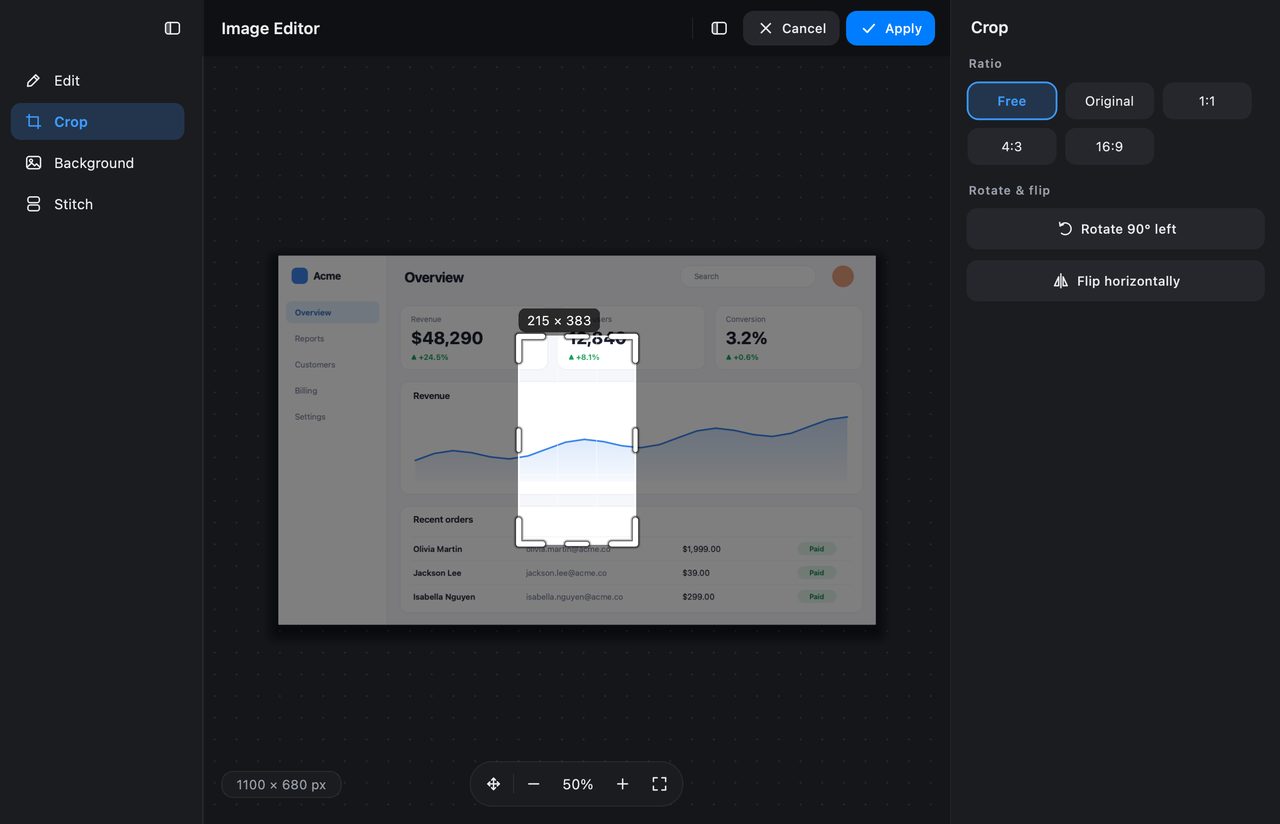
Open the first capture in InSnap's image editor and crop it to the region you want to compare. Apply the same crop to the second image, using the size label to keep the pixels matched. If the layouts differ in height, crop to the shorter one rather than padding with empty space.
Stitch them side by side
The image editor's Stitch panel places several images on one canvas (Pro):
- Choose Stitch in the left rail.
- Import the before image, then the after image.
- Drag them into order and align their tops.
- Leave a consistent gap between them; a few pixels of padding reads as a deliberate pair.
- Flatten when the arrangement is right, then add labels.
If the two images are different sizes, resize the larger one to match, or crop both to the same aspect ratio before stitching. A mismatch in scale is the most common reason a comparison looks "off".
Label the sides, not every detail
Use Text to add "Before" and "After" — or "Current" and "Proposed" — in the same corner of each side. Keep the labels short and identical in style.
Then annotate only the differences that matter:
- Numbers if there are several changes: 1 for spacing, 2 for the new button.
- Shapes to outline the changed region.
- Arrows only when the direction is not obvious.
- Redaction for names, emails and internal URLs in either image.
Do not annotate the same detail on both sides; mark it once, on the side where it changed.
Export for the destination
- Chat or email: a single PNG is easiest to read and survives most clients.
- Slides: match the deck's aspect ratio and use a backdrop if the images are dark.
- Documentation: a consistent width for every comparison image in the set.
If the file is large, scale the Retina capture to 1x on save; a comparison does not usually need full pixel density.
A comparison checklist
| Check | Why |
|---|---|
| Same viewport, zoom and theme | Otherwise the comparison is invalid |
| Same crop and aspect ratio | The eye compares edges first |
| Labels in the same place | "Before" and "After" are easy to mix up |
| Differences marked once | Less clutter, clearer point |
| Private data hidden in both | The old state can leak too |
| One file, not two attachments | Easier to read and forward |
FAQ
Do I need Pro to stitch two screenshots?
Yes, stitching is a Pro feature. A free alternative is to pin both screenshots side by side on screen for your own comparison, but the exported single image requires the editor's stitch panel.
What if the two screenshots have different sizes?
Crop both to the same aspect ratio, or resize the larger image to match the smaller one before stitching. Keeping the scale identical matters more than preserving every pixel.
Can I compare three versions?
Yes. Stitch them in order — for example, old, current and proposed — with the same gap and label style. If the differences are subtle, a two-image pair per change is easier to read than one wide strip.
More from the blog

How to Add Text to a Screenshot (and Make It Readable)
Add labels, titles and callouts to a screenshot with readable contrast, the right size and clean placement — plus how to edit them later on Mac and Windows.
October 25, 2026
Auto Zoom for Screen Recordings: What It Does and When to Use It
How InSnap's auto zoom follows your clicks in a screen recording, how the strength settings change the result, and when a static recording is better.
October 25, 2026
How to Get Better OCR Results From a Screenshot
Text recognition is only as good as the pixels you give it. Crop tightly, keep the resolution, avoid skew and busy backgrounds, and know the language limits.
October 25, 2026