 InSnap
Auto Zoom for Screen Recordings: What It Does and When to Use It

How InSnap's auto zoom follows your clicks in a screen recording, how the strength settings change the result, and when a static recording is better.
A screen recording of a full desktop is honest and hard to watch. The viewer has to find the cursor, work out which control you clicked, and ignore everything else. Auto zoom fixes that by cutting to a closer view around the action and back out again — automatically, from the clicks already recorded.
In InSnap, auto zoom lives in the video editor that opens after Record & Edit. It is a Pro feature.
What auto zoom does
When you record with Record & Edit, InSnap saves the video together with the mouse and keyboard events. The editor uses those events to find the moments worth zooming in on: a click on a button, a field being filled, a selection being made. For each moment it builds a zoom segment — a start time, an end time, and a scale factor — and animates the camera between them.
The result is a recording that looks edited without a manual keyframe pass: wide when you are moving around the screen, close when you are actually doing something.
How it decides where to zoom
Two signals drive the camera:
- Clicks. Each click is a strong hint that something important happened at that point. The zoom centers on the clicked area and stays long enough to read the result.
- Cursor movement. Between clicks, the camera follows the pointer so the viewer does not lose it. The movement is smoothed, not copied frame for frame, so the video does not feel jittery.
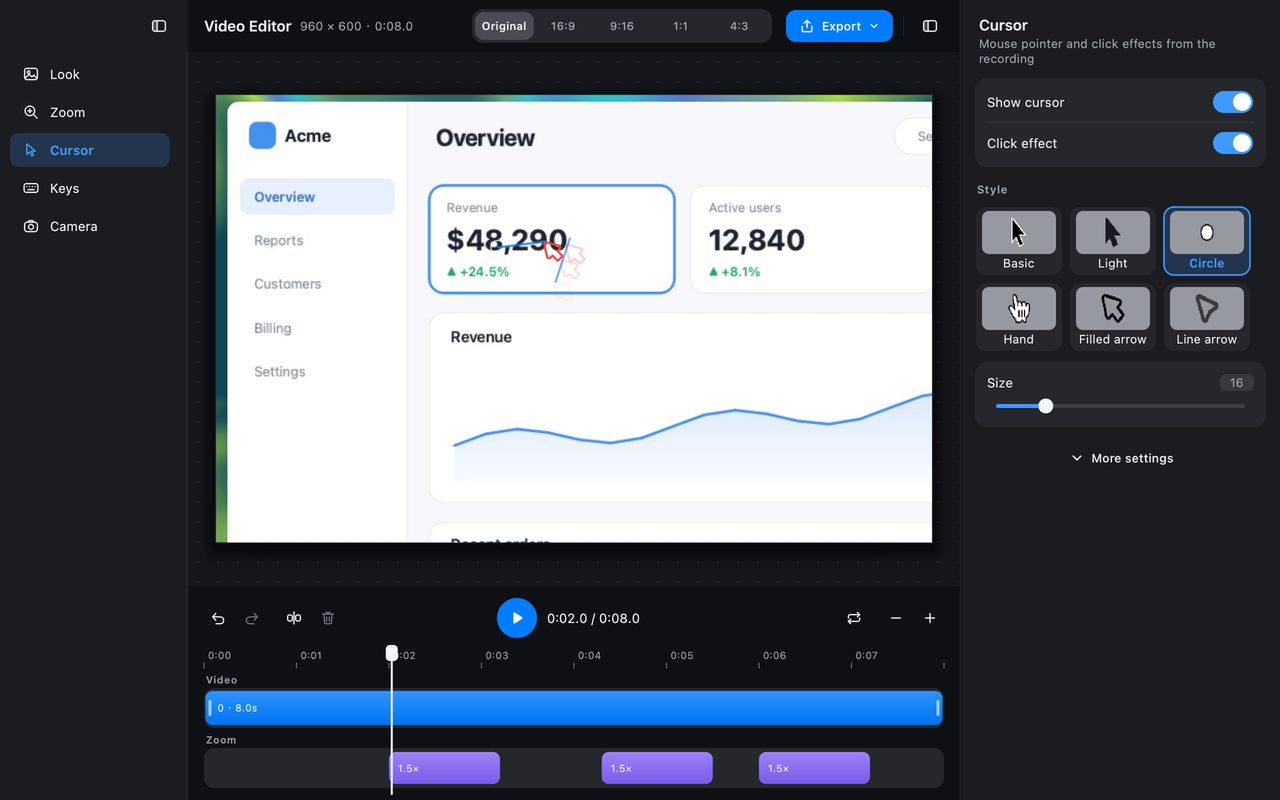
If you change the recording, use Re-analyze to rebuild the segments from the events. In the panel you will see how many segments were created; for an eight-second clip, six is normal for a handful of interactions.
Choosing a strength
The Strength setting controls how far the camera goes in, not how often it zooms:
| Strength | Result | Use it for |
|---|---|---|
| Light | Subtle push-in; the context stays visible | Demos where the layout matters |
| Medium | Balanced; the default for most tutorials | General how-to videos |
| Strong | Close crop on the action | Small controls, detailed forms |
Changing the strength re-renders the same segments at a different scale, so you can try one setting, watch a few seconds, and switch without re-recording.
Adjusting the segments
The timeline has a separate Zoom track under the video track. Each purple block is one segment, labelled with its scale. Click a block to adjust it, or hide the whole track when you want to watch the recording without the effect.
Two practical adjustments:
- Add a segment where the automatic pass missed something — for example, a menu that appears between clicks.
- Remove or shorten segments that feel busy. A recording with ten zooms in fifteen seconds is harder to watch than one with three.
The preview always uses the same renderer as the export, so what you see in the editor is what lands in the MP4.
When not to use it
Auto zoom is not always the right choice:
- Very short clips — a five-second snippet may not need a single zoom.
- Recordings where the whole screen matters — dashboards, charts or side-by-side comparisons can lose their meaning when cropped.
- Fast, continuous interaction — if the cursor is everywhere, the camera will chase it; a static recording with a cursor highlight may be calmer.
- Anything exported as original quality — zoom is a burned-in effect, so it requires re-encoding rather than a passthrough export.
For those cases, turn Smart zoom off and use the other tools: a larger cursor, click effects, or a spotlight in the video editor's background panel.
FAQ
Is auto zoom free?
No. Auto zoom is a Pro feature of the video editor, included in the one-time $15 purchase along with camera picture-in-picture, GIF export, high-quality export, backgrounds, guides and Smart Erase.
Does auto zoom change the exported file size?
It changes how the file is produced: with effects burned in, the export is re-encoded rather than passed through, so the file is usually larger than a plain recording of the same length. The quality setting controls how much.
Can I use auto zoom on a recording I made earlier?
Yes, if the recording was made with Record & Edit and still has its mouse and keyboard events. Open it in the video editor, turn on Smart zoom, and re-analyze.
More from the blog

How to Add Text to a Screenshot (and Make It Readable)
Add labels, titles and callouts to a screenshot with readable contrast, the right size and clean placement — plus how to edit them later on Mac and Windows.
October 25, 2026
How to Make a Before-and-After Comparison Image
One image beats two attachments: capture both states at the same size, stitch them side by side, label them, and send a comparison the reader can scan.
October 25, 2026
How to Get Better OCR Results From a Screenshot
Text recognition is only as good as the pixels you give it. Crop tightly, keep the resolution, avoid skew and busy backgrounds, and know the language limits.
October 25, 2026