 InSnap
How to Install InSnap on a Mac
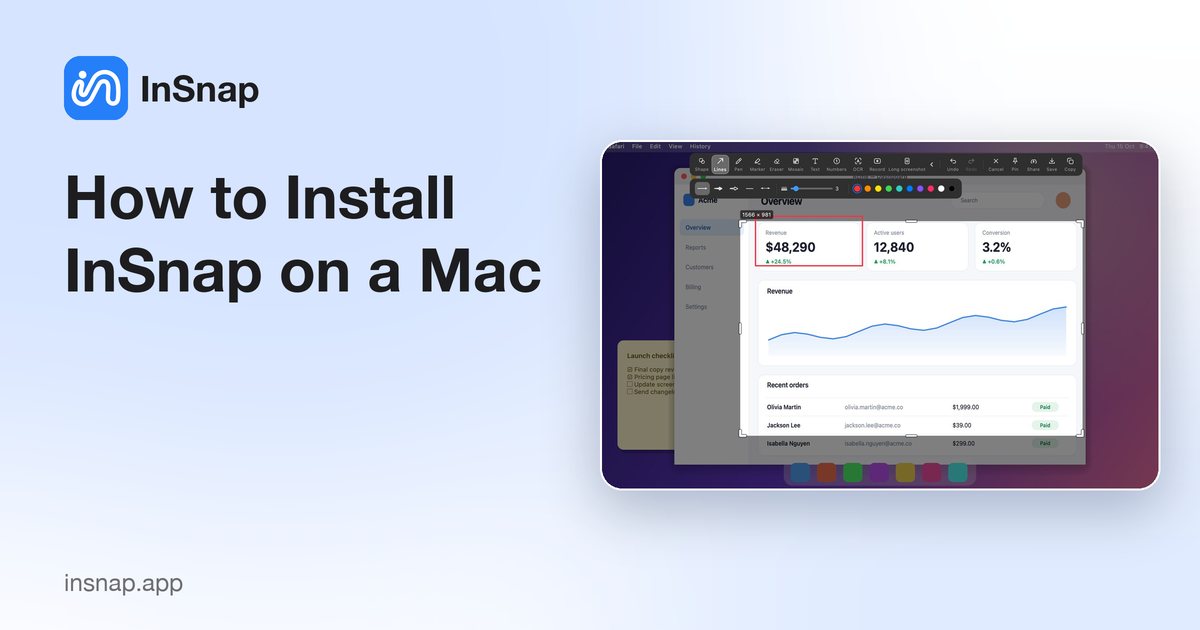
Download the disk image, drag InSnap into Applications, and grant the two permissions it needs. What the macOS version requirement means and how updates work.
Installing InSnap on a Mac is a drag-and-drop operation, with one permission step afterwards. The download page offers a signed and notarized build for both Apple Silicon and Intel Macs.
Check the requirement
InSnap requires macOS 14.4 or later and runs on both Apple Silicon and Intel. The download page detects nothing; it offers one universal build, so the same file works on either architecture.
If your Mac is older than 14.4, the app will not launch. Check the Apple menu › About This Mac before downloading.
Download and install
- Open the download page and choose Download for macOS.
- Open the downloaded
.dmg. - Drag InSnap into the Applications folder shown in the window.
- Eject the disk image.
- Launch InSnap from Applications or Spotlight.
The first launch may ask for permissions. On macOS, screen capture requires Screen Recording, and the app may also request Accessibility and Input Monitoring for element detection and event recording. Grant what you need; the rest can wait.
The first launch
InSnap is a menu bar app: after launch, look for its icon in the menu bar rather than the Dock. The welcome window explains the default hotkeys and the permission setup.
- Screen Recording is required; macOS applies it after the app restarts.
- Accessibility is optional; it enables buttons and text fields detection.
- Input Monitoring is optional; it enables guides and click/key effects.
The permission card in Settings › General shows the current state and links to the relevant System Settings panel.
The app is universal: it runs natively on Apple Silicon and without Rosetta translation on Intel. If the disk image download is interrupted, download it again rather than resuming a partial file; the image verifies itself when opened. Keep the downloaded DMG until the first launch succeeds, so a failed drag can be repeated without another download.
Gatekeeper and “unidentified developer”
Current releases are signed with a Developer ID and notarized, so a normal drag-and-drop install should open without a warning. If you are installing an older or ad-hoc build, macOS may block the first launch:
- Right-click the app and choose Open, then confirm.
- Or open System Settings › Privacy & Security and allow the app from the notice at the bottom.
Do not disable Gatekeeper globally. A right-click Open is enough for a one-off older build.
Updates
InSnap updates itself in the background. The menu bar menu has Check for Updates…, and Settings › About shows the current version. Updates preserve your settings, license and history.
If you manage the app with a tool that blocks Sparkle, use the download page instead and replace the app in Applications.
Uninstalling
- Quit InSnap from the menu bar.
- Drag InSnap from Applications to the Trash.
- Empty the Trash.
Settings, history and license data live in your user Library. Removing the app does not delete them; if you want a clean removal, remove the app's application-support folder as well. Keep the license email if you plan to reinstall.
FAQ
Does InSnap support Intel Macs?
Yes. The download is a universal build for Apple Silicon and Intel, and the minimum system is macOS 14.4.
Why does InSnap not appear in the Dock?
It is a menu bar app. The Dock icon appears only while one of its regular windows — settings, history, editor — is open.
Do I need to reinstall to update?
No. InSnap checks for updates automatically and can update in place. The download page is a fallback for managed Macs or a clean reinstall.
More from the blog

How to Add Text to a Screenshot (and Make It Readable)
Add labels, titles and callouts to a screenshot with readable contrast, the right size and clean placement — plus how to edit them later on Mac and Windows.
October 25, 2026
Auto Zoom for Screen Recordings: What It Does and When to Use It
How InSnap's auto zoom follows your clicks in a screen recording, how the strength settings change the result, and when a static recording is better.
October 25, 2026
How to Make a Before-and-After Comparison Image
One image beats two attachments: capture both states at the same size, stitch them side by side, label them, and send a comparison the reader can scan.
October 25, 2026