 InSnap
Pinned Screenshot Missing or Stuck? Fix It Quickly
A pin that will not move, click or stay visible is usually click-through, lock or an off-screen window. The four checks that bring a pinned screenshot back.
Pinned screenshots are meant to be forgettable: they float, you glance at them, you close them. When one misbehaves it is usually because one of four states is active, and each has a direct fix.
The pin ignores clicks
Most likely cause: click-through is on. A click-through pin deliberately lets every click pass to the app underneath, which is useful when you want to see the pin but keep working. It also means the pin cannot be selected, dragged or closed with the mouse.
Fix it from the menu bar: choose Cancel pin click-through (or the equivalent item for the pin), then click the pin again. The pin menu also has the toggle, but you need to reach the pin first; the menu bar item works regardless of where the pin is.
The pin will not move or close
Most likely cause: the pin is locked. A locked pin stays put, ignores scroll-to-zoom and does not close on double-click or Esc. That is the point of the lock: it prevents accidental edits while you use the image as a reference.
Press Command-L (Ctrl-L on Windows) or choose Unlock from the pin's context menu. After unlocking, dragging, zooming, opacity shortcuts and double-click-to-close work again.
The pin is gone
Three things can make a pin seem gone:
- It was closed. Double-click and Esc close an unlocked pin; so does the close button on hover. Re-pin the image from the clipboard or from screenshot history.
- It is off-screen. Pins can be dragged past the edges of the display, including above the top edge. If you cannot find it, choose Close all pins from the menu bar and pin the image again.
- A capture is in progress. Pins are hidden while you are taking a screenshot and come back when the session ends. If they stay hidden, finish or cancel the capture first.
If the pin is visible but behind another window, bring it forward by clicking it; pinned windows are designed to float above normal windows. If another utility also keeps a window always-on-top, the stacking order between those two is up to the system.
The pin is in the way
Sometimes the problem is not a bug but placement:
- Move it to a corner where it does not cover the app you are working in.
- Reduce its opacity with Command-scroll (Ctrl-scroll on Windows) so the content underneath stays readable.
- Enable click-through while you work, then turn it off when you need to move the pin again.
- Close all pins at the end of a task; the menu bar item closes every pin at once.
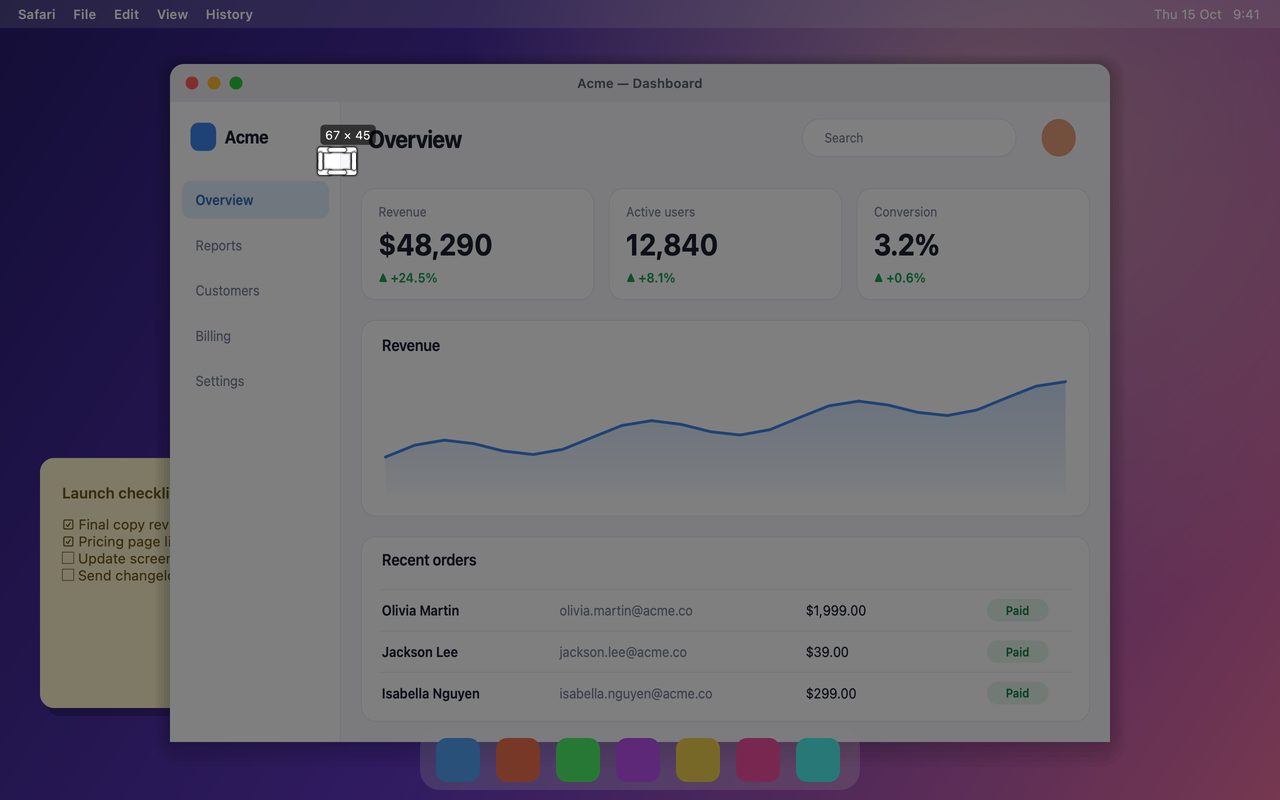
A quick decision table
| Symptom | Cause | Fix |
|---|---|---|
| Clicks pass through the pin | Click-through on | Cancel pin click-through |
| Cannot drag or close | Locked | Command-L / Unlock |
| Closed accidentally | Double-click or Esc | Re-pin from clipboard or history |
| Nowhere on screen | Dragged off-screen | Close all pins and re-pin |
| Hidden during a capture | Capture in progress | Finish or cancel the capture |
| Covers the app | Placement | Move, lower opacity or enable click-through |
FAQ
Why can I see the pinned screenshot but not click it?
Click-through is enabled. It makes the pin ignore the mouse so clicks reach the app underneath. Turn it off from the menu bar item, then interact with the pin normally.
How do I find a pinned screenshot that is off-screen?
Pins can be dragged beyond the display edges. Choose Close all pins from the menu bar to clear them, then pin the image again from the clipboard or from screenshot history.
Does locking a pin prevent it from closing?
Yes. A locked pin ignores dragging, zoom and the double-click/Esc close shortcuts. Unlock it with Command-L (Ctrl-L) or the context menu before closing.
More from the blog

How to Add Text to a Screenshot (and Make It Readable)
Add labels, titles and callouts to a screenshot with readable contrast, the right size and clean placement — plus how to edit them later on Mac and Windows.
October 25, 2026
Auto Zoom for Screen Recordings: What It Does and When to Use It
How InSnap's auto zoom follows your clicks in a screen recording, how the strength settings change the result, and when a static recording is better.
October 25, 2026
How to Make a Before-and-After Comparison Image
One image beats two attachments: capture both states at the same size, stitch them side by side, label them, and send a comparison the reader can scan.
October 25, 2026