 InSnap
How to Capture a Still Frame From a Video
Grab a clean frame for a thumbnail, a bug report or a document: pause precisely, capture the player area, and when a command-line frame grab is better.
A still from a video is useful for thumbnails, documentation, bug reports and slides. InSnap does not have a dedicated "export frame" command, but a paused player plus the screenshot tool covers most cases, and a one-line command handles the rest.
Pause on the frame you want
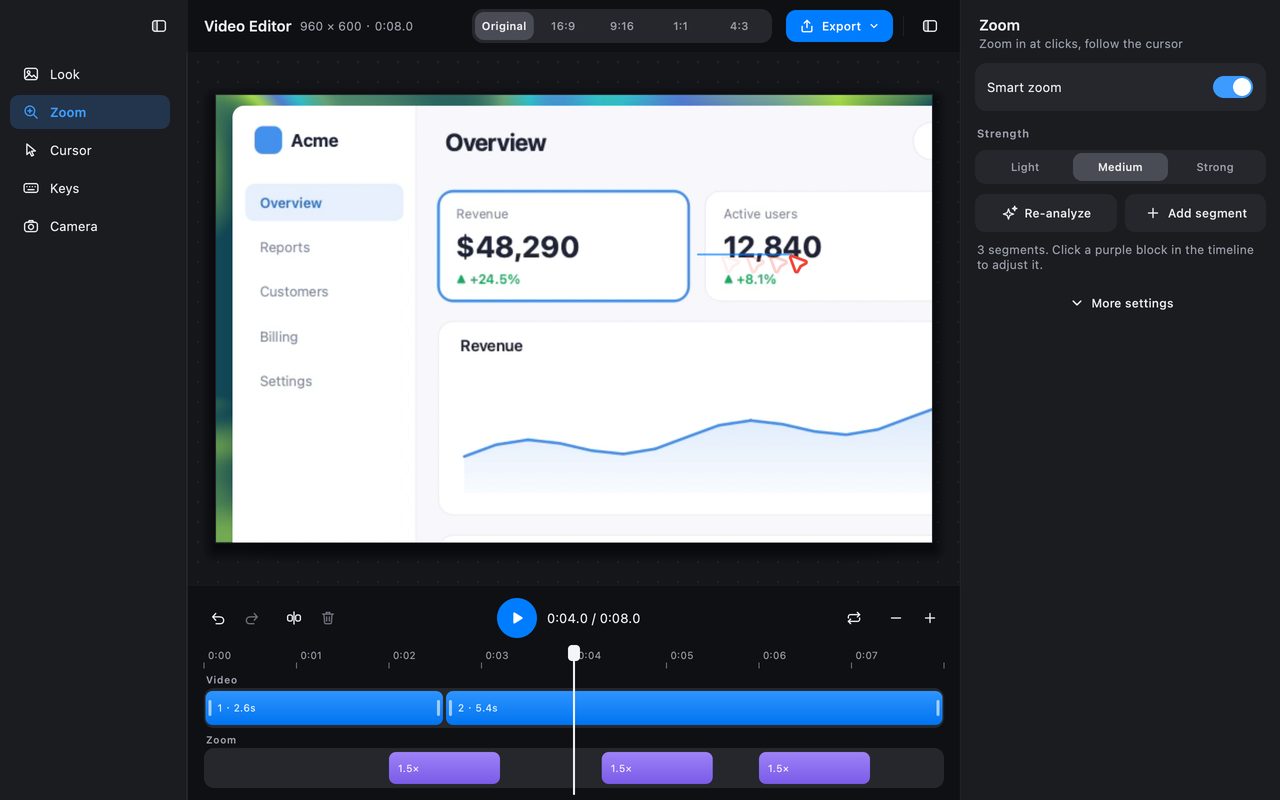
The first step is finding the frame, and that is easier in an editor than in a player with a thin scrub bar.
- In InSnap's video editor, drag the playhead on the timeline. The preview updates frame by frame, so you can land on the exact moment.
- In a player, use the arrow keys to step one frame at a time if the player supports it, or pause and nudge with the scrub bar.
Once the frame is on screen, do not let it play again. A screenshot of a moving video will capture whatever frame is showing at the instant the screen freezes, which may be one frame later than the one you chose.
Capture the video area
- Press Command-1 on Mac or Ctrl+1 on Windows.
- Drag a selection around the video, excluding the player controls, the title bar and the surrounding page.
- Check the size label: it reports the pixel size of the selection, which is what the still will contain.
- Copy, save or pin the result.
If the video is letterboxed, crop the black bars in the selection rather than in a second pass. If the frame is part of a document, add a backdrop and a consistent radius in the image editor so it matches the other figures.
When the screen capture is not enough
A screen capture is limited by the display: a 1080p video on a Retina display is captured at screen pixels, not at the video's native resolution, and the player's scaling can soften it. For a thumbnail or a document, that is usually fine. For pixel-perfect work, extract the frame from the file itself.
With FFmpeg installed, one command does it:
ffmpeg -ss 00:00:12 -i recording.mp4 -frames:v 1 frame.png-ssis the timestamp of the frame you want; placing it before-imakes the seek fast.-frames:v 1writes a single frame.- Use
.pngfor lossless output;.jpgwith-q:v 2for a smaller file.
This reads the source video at its native resolution, which is the right choice for a thumbnail or a print figure.
Clean up the still
A raw frame often needs the same treatment as a screenshot:
- Crop to the subject; player chrome is not part of the story.
- Annotate the moment: an arrow to the relevant control, or a number if the frame is part of a sequence.
- Redact anything private before the frame leaves your machine.
- Pin the still if you need it as a reference while writing about the video.
A quick checklist
| Check | Why |
|---|---|
| Is the frame the exact one you chose? | Pausing one frame late changes expressions and cursors |
| Are player controls excluded? | They date the still and distract |
| Is the resolution enough? | Screen capture is display-limited |
| Is the aspect ratio clean? | Crop bars rather than adding them |
| Is anything private visible? | Frames contain more than the main subject |
FAQ
Can InSnap export a frame from a video directly?
There is no dedicated frame-export command. Pause the video in the editor or a player and capture the area with the screenshot tool, or use FFmpeg when you need native resolution.
Why does my captured frame look softer than the video?
The capture is limited by the display: a 4K video shown in a smaller window is captured at screen pixels. Extract the frame with FFmpeg if you need the source resolution.
Can I annotate a captured frame?
Yes. The capture opens in the usual overlay with all annotation tools, so you can add arrows, text, numbers or blur before you copy or save it.
More from the blog

How to Add Text to a Screenshot (and Make It Readable)
Add labels, titles and callouts to a screenshot with readable contrast, the right size and clean placement — plus how to edit them later on Mac and Windows.
October 25, 2026
Auto Zoom for Screen Recordings: What It Does and When to Use It
How InSnap's auto zoom follows your clicks in a screen recording, how the strength settings change the result, and when a static recording is better.
October 25, 2026
How to Make a Before-and-After Comparison Image
One image beats two attachments: capture both states at the same size, stitch them side by side, label them, and send a comparison the reader can scan.
October 25, 2026