 InSnap
How to Copy Text From a Video or a Paused Frame

Subtitles, slides, error messages and code in a video are still text. Pause on the frame, capture the area, and run OCR to copy it out — no retyping.
A surprising amount of text lives inside videos: subtitles, slide titles, terminal output in a demo, an error message someone recorded instead of copying. If the frame is readable, InSnap can turn it back into text.
Pause on a frame where the text is complete
The first requirement is a still frame with the full text visible.
- In a player: pause, then step one frame forward or back if the player supports it, until the text is not mid-fade or mid-scroll.
- In InSnap's video editor: drag the playhead to the moment; the preview updates frame by frame.
- For moving subtitles: choose a frame where the line has finished appearing, not one where it is still animating in.
If the text is only on screen for a fraction of a second, a player with frame stepping is easier than trying to hit pause at the right moment.
Capture just the text area
- Press Command-1 on Mac or Ctrl+1 on Windows while the frame is paused.
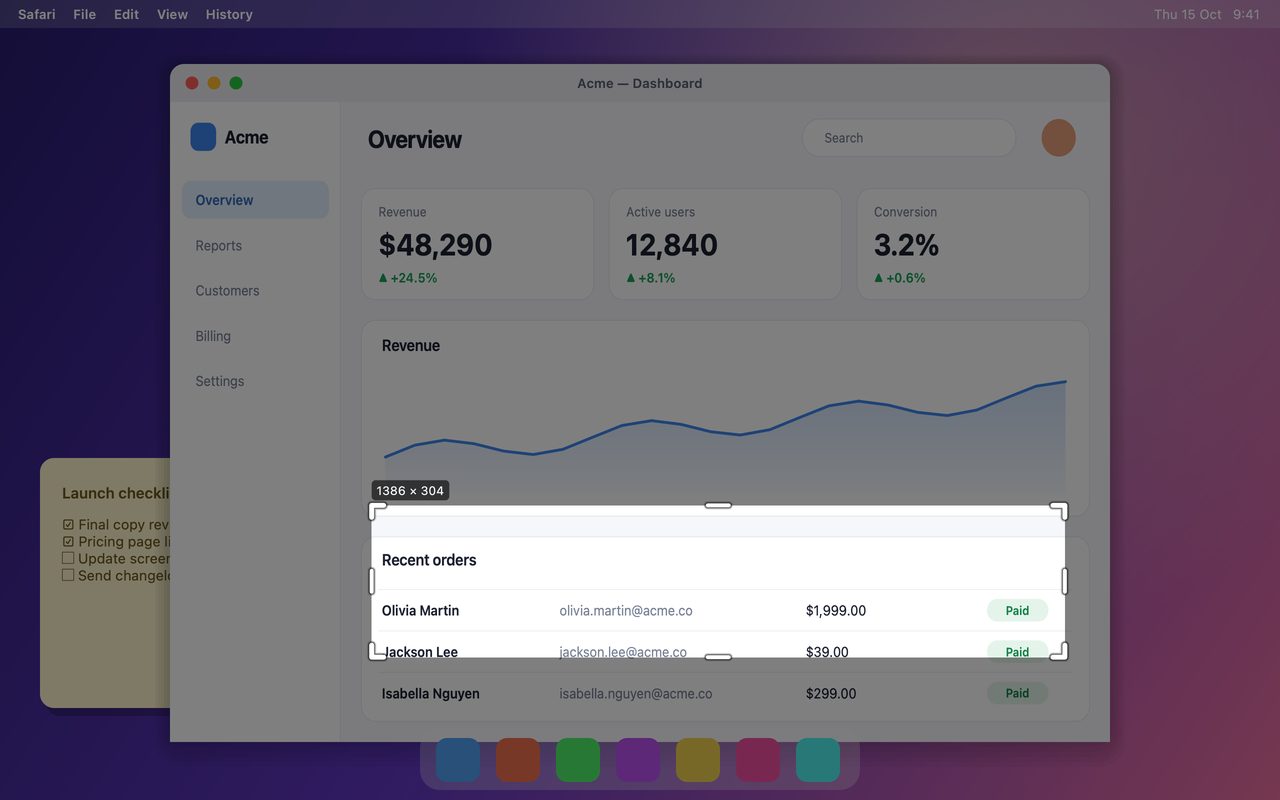
- Drag a selection around the text. Include the whole line or block, with a little margin, and exclude the player controls.
- Click OCR on the capture toolbar.
- The text recognition panel opens with the recognized lines. Select what you need, or copy everything.
The capture is frozen, so the text will not change while you work. If the frame is small on screen, zoom the player first and capture the enlarged frame; OCR does better with more pixels.
What OCR handles well
InSnap's OCR runs locally and is strongest on:
- Clear UI text and subtitles in Chinese, English, German, French, Spanish, Portuguese, Italian and other Latin-script languages.
- High-contrast text: white on dark, black on light, code in a terminal.
- Straight, horizontal lines — the normal case for subtitles and slides.
It is weaker on:
- Japanese kana, Korean and Russian, which are not reliably recognized.
- Stylized or handwritten text, very small type, and text over a busy background.
- Text at an angle — a frame from a tilted recording may need cropping and a straighter source.
For a video, you cannot re-record the source, but you can often improve the capture: zoom in, pause on a sharper frame, and crop tightly before running OCR.
Check and fix the result
OCR is a first pass, not a guarantee. Before pasting the text somewhere important:
- Compare names, numbers and code against the frame.
- Watch for confusions between
0andO,1andl, and punctuation. - If a line is wrong, copy only the correct lines and type the rest.
The recognized text can be selected like text in the panel, so you can copy a single line or a range rather than everything.
When a screenshot is not the right tool
If the video has a transcript or captions file, use it; it is more accurate than OCR. If the text is long, consider extracting it from the source file with a tool designed for subtitles. OCR is the right choice for a few lines, a code snippet or an error message that exists only as pixels.
FAQ
Can InSnap copy text directly from a playing video?
Pause first. OCR works on a still capture, and a moving frame may be blurred or mid-transition. Pause on a frame where the text is fully visible, then capture it.
Why is the recognized text wrong or incomplete?
Common causes are small text, low contrast, motion blur, or a language the OCR does not handle well. Zoom the player, pick a sharper frame, crop tightly, and avoid Japanese kana, Korean and Russian, which are not reliably recognized.
Does the copied text keep its formatting?
No. OCR returns plain text lines. Lists, bold and links are not preserved; you get the characters, which you can then format in the destination app.
More from the blog

How to Add Text to a Screenshot (and Make It Readable)
Add labels, titles and callouts to a screenshot with readable contrast, the right size and clean placement — plus how to edit them later on Mac and Windows.
October 25, 2026
Auto Zoom for Screen Recordings: What It Does and When to Use It
How InSnap's auto zoom follows your clicks in a screen recording, how the strength settings change the result, and when a static recording is better.
October 25, 2026
How to Make a Before-and-After Comparison Image
One image beats two attachments: capture both states at the same size, stitch them side by side, label them, and send a comparison the reader can scan.
October 25, 2026