 InSnap
How to Crop a Screenshot and Straighten a Tilted Screen Photo
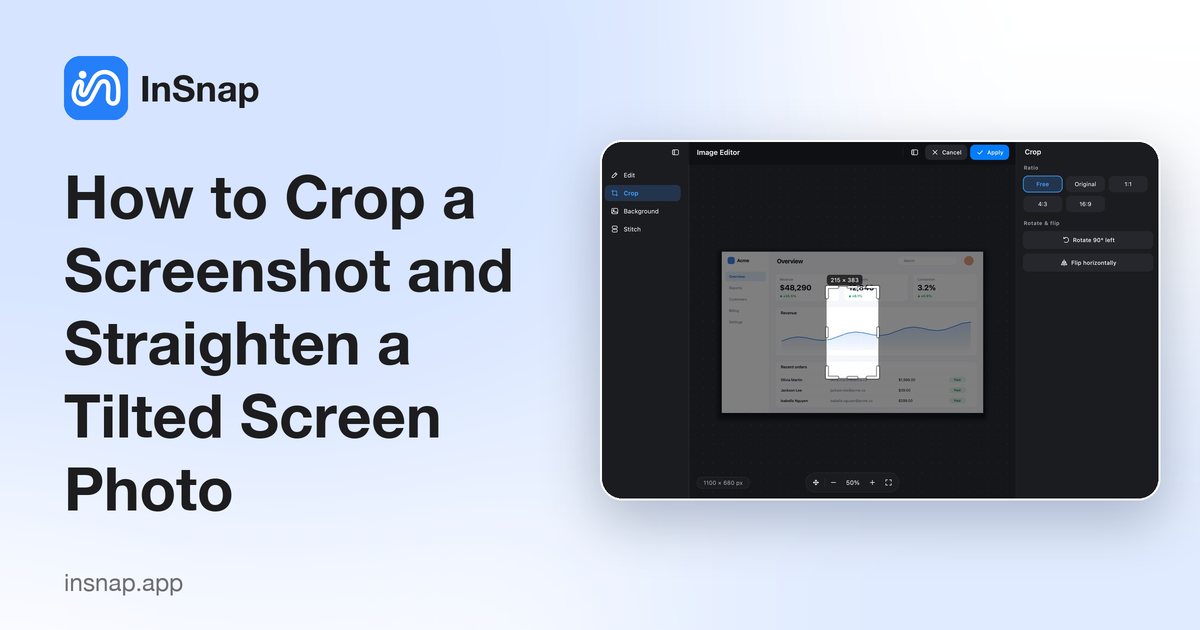
Crop a screenshot, rotate or flip it, and fix a tilted photo of a screen — plus what cropping does to your annotations and how it differs from trimming a recording.
Cropping turns a messy full-screen capture into a useful image: one drag removes the menu bar, the desktop and everything around the part that matters. Rotating and flipping fix a capture that landed sideways or mirrored. Here is how to do it on Mac and Windows, handle a photo of a screen taken at an angle, and why to crop before you annotate.
Crop first, annotate second
Crop to the frame you actually want, then add arrows, boxes, numbers or text. If you annotate first and crop afterwards, an arrow that pointed at a button can lose its tip or end up half outside the new frame, and the editor may clip the annotation or flatten it into the picture — either way you can no longer move it.
A reliable order is: capture, crop, rotate or flip, annotate, then copy or save. If you need a different frame later, undo the crop, re-crop, and re-check each annotation.
Crop, rotate and flip on Mac and Windows
Both systems have built-in tools.
- macOS, Preview: drag a selection around the part you want to keep and click Crop. The Rotate Left tool turns the image a quarter turn (Option-click it to rotate right), and Tools › Flip Horizontal or Flip Vertical mirrors it. Preview rotates in 90° steps.
- Windows, Photos: open the image, choose Edit, then the crop tool. It can also flip and rotate the photo, and it includes a rotation slider for straightening a slight tilt.
InSnap does the same job in its image editor. Open the image after a capture and use the sidebar sections Edit, Crop, Background and Stitch. In Crop, drag the frame, pick a Ratio (Free, Original, 1:1, 4:3 or 16:9), and use Rotate & flip › Rotate 90° left or Flip horizontally, then Confirm. Cropping is part of the free editor; backgrounds and stitching are Pro features. Like Preview, InSnap rotates in 90° steps.
Straightening a tilted photo of a screen
A photo of a monitor goes wrong in two ways, and rotation only fixes one.
- A quarter turn is easy: any rotate control fixes it.
- A small tilt needs a straighten or free-rotation control. Windows Photos offers a rotation slider; an editor that only rotates in 90° steps cannot help.
- Perspective is the hard one. If you stood to the side, the screen becomes a trapezoid, and rotation will not square it up. Software with perspective correction can help; otherwise retake the photo as straight-on as you can.
- Rotate before you crop, since rotating adds empty corners; set the angle first, then cut the corners away.
- Avoid enlarging afterwards. Cropping keeps the pixels inside the frame at their original size, but scaling the result up softens edges and text.
Skip the photo when you can. A real screenshot has no tilt, reflections, colour cast or visible pixel grid. InSnap's capture hotkey (Command-1 on Mac, Ctrl+1 on Windows) freezes the screen and lets you select exactly the region you want at full resolution.
What happens to your annotations when you crop
- Annotations inside the crop stay; those outside the frame, or parts of them, are cut away.
- In InSnap, annotations remain editable objects after a crop as long as the image has no background.
- Once a background is applied, cropping, rotating and flipping merge background and annotations into one picture. InSnap asks first, because afterwards the annotations can no longer be edited.
- Stitched images must be merged into one before cropping or rotating.
That is the practical reason for cropping first: nothing has been flattened yet.
Crop vs trim: a picture and a recording behave differently
Cropping a still image cuts away pixels around the frame: what is outside is gone from that file. Trimming a recording cuts along the timeline: the frames in the removed interval disappear and the video gets shorter, but the picture keeps its full width and height. A recording editor can also split a clip and delete a segment — again a timeline operation.
That is why InSnap keeps the two apart: trimming and splitting live on the recording timeline, while cropping and rotating live in the still-image editor.
FAQ
Does cropping a screenshot reduce its quality?
Not by itself. The pixels you keep are not resampled — they stay the same size and sharpness. A crop looks soft when the result is enlarged afterwards or saved as a smaller copy. Keep the original if you may need the full frame; InSnap keeps captures in its searchable history.
Can I straighten a photo that is only slightly tilted?
Only with free rotation or a straighten slider, such as the crop tool in Windows Photos. An editor that rotates in 90° steps cannot correct a small tilt. Also check for perspective: a photo taken from the side is a trapezoid that rotation will not fix.
Can I undo a crop after saving?
Undo usually works until you close the document. Once the file is saved, the pixels outside the frame are gone from that file, so keep the original or capture the screen again.
Should I crop before or after adding arrows and labels?
Crop first. Decide the final frame, then add arrows and labels where things actually are. Annotating first risks clipping a label or flattening it into the picture.
More from the blog

How to Add Text to a Screenshot (and Make It Readable)
Add labels, titles and callouts to a screenshot with readable contrast, the right size and clean placement — plus how to edit them later on Mac and Windows.
October 25, 2026
Auto Zoom for Screen Recordings: What It Does and When to Use It
How InSnap's auto zoom follows your clicks in a screen recording, how the strength settings change the result, and when a static recording is better.
October 25, 2026
How to Make a Before-and-After Comparison Image
One image beats two attachments: capture both states at the same size, stitch them side by side, label them, and send a comparison the reader can scan.
October 25, 2026