 InSnap
How to Install InSnap on Windows
Run the installer, get past the SmartScreen warning, and choose between the installed and portable builds. What each option means for updates and file associations.
InSnap for Windows comes as a single installer or a portable zip. The installer is the normal choice: it adds the app to the Start menu, associates .insnap files and updates itself. The portable build is for machines where installing is not allowed.
Check the requirement
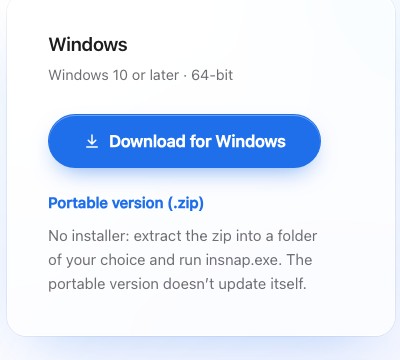
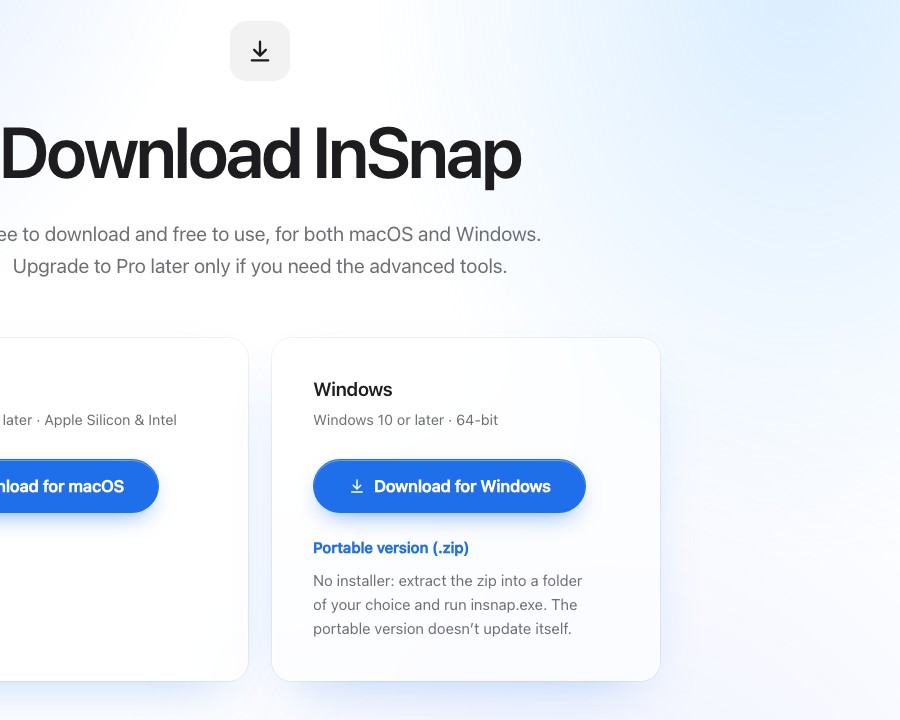
InSnap requires Windows 10 or later, 64-bit. The download page offers:
- Windows installer — the recommended option.
- Portable version (.zip) — no installation, no automatic updates.
Install with the setup file
- Download
InSnap-<version>-setup.exe. - Run it. Windows may show “Windows protected your PC” because the installer is not code-signed yet.
- Choose More info → Run anyway.
- Follow the wizard. You can install for all users (administrator) or only for yourself.
- Finish and launch InSnap.
The SmartScreen warning appears once per downloaded installer. It is a reputation warning, not a virus detection; the installer is the file from the official download page.
What the installer adds
- A Start menu entry (and an optional desktop shortcut).
- An uninstaller in Settings › Apps.
- File association for
.insnap, so double-clicking a recording opens the video editor. - Automatic updates through the installed build.
If a portable copy is already running, close it before installing to avoid two versions fighting over hotkeys and the tray icon.
The installer bundles the OCR runtime and models, so text recognition works without a separate download. On a machine managed by IT, the per-user install usually avoids an administrator prompt; the per-machine install requires one. The setup file is self-contained, so you can keep it for an offline reinstall or use it again on another PC.
The portable build
The portable zip is for a locked-down machine or a USB stick:
- Extract the zip into a folder you control.
- Run
insnap.exefrom that folder. - Keep the folder in place; shortcuts can point to the exe.
The portable build does not update itself. When a new version is released, download the new zip and replace the folder. It also does not register the .insnap file association, and its license/device behavior is the same as the installed build.
First launch and permissions
Windows does not use the same permission model as macOS:
- Screen capture works without a prompt.
- Microphone and camera access can be blocked by Settings › Privacy & security. If a recording starts but the mic is silent, check the privacy settings for desktop apps.
- Global hotkeys are handled by InSnap directly; a conflicting shortcut is taken over while the app runs.
The welcome window explains the default hotkeys: Ctrl+1 for capture, Ctrl+2 for the clipboard pin.
Uninstalling
- Installed build: Settings › Apps › InSnap › Uninstall. Your settings and history in the user profile are not removed automatically.
- Portable build: quit the app and delete the folder. The exe and its data live together; move the folder if you want to keep the settings.
FAQ
Is the SmartScreen warning dangerous?
It means Windows has not seen enough downloads of this installer to trust it automatically. The official file is safe; choose More info → Run anyway. A future signed installer will remove the warning.
Does the portable version update itself?
No. It is a fixed folder. Check the download page for a newer zip and replace the folder when you want to update.
Can I install for all users?
Yes. The installer offers a per-user install under your profile or a per-machine install that requires administrator rights. The per-machine option also makes the app available to other accounts.
More from the blog

How to Add Text to a Screenshot (and Make It Readable)
Add labels, titles and callouts to a screenshot with readable contrast, the right size and clean placement — plus how to edit them later on Mac and Windows.
October 25, 2026
Auto Zoom for Screen Recordings: What It Does and When to Use It
How InSnap's auto zoom follows your clicks in a screen recording, how the strength settings change the result, and when a static recording is better.
October 25, 2026
How to Make a Before-and-After Comparison Image
One image beats two attachments: capture both states at the same size, stitch them side by side, label them, and send a comparison the reader can scan.
October 25, 2026