 InSnap
How to Make a GIF From a Screen Recording (Without an Editor)
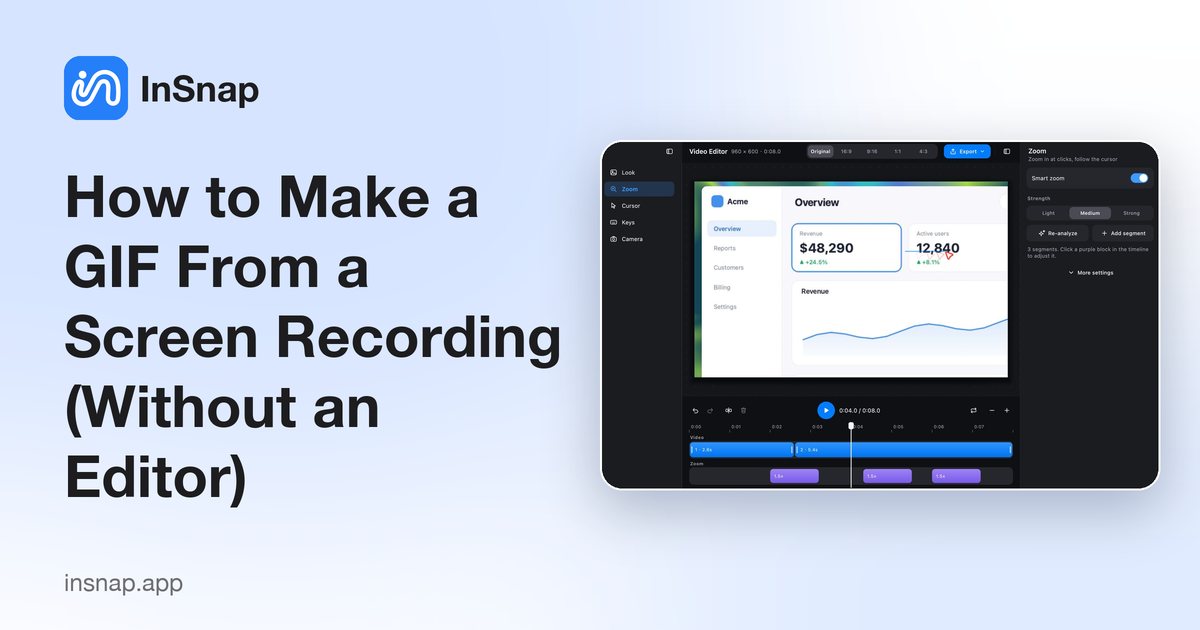
Record a short area of your screen as a small, looping GIF for chat, a bug report or a doc: what to record, how to keep the file small, and when to trim.
A GIF is the fastest way to show something small: a button that moved, a menu that appeared, a glitch you cannot describe in words. Record only the area that matters, for a few seconds, and you have a file that plays on its own wherever you paste it.
You do not need a video editor for this. InSnap records straight to GIF from its recording panel, and most of the work is in deciding what to record and how much of it.
When a GIF beats an MP4
Both are screen recordings, but they behave differently when you share them.
- GIFs loop automatically and play inline. In chat apps, Markdown documents, READMEs and issue trackers, a GIF starts moving without anyone pressing play. An MP4 usually shows a still frame with a play button, or waits to be downloaded.
- GIFs have no codec questions. They open in browsers, on phones, in slide decks and in documentation systems that never handled video well.
- GIFs have no sound and no scrub bar. That is fine for "look at this one interaction" and useless for a narrated demo.
Reach for MP4 when the clip is longer than a few seconds, when the viewer needs to pause and scrub, or when sound matters. For everything else, a short GIF is easier to consume and easier to attach.
Record only the area you need
The single biggest factor in GIF file size is how much of the screen you capture. Full-screen footage of a 4K display produces enormous GIFs; a tight box around one panel stays manageable.
- Press the capture hotkey (Command-1 on Mac, Ctrl+1 on Windows) and drag a box around the part that matters.
- Click Record on the toolbar. The panel offers Quick Record, Record GIF and Record & Edit.
- Choose Record GIF and record the few seconds you need, then stop.
Basic recording to MP4 is free. GIF recording is part of InSnap Pro, a one-time $15 purchase that covers up to 3 devices and includes later updates; activating it does not require an account.
Keep the GIF small
A GIF stores a full frame for every moment it shows, so its size grows with area × length. Compression helps a lot when large parts of the image stay still, and barely helps when everything moves.
- Length: three to eight seconds covers most interface moments. A loop that repeats a whole workflow usually belongs in a video instead.
- Area: crop to the dialog, the list or the panel being discussed. Leave out the menu bar, the desktop and unrelated windows.
- Resolution: recording a small area on a Retina display already gives you plenty of pixels. Do not record the whole screen and scale it down afterwards.
- Motion: scrolling pages, video playback and drag animations change every frame and inflate the file. A cursor moving across a mostly static page compresses much better.
- Content: photographic and noisy areas compress poorly; flat UI and text on a plain background compress well.
If the file is still too large, cut something. Shortening the loop by two seconds or halving the captured area does more than any other adjustment.
Trim before you export
It is easy to record ten seconds of "getting ready" before the interesting part. Trim it before you share, not after.
Record & Edit opens the recording in InSnap's built-in editor, where you can trim the ends and split out dead sections. The shorter the clip you export, the smaller the GIF you get from it.
A few practical habits:
- Rehearse once, then record. Start recording immediately before the action you want to show.
- Delete retries. If you fumbled the first attempt, record again on a clean take rather than shipping a clip with mistakes.
- Trim the pause at the start and the tail after the action.
- Ask whether it needs to move at all. A single screenshot is even smaller and often clearer for a static state.
Everything happens on your machine; screen recordings and GIFs are processed locally and only leave the computer if you choose to upload or share them.
FAQ
Is GIF recording free in InSnap?
No. Basic recording to MP4 is free, but Record GIF is part of InSnap Pro, a one-time $15 purchase for up to 3 devices that includes later updates. Activation does not require an account.
Can a GIF include sound?
No. The GIF format has no audio. If you need narration or system sound, record an MP4 instead.
Why is my GIF so large?
Size grows with the captured area multiplied by the number of frames. Recording a smaller region, keeping the clip to a few seconds, and avoiding scrolling or video content are the most effective fixes.
Does InSnap run on Windows as well as Mac?
Yes. InSnap runs on macOS 14.4 or later (Apple Silicon and Intel) and on 64-bit Windows 10 or later, and the recording panel works the same way on both.
Are my screen recordings uploaded anywhere?
No. Recording, GIF creation and editing happen locally. A file is only uploaded when you explicitly share it to InSnap Cloud, which is an optional subscription.
More from the blog

How to Add Text to a Screenshot (and Make It Readable)
Add labels, titles and callouts to a screenshot with readable contrast, the right size and clean placement — plus how to edit them later on Mac and Windows.
October 25, 2026
Auto Zoom for Screen Recordings: What It Does and When to Use It
How InSnap's auto zoom follows your clicks in a screen recording, how the strength settings change the result, and when a static recording is better.
October 25, 2026
How to Make a Before-and-After Comparison Image
One image beats two attachments: capture both states at the same size, stitch them side by side, label them, and send a comparison the reader can scan.
October 25, 2026