 InSnap
How to Pin a Screenshot on Top of Other Windows
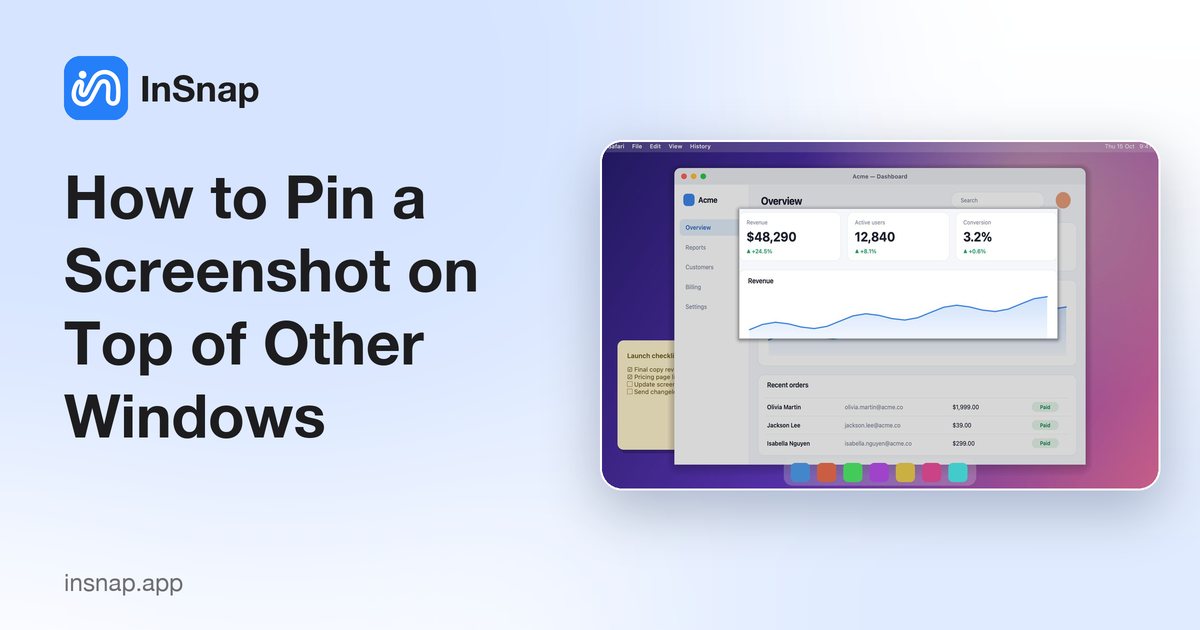
Keep a screenshot or image floating above your other windows as a reference while you work. How it works on Mac and Windows, and how to do it with InSnap.
Sometimes you need to keep a picture in view while you work: a design mock-up beside your code, a step from a tutorial, a table you are copying numbers from. Switching windows back and forth is slow. Pinning the image so it floats above everything else is faster.
Why not just use an always-on-top window?
- macOS has no system setting to keep a window above all others, and image viewers such as Preview do not float.
- Windows has no built-in always-on-top either. Microsoft PowerToys adds an Always on Top utility (Windows key + Ctrl + T) that pins a whole window, but not an image cut out of your screen.
A screenshot tool with a pin feature solves the real problem: capture just the part you need and float it where you want.
Pin a screenshot with InSnap
- Press the capture hotkey (Command-1 on Mac, Ctrl+1 on Windows) and drag a box around the area.
- Click Pin on the toolbar. The capture now floats above every other window.
- Drag it where you want it.
Already copied something? Press the pin-clipboard hotkey (Command-2 on Mac, Ctrl+2 on Windows) to pin whatever is on your clipboard. An image is pinned as it is; copied text is rendered as a readable card.
Adjust a pinned image
- Resize: scroll the mouse wheel over it, or pinch on a trackpad.
- Fade it: hold Command (Ctrl on Windows) while scrolling to change the opacity so you can see what is underneath.
- Click-through: turn on click-through from the right-click menu so clicks pass through the pin to the window below.
- Lock: lock a pin so it cannot be dragged or resized by accident.
- Close: double-click it, or press Esc while it is focused.
Right-click a pin for more options, including copy, save, upload and opening it in the editor to add annotations. Pinning is free in InSnap.
FAQ
Can I pin more than one screenshot?
Yes. Each pin is its own floating window, so you can keep several references on screen and close them one by one or all at once from the menu bar or tray icon.
Do pins get in the way of the next screenshot?
InSnap hides your pins while you select a new area, so they do not get in the way, and brings them back when you finish.
Does pinning work with full-screen apps?
Pins float above normal windows and can appear over full-screen apps on macOS. Behavior can vary by app, so test it with the one you use.
Is pinning free?
Yes. Capture, annotation, pinning and OCR are free in InSnap.
More from the blog

How to Add Text to a Screenshot (and Make It Readable)
Add labels, titles and callouts to a screenshot with readable contrast, the right size and clean placement — plus how to edit them later on Mac and Windows.
October 25, 2026
Auto Zoom for Screen Recordings: What It Does and When to Use It
How InSnap's auto zoom follows your clicks in a screen recording, how the strength settings change the result, and when a static recording is better.
October 25, 2026
How to Make a Before-and-After Comparison Image
One image beats two attachments: capture both states at the same size, stitch them side by side, label them, and send a comparison the reader can scan.
October 25, 2026