 InSnap
From Purchase to Activation: Getting Pro Running
What the Pro license includes, where the activation code arrives, how to enter it without an account, and what to do when the three-device limit is reached.
InSnap Pro is a one-time purchase unlocked by a license code. The purchase happens on the website; the activation happens in the app, and it does not require an InSnap account. This is the full path, including the two places people usually get stuck.
What you are buying
Pro is a one-time license of $15 that covers:
- Up to three devices.
- All future updates.
- The Pro tools: Smart Erase, scrolling capture, image backgrounds and stitching, GIF recording and export, video editing effects, high-quality export, guides, Spotlight, Magnifier and Watermark.
It is not a subscription, and it does not include Cloud storage. Cloud is a separate subscription with its own billing.
Where the code comes from
After checkout, the activation code arrives by email at the address you used at checkout. It looks like a short block of characters; keep the email until the license is activated on all the devices you need.
If you bought Pro while signed in to an InSnap account, the purchase is associated with that account as well, but the code itself is still the thing that activates the app.
Activate in the app
- Open Settings › Account & license.
- Find the Pro license card.
- Paste the activation code into the field.
- Click Activate.
The app verifies the code and issues a local license token. No sign-in is required for this step.
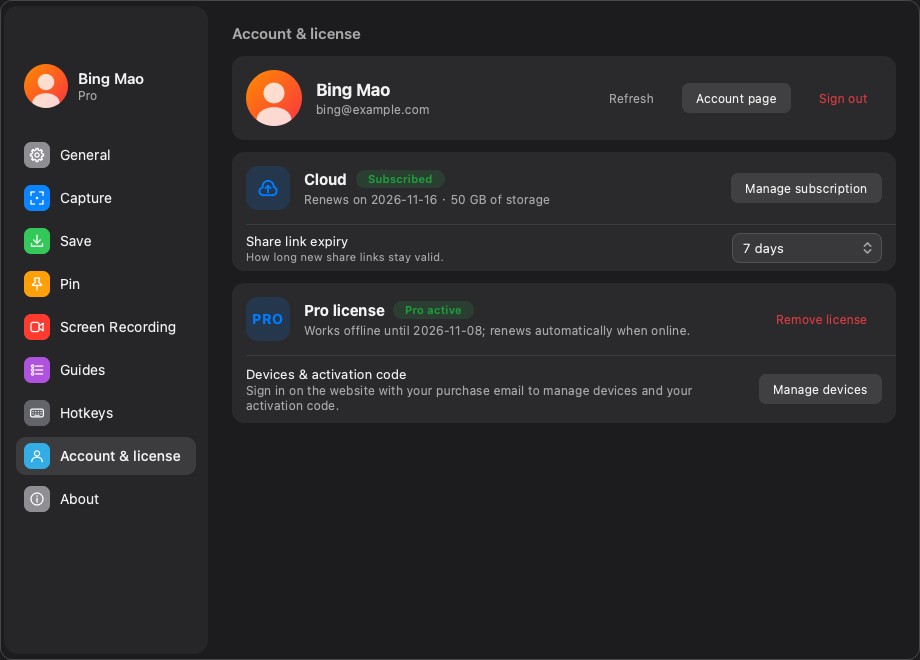
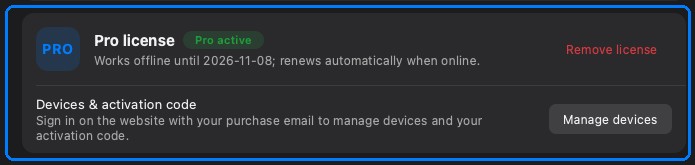
When activation succeeds, the card changes from Free to Pro active, shows the expiry/renewal line and offers device management. If the code is invalid or already used on too many devices, the card explains which case applies instead of failing silently.
If the device limit is reached
Three devices is a generous limit for one person, but old machines add up. When the limit is reached, activation offers to replace a device: choose the one you no longer use, and the license moves to the current machine.
If you cannot identify the old device from the list, sign in to the website account page and remove it there, or use the app's device list when available. Removing a device frees a seat; it does not cancel the license.
Cloud is separate
The Account & license page also shows Cloud when you are signed in. Remember:
- Pro unlocks tools; it does not include hosted storage or share links.
- Cloud provides hosted links and storage; it does not unlock Pro tools.
- You can buy either without the other.
If the Cloud card says “not subscribed”, Pro still works. If the Pro card says “Free”, a Cloud subscription does not change that.
Moving to a new computer
- Install InSnap on the new machine.
- Activate with the same code. If all three seats are used, replace the old machine.
- On the old machine, remove the license from the Pro card if you still have access; otherwise use the website device list.
Keep the purchase email. The code is the credential; losing it means contacting support rather than recovering it from the app.
FAQ
Do I need an InSnap account to activate Pro?
No. Activation uses the code and binds the license to the device. An account is only needed for Cloud and for managing licenses on the website.
What happens after the three-device limit?
Activation lets you replace one of the existing devices. Removing a device frees a seat without cancelling the license.
Does Pro include Cloud storage?
No. Pro and Cloud are separate purchases. Pro is a one-time license for the app's tools; Cloud is a subscription for hosted links and storage.
More from the blog

How to Add Text to a Screenshot (and Make It Readable)
Add labels, titles and callouts to a screenshot with readable contrast, the right size and clean placement — plus how to edit them later on Mac and Windows.
October 25, 2026
Auto Zoom for Screen Recordings: What It Does and When to Use It
How InSnap's auto zoom follows your clicks in a screen recording, how the strength settings change the result, and when a static recording is better.
October 25, 2026
How to Make a Before-and-After Comparison Image
One image beats two attachments: capture both states at the same size, stitch them side by side, label them, and send a comparison the reader can scan.
October 25, 2026