 InSnap
How to Sign In to Your InSnap Account (and When You Need To)
Signing in happens in the browser, not with a password in the app. What the account unlocks, why Pro activation does not need it, and how to sign out.
InSnap's account is optional. It is needed for Cloud and for managing a license on the website; it is not needed to activate Pro or to use the free app. When you do need it, sign-in happens in the browser, so the app never asks for a password.
What the account unlocks
| Feature | Needs an account? |
|---|---|
| Screenshots, annotation, pin, OCR | No |
| Pro activation with a code | No |
| Cloud subscription and share links | Yes |
| Managing devices and licenses on the website | Yes |
| Account profile, avatar, email | Yes |
If you only take screenshots and occasionally use Pro tools, you can use InSnap for years without signing in.
Start the browser sign-in
- Open Settings › Account & license.
- Click Sign in with browser.
- Your browser opens the InSnap account page with a confirmation card.
- Sign in there with an email code or Google, and confirm that you want to connect the app.
- Return to InSnap. The account card updates automatically.
The app does not receive your password. It receives a short-lived confirmation and stores a refresh token on the device, which is how it stays signed in across launches. The website confirmation is localized to the website's language and does not depend on the app's language. A password manager works on the website as usual; the app never sees or stores the password. If the browser opens on another device, finish the confirmation there and return to the app; the sign-in belongs to the account, not to the machine where you started.

What changes after signing in
- The top of the page shows your avatar, name and email.
- The Cloud card appears with the subscription state and share-link settings.
- Account page opens the website account area.
- Refresh reloads the account and subscription state, useful after buying Cloud in the browser.
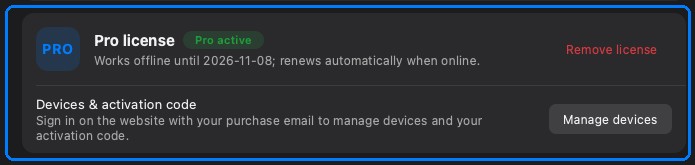
Pro is separate: if the Pro card was already active, it stays active. If you bought Pro with the same email, signing in can associate the purchase with the account for easier device management, but the app still verifies the license code locally.
Signing out
Sign out on the account card ends the session on this device. Cloud links already created keep working according to their expiry and password; signing out does not revoke them.
If you sign out and later sign in again, the app restores the account from the server. Cached profile data may be cleared in between, which is why the Cloud card disappears until the next sign-in.
Troubleshooting the browser step
- The browser did not open. Check the default browser and try again; the app waits for the confirmation.
- The confirmation page shows an error. Sign in on the website first, then return to the app and click Sign in with browser again.
- The app still shows signed out. Wait a moment; the app polls for the confirmation. If it does not update, cancel and retry.
- You are on a managed network. Some corporate proxies block the callback; try a different network or the website directly.
FAQ
Do I need an account to activate Pro?
No. Pro activation uses the license code and does not require a sign-in. The account is for Cloud and for managing licenses on the website.
Where is my password stored?
It is not. Sign-in happens on the website, and the app stores a refresh token, not your password. You can revoke access by signing out or from the website.
Does signing out delete my Cloud files?
No. Signing out ends the session on this device. Cloud files and share links remain until you delete or revoke them from the account page.
More from the blog

How to Add Text to a Screenshot (and Make It Readable)
Add labels, titles and callouts to a screenshot with readable contrast, the right size and clean placement — plus how to edit them later on Mac and Windows.
October 25, 2026
Auto Zoom for Screen Recordings: What It Does and When to Use It
How InSnap's auto zoom follows your clicks in a screen recording, how the strength settings change the result, and when a static recording is better.
October 25, 2026
How to Make a Before-and-After Comparison Image
One image beats two attachments: capture both states at the same size, stitch them side by side, label them, and send a comparison the reader can scan.
October 25, 2026