 InSnap
How to Write Step Titles and Notes People Actually Read
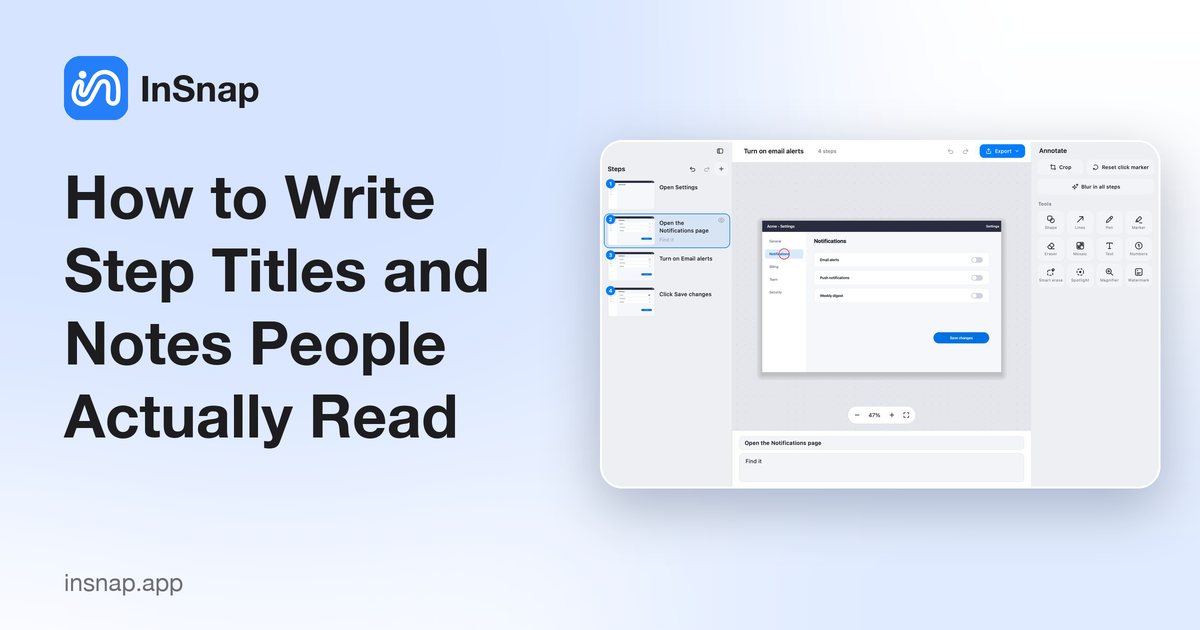
Recorded guides write the first draft of every step title. Turn those titles into instructions, add the reason and the warning, and keep each step short.
A recorded guide arrives with most of the structure done: screenshots in order, markers on the click, a title for every step. What it does not arrive with is judgment. The titles are descriptions of what was clicked, not instructions for the person following along. A short editing pass fixes that.
The first draft is already there
InSnap builds each step's title from the element you clicked — "Open Settings", "Select Notifications", "Turn on email alerts". That is a useful default because it is grounded in the real interface, not in your memory of it.
It is also not an instruction. "Select Notifications" tells the reader what happened; "Open the Notifications page" tells them what to do. The difference is small on one step and obvious across twenty.
Turn the title into an instruction
Three habits:
- Start with the verb. "Click Save changes", not "Save changes button". "Open", "Choose", "Type", "Confirm" are clear; "the", "this" and "here" are not.
- Keep it to one action. If the title needs "and", the step probably needs to be split. Recorded steps are already small; edited ones should stay small.
- Name the thing the reader sees. Use the label from the interface, not your internal name for it. If the button says "Publish", write "Publish", even if the team calls it "go live".
A useful length test: the title should fit on one line in the step list without being truncated. If it does not, it is probably a sentence rather than a step.
Add the reason, not the obvious
The description field is where a guide stops being a screenshot dump and starts being useful. The placeholder says it well: "why this step, what to watch out for".
Good descriptions answer one of three questions:
- Why does this step exist? ("This keeps the change from affecting the live catalog.")
- What changes after it? ("The status moves to Pending until the next sync.")
- What goes wrong if it is skipped? ("The change is saved but never published.")
Bad descriptions repeat the title in longer words. If the description would not change what the reader does, delete it.
Use callouts for warnings
Not every note belongs in a paragraph. InSnap's guide editor has three callout blocks — Tip, Warning and Note — that render as colored boxes in every export format.
- Warning for something that can cause data loss or a broken state.
- Tip for a shortcut or a faster path.
- Note for context that is useful but not required.
Callouts are not numbered steps, so they do not interrupt the sequence. That makes them the right place for the thing you would otherwise cram into a step title as a parenthesis.
Break long steps with sub-steps
If a step has several small actions inside one screen — open a menu, choose a submenu, confirm — make the first action a top-level step and the rest sub-steps. They appear as N.1, N.2 and indented in the exports, so the reader can see the structure without the numbering restarting.
Sub-steps also keep the main list scannable: ten top-level steps with a few sub-steps read better than twenty flat steps.
Hide what does not help
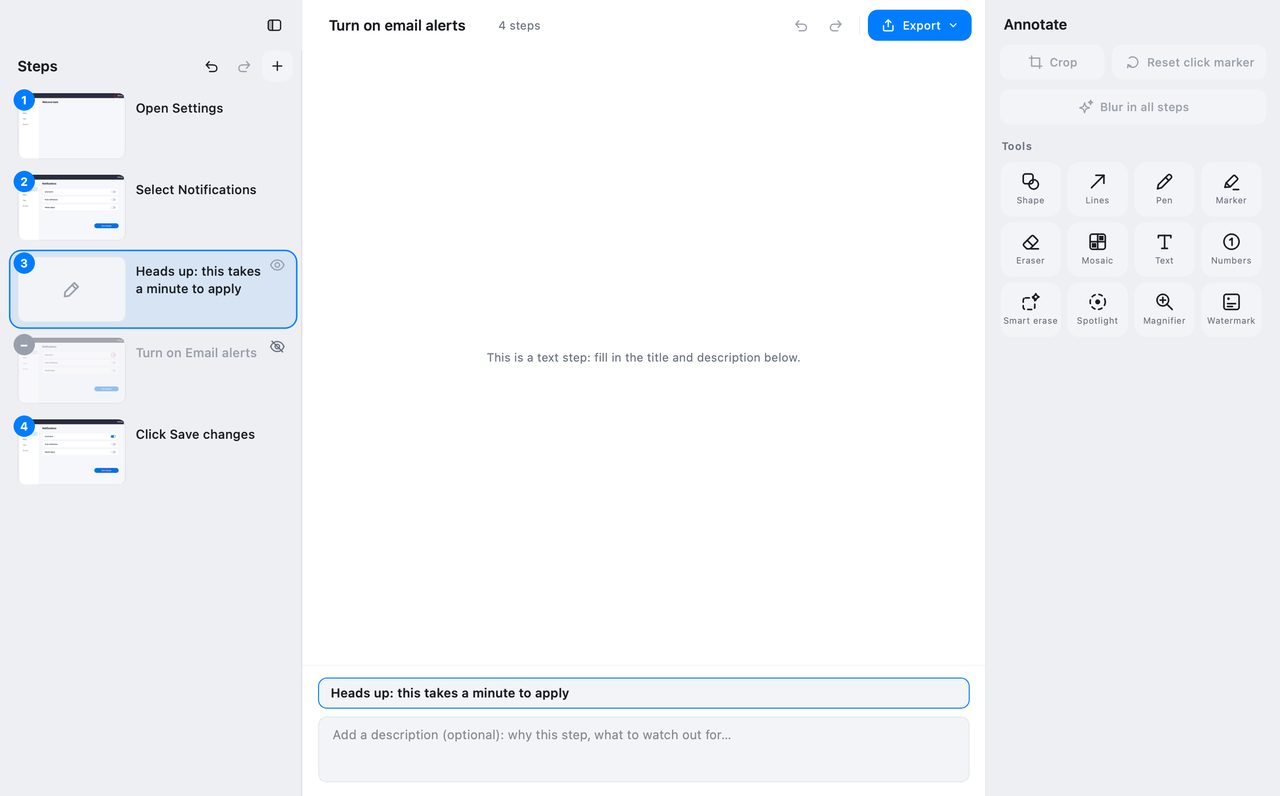
Recordings catch things that are not part of the process: a click on a notification, an accidental tab switch, a detour you took while recording. Select the step and hide it. Hidden steps are skipped in the export and the numbering stays continuous.
Hiding is better than deleting when the step contains a useful screenshot you may want later, and better than leaving it in when it would confuse the reader.
A checklist before exporting
| Check | Why |
|---|---|
| Does each title start with a verb? | It becomes an instruction |
| Is each step one action? | Sub-steps handle the rest |
| Does each description add something? | Otherwise delete it |
| Are warnings in callouts? | They stand out and are not numbered |
| Are irrelevant steps hidden? | Less noise, same numbering |
| Are names and IDs redacted? | The guide may be shared outside the team |
FAQ
Are the generated step titles editable?
Yes. Click the title field under the canvas and rewrite it. The description below it accepts formatted text, lists and links, and the changes are saved with the guide.
What is the difference between a sub-step and a callout?
A sub-step is part of the numbered sequence (N.1, N.2) and usually has its own screenshot. A callout is an unnumbered Tip, Warning or Note block that adds context without being a step.
Do hidden steps still appear in the export?
No. Hidden steps are skipped and the remaining steps are renumbered, so the exported guide stays continuous. The step stays in the editor in case you want it back.
More from the blog

How to Add Text to a Screenshot (and Make It Readable)
Add labels, titles and callouts to a screenshot with readable contrast, the right size and clean placement — plus how to edit them later on Mac and Windows.
October 25, 2026
Auto Zoom for Screen Recordings: What It Does and When to Use It
How InSnap's auto zoom follows your clicks in a screen recording, how the strength settings change the result, and when a static recording is better.
October 25, 2026
How to Make a Before-and-After Comparison Image
One image beats two attachments: capture both states at the same size, stitch them side by side, label them, and send a comparison the reader can scan.
October 25, 2026