 InSnap
How to Blur Private Data Across an Entire Guide
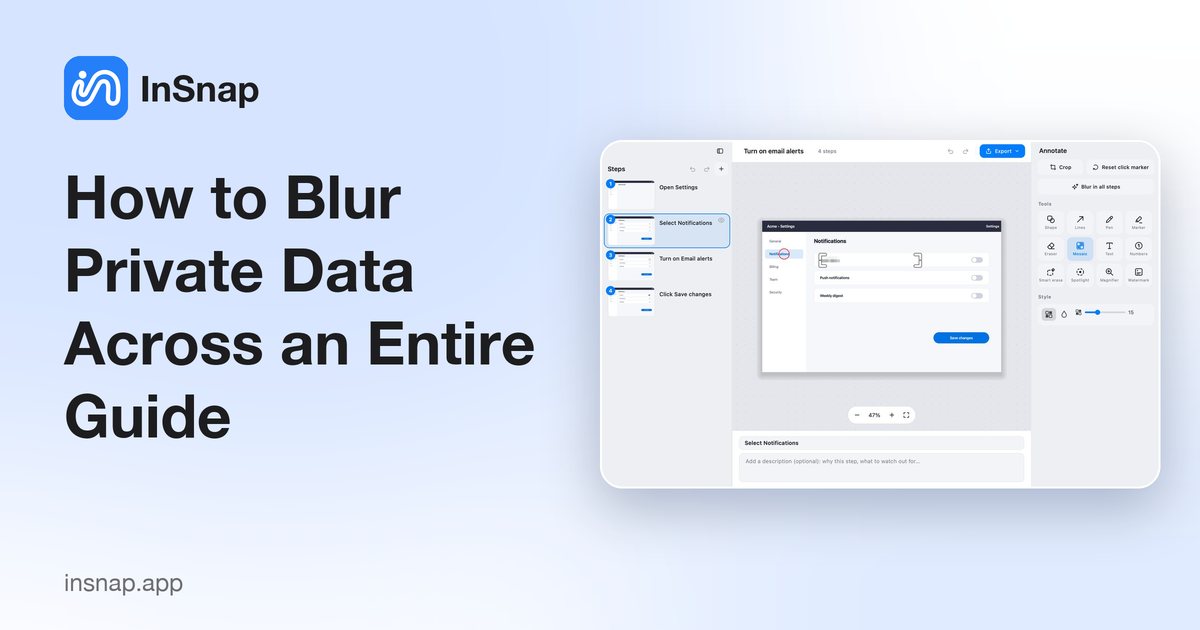
One mosaic, applied to every step: how to use Blur in all steps, check alignment, and cover what must never be visible in a recorded guide.
A recorded guide repeats the same screen many times. The customer name that appears in step 2 is usually still there in step 3, step 4 and the exported PDF. Redacting one step and forgetting the rest is the most common privacy mistake in screenshot documentation.
InSnap's guide editor has a one-click answer: Blur in all steps.
Why one pass is not enough
When you record a walkthrough, every click captures the current window. If an account name, an email address or an order number is on screen, it is captured again and again. Hiding it in the step you noticed is not enough — the same data is sitting in the other frames, and in every export format.
The fix has to be applied at the guide level, not the step level.
Use Blur in all steps
- Open the guide in the editor.
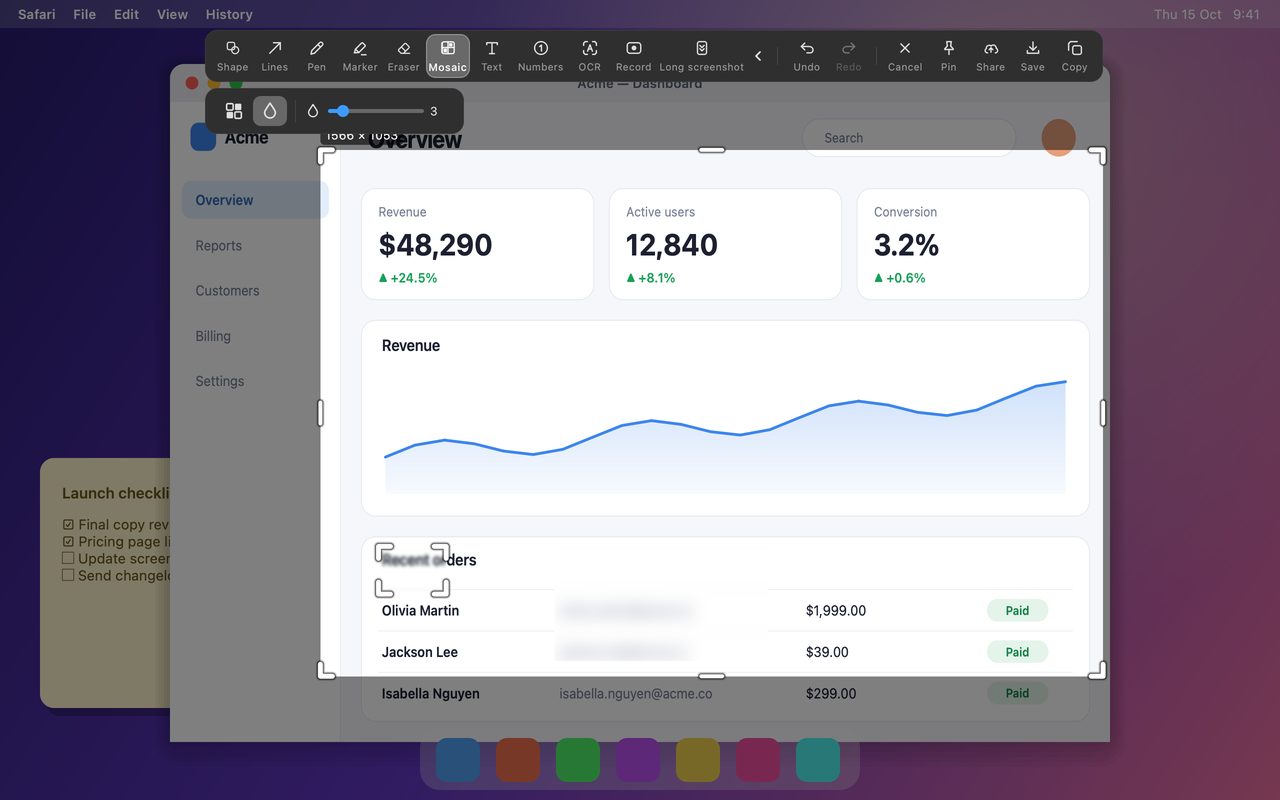
- Choose Mosaic in the tools panel.
- Draw over the sensitive area on the current step. Adjust the strength until the text is unreadable.
- Click Blur in all steps in the panel above the tools.
- Walk through the step list and check each one.
InSnap copies the mosaic to every step, scaled to each step's image size and placed at the same relative position. That handles guides where all steps were captured at the same window size, which is the normal case for a recorded walkthrough.
Check every step
The copy is positional, so it assumes the sensitive area stays in roughly the same place. Two situations need a manual pass:
- Scrolling. If a step is captured after the page scrolled, the same row may have moved. The mosaic will sit where the row used to be, leaving the data visible below it.
- Different windows or sizes. A step captured in a dialog or a resized window has a different layout, so the copied shape may miss.
The review is quick: click through the step list and look for the data, not for the mosaic. If a step needs a different placement, move or redraw the mosaic on that step; the guide keeps per-step edits.
What deserves more than a mosaic
Mosaic is good for names, email addresses, order numbers and account IDs in a demo. It is not a guarantee for secrets.
- Passwords, API keys, tokens and card numbers should be covered with a solid opaque shape, or cropped out entirely. A strong mosaic is still a transformation of the original pixels, not a deletion.
- Anything that must never leak should not be in the recording at all. Close the window, switch accounts, or record a region that excludes it.
- Full-screen sensitive material is better cropped than mosaicked; cropping removes the pixels instead of obscuring them.
The same rule from screenshot redaction applies here: cover what is risky, crop what is unnecessary, and only mosaic what is low-risk but visually distracting.
Before you export
Run a final pass in this order:
- Check every step for the sensitive data, including the first and last steps.
- Check the cover and the document title; they are easy to forget because they are not steps.
- Check the export preview if you use one; it shows the final page order.
- Export to PDF, Word, PowerPoint, HTML, Markdown, SCORM or JSON. The mosaic is rendered into every format.
FAQ
Is Blur in all steps available on the free plan?
No. The guide editor and its redaction tools are Pro features, included in the one-time $15 purchase.
Does Blur in all steps overwrite my per-step edits?
It applies the current mosaic to every step. If a step already has its own mosaic, check it afterwards; the guide keeps per-step shapes, so you can adjust any step that does not line up.
Is a mosaic strong enough for passwords?
No. For passwords, tokens, card numbers and anything you would not want forwarded, use a solid opaque shape or crop the area out. Mosaic is for lower-risk details such as names and IDs in a demo.
More from the blog

How to Add Text to a Screenshot (and Make It Readable)
Add labels, titles and callouts to a screenshot with readable contrast, the right size and clean placement — plus how to edit them later on Mac and Windows.
October 25, 2026
Auto Zoom for Screen Recordings: What It Does and When to Use It
How InSnap's auto zoom follows your clicks in a screen recording, how the strength settings change the result, and when a static recording is better.
October 25, 2026
How to Make a Before-and-After Comparison Image
One image beats two attachments: capture both states at the same size, stitch them side by side, label them, and send a comparison the reader can scan.
October 25, 2026