 InSnap
How to Show Keystrokes in a Screen Recording
Turn on the key overlay, choose a corner, and drag the keys in the preview. What the overlay captures, which permission it needs, and when to leave it off.
Some recordings are about the screen; some are about what you type. A shortcut, a command, a search query: showing the keys on screen removes the guesswork. InSnap's video editor has a Keys panel for exactly that.
Turn it on
Open the video editor, choose Keys in the left rail, and enable Show keys. The overlay is rendered into the exported video, not into the original recording.
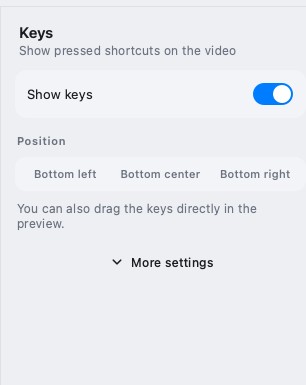
The panel has three controls:
- Show keys — on or off.
- Position — bottom left, bottom center or bottom right.
- More settings — the detailed options for the keycaps and timing.
What appears on screen
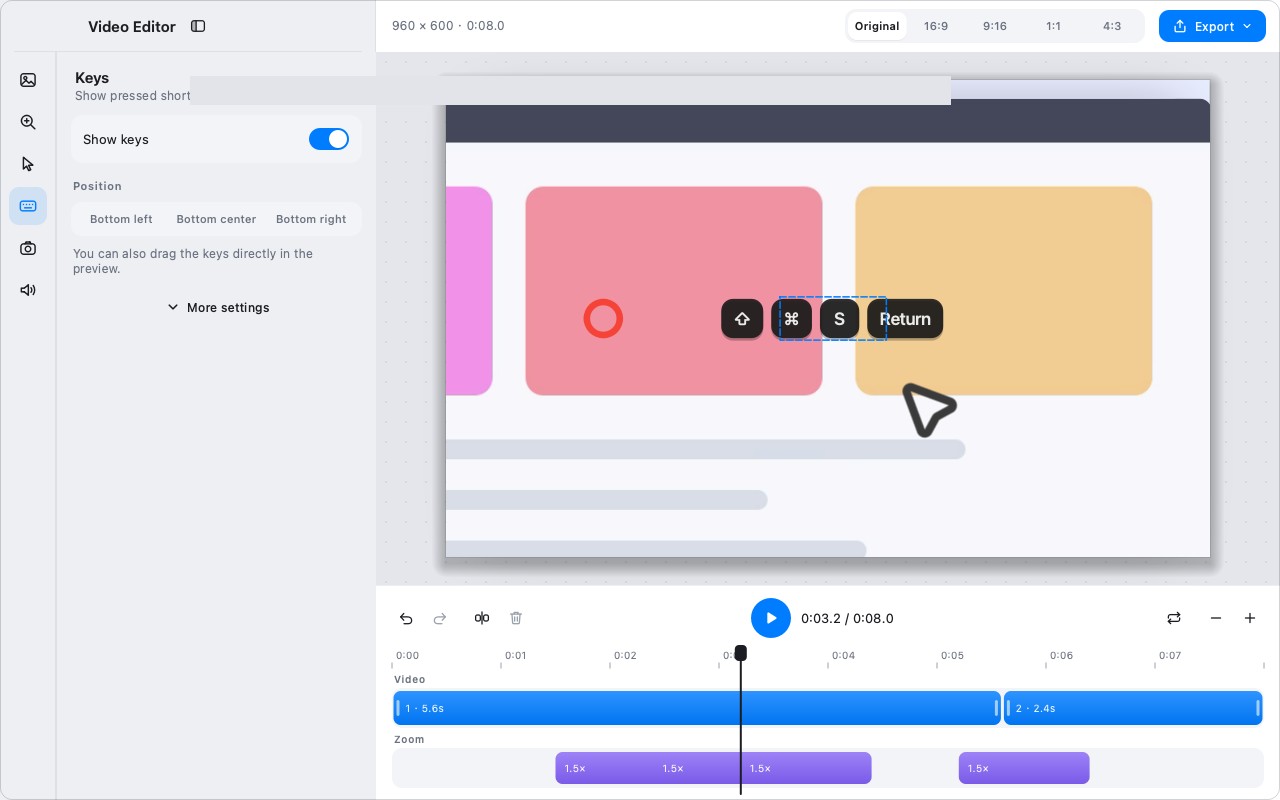
The overlay shows the keys you pressed, using keycap-style badges. Modifier combinations appear together, so Command-Shift-4 reads as a combination rather than four separate presses.
The keycaps are timed to the recording: they appear near the press and stay long enough to be read. The exact timing is handled by the editor; you do not place them frame by frame.
You can also drag the keys directly in the preview to reposition them, which is faster than switching to a corner preset if the bottom of the screen is busy.
The overlay uses the key names recorded with the events, so the labels follow the keyboard layout that was active while you recorded. A shortcut recorded on a US layout will show its US key names even if you switch layouts later; re-record if the labels need to match a different layout.
The permission it needs
Key recording depends on Input Monitoring permission. Without it:
- The recording still produces video.
- The key events are missing, so the overlay has nothing to show.
Grant Input Monitoring in Settings › General › Permissions before recording. If the permission was granted after the app launched, restart the app so it takes effect.
Privacy: keys can expose secrets
A key overlay records everything you type while it is on, including passwords, tokens and private messages. Treat it as a microphone for the keyboard.
- Turn it off when typing credentials.
- Record the sensitive part without the overlay, or cut it in the editor.
- Do not share a key-overlay recording without reviewing every frame that contains input.
- If the recording will leave the team, prefer showing the result rather than the keystrokes that produced it.
When the overlay helps
| Situation | Overlay |
|---|---|
| Teaching a keyboard shortcut | On |
| Demonstrating a search query | On |
| Typing a command in a terminal | On, if the command is not sensitive |
| Entering a password | Off |
| A mostly mouse-driven walkthrough | Off; use clicks instead |
| A long typing session | Off; the overlay becomes noise |
Position and style
- Bottom center is the safest default; it is visible without covering most toolbars.
- Bottom left/right suits apps with centered content and empty corners.
- Drag in the preview when the preset positions collide with a control.
Keep the overlay away from the area you are pointing at. If the keys cover the field being typed into, drag them to the opposite corner.
FAQ
Why are no keys showing in my recording?
The most likely cause is missing Input Monitoring permission, or the Keys panel being off. Check both before re-recording; the events cannot be added to a finished MP4 afterwards.
Can I move the keys after recording?
Yes. The overlay is rendered in the editor, so you can change the position, drag it in the preview and re-export. The original video is untouched.
Does the overlay show every key, including passwords?
Yes, if it is on while you type them. Turn it off for credentials and review the frames before sharing.
More from the blog

How to Add Text to a Screenshot (and Make It Readable)
Add labels, titles and callouts to a screenshot with readable contrast, the right size and clean placement — plus how to edit them later on Mac and Windows.
October 25, 2026
Auto Zoom for Screen Recordings: What It Does and When to Use It
How InSnap's auto zoom follows your clicks in a screen recording, how the strength settings change the result, and when a static recording is better.
October 25, 2026
How to Make a Before-and-After Comparison Image
One image beats two attachments: capture both states at the same size, stitch them side by side, label them, and send a comparison the reader can scan.
October 25, 2026