 InSnap
Pin Settings: Opacity and Click-Through Defaults
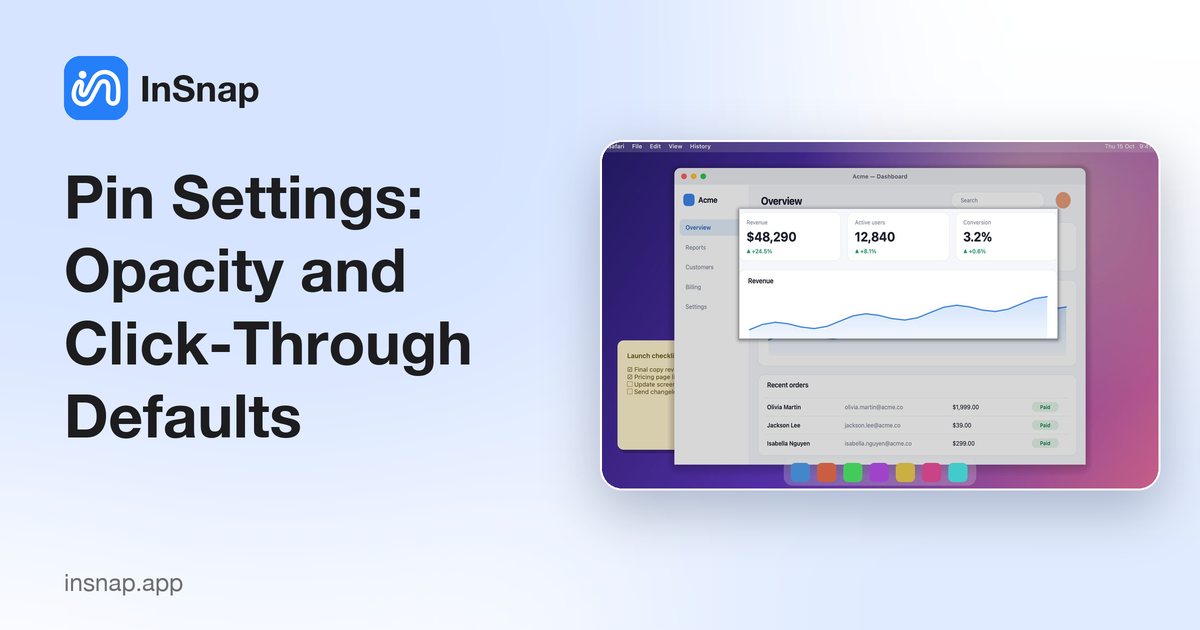
Initial opacity, click-through for new pins and the per-pin overrides: how to keep pinned screenshots readable without letting them block your clicks.
Pinned screenshots are most useful when they behave like a reference on your desk: visible, readable, and out of the way of your mouse. InSnap's Settings › Pin page sets the defaults for every new pin, and each pin can still be adjusted afterwards.
The two defaults
| Setting | Default | What it changes |
|---|---|---|
| Initial pin opacity | 100% | How solid a newly pinned image looks |
| Click-through for new pins | Off | Whether new pins ignore the mouse |
Both apply to new pins. Changing them does not alter pins that are already on screen.
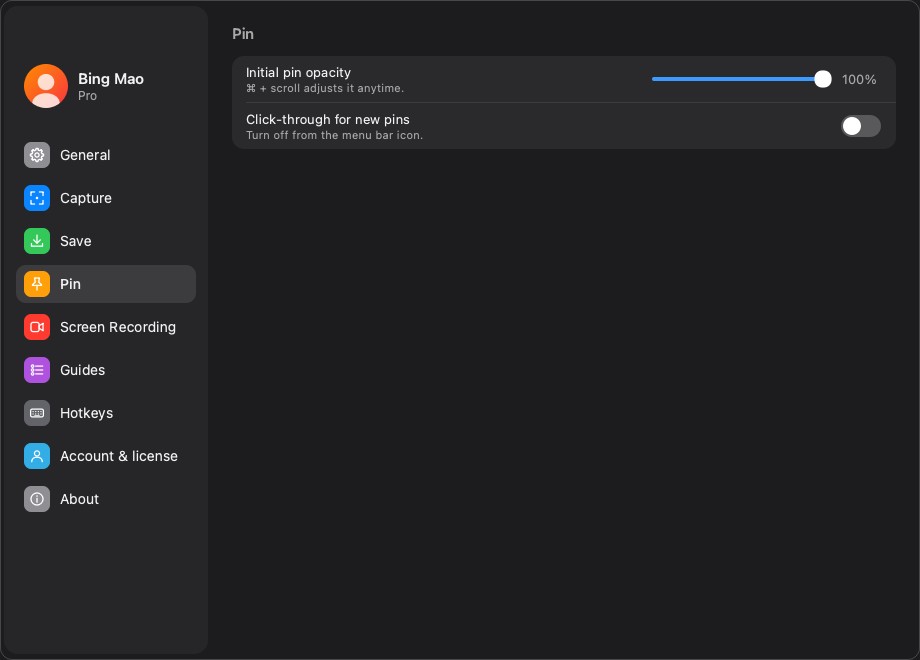
Initial opacity
Opacity controls how much of the image underneath shows through the pin.
- 100% is the right default for reading text, code or UI details.
- 70–85% keeps a reference visible without completely hiding the app behind it.
- Below 50% is for tracing or comparing shapes; text becomes hard to read.
You can change a single pin at any time with Command-scroll (Ctrl-scroll on Windows) or the pin menu. The setting is a starting point, not a lock.
A common workflow: keep the default at 100%, lower a specific pin when it covers the control you need, and raise it again when you are reading the pin.
Click-through for new pins
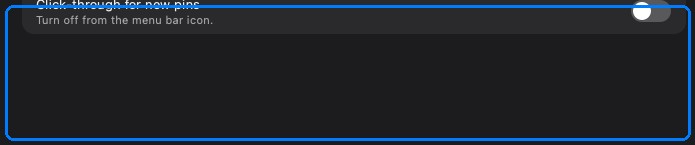
When click-through is on, the pin ignores the mouse: clicks and scrolls pass to the application underneath. It is useful for a pin you want to see but not interact with.
Turn it on globally only if that is your normal use. Otherwise:
- Keep the default off, and enable click-through per pin from the pin menu.
- Use Cancel pin click-through from the menu bar when a click-through pin is in the way; you do not need to find the pin first.
- Remember that a click-through pin cannot be dragged, resized or closed with the mouse until click-through is off.
Per-pin controls that override the defaults
Each pin has its own set of controls, independent of the settings page:
- Scroll to zoom — change size without changing the image.
- Command/Ctrl-scroll — change opacity.
- Lock — prevent dragging and accidental close; unlock with Command-L or the menu.
- Click-through — pass clicks through.
- Close — double-click or Esc when unlocked; the menu and close button always work.
The defaults decide how a pin starts; the per-pin controls decide how it behaves right now.
Pinning the clipboard
The Pin clipboard action is separate from the settings page. It takes whatever is on the clipboard — an image, text, HTML, files — and pins it as a rendered image. The new pin follows the opacity and click-through defaults you set here.
If the clipboard has nothing pinnable, InSnap reports it instead of creating an empty pin.
A setup that stays out of the way
| Situation | Opacity | Click-through |
|---|---|---|
| Reading a reference while typing | 100% | Off |
| Comparing two screenshots | 100% | Off |
| Tracing over an app | 60–80% | On |
| Presentation/overlay | 80–90% | On |
| Sensitive reference on a shared screen | 100% | Off, close when done |
If pins accumulate, use Close all pins from the menu bar; it is faster than hunting for each one.
FAQ
Does changing the default opacity affect pins already on screen?
No. Settings › Pin applies to new pins. Use Command-scroll or the pin menu to change an existing one.
Why can't I click a pinned screenshot?
Click-through is enabled. Turn it off for that pin, or use Cancel pin click-through from the menu bar if the pin is hard to reach.
What happens to pinned screenshots when I quit InSnap?
They close. Pins are windows, not saved files; the source image remains in the clipboard or in screenshot history if it was recorded.
More from the blog

How to Add Text to a Screenshot (and Make It Readable)
Add labels, titles and callouts to a screenshot with readable contrast, the right size and clean placement — plus how to edit them later on Mac and Windows.
October 25, 2026
Auto Zoom for Screen Recordings: What It Does and When to Use It
How InSnap's auto zoom follows your clicks in a screen recording, how the strength settings change the result, and when a static recording is better.
October 25, 2026
How to Make a Before-and-After Comparison Image
One image beats two attachments: capture both states at the same size, stitch them side by side, label them, and send a comparison the reader can scan.
October 25, 2026