 InSnap
Screenshot History Taking Up Too Much Space? Fix It
Full-screen originals and thumbnails add up. How retention, size limits, favorites and manual deletion interact, and what is safe to remove.
Screenshot history is convenient precisely because it keeps the full-screen original, not a cropped thumbnail. That is also why it grows: a Retina capture can be several megabytes, and a few hundred of them quietly become a large folder.
See what is actually stored
Each history entry keeps:
- The full-screen original as a PNG.
- A thumbnail for the grid.
- A small JSON record with annotations, tags, app and window title.
- The text index, if text indexing is enabled.
Media records (videos, GIFs and guides) are different: their files usually live outside the history folder, and the history keeps a thumbnail and a record that points to them.
Use the built-in limits first
Open Settings › Screenshot and look at the two history limits:
| Setting | What it does |
|---|---|
| History retention | Removes captures older than the chosen number of days |
| History size limit | Removes old captures when the folder passes a size |
Both run automatically in the background. The important exception: favorites and tagged captures are never removed. That is good for the things you marked; it also means cleanup will not rescue you from a folder full of starred screenshots.
A practical setup: keep 90 days for ordinary captures, set a size limit you are comfortable with, and reserve favorites and tags for references you genuinely need.
Delete the heavy items manually
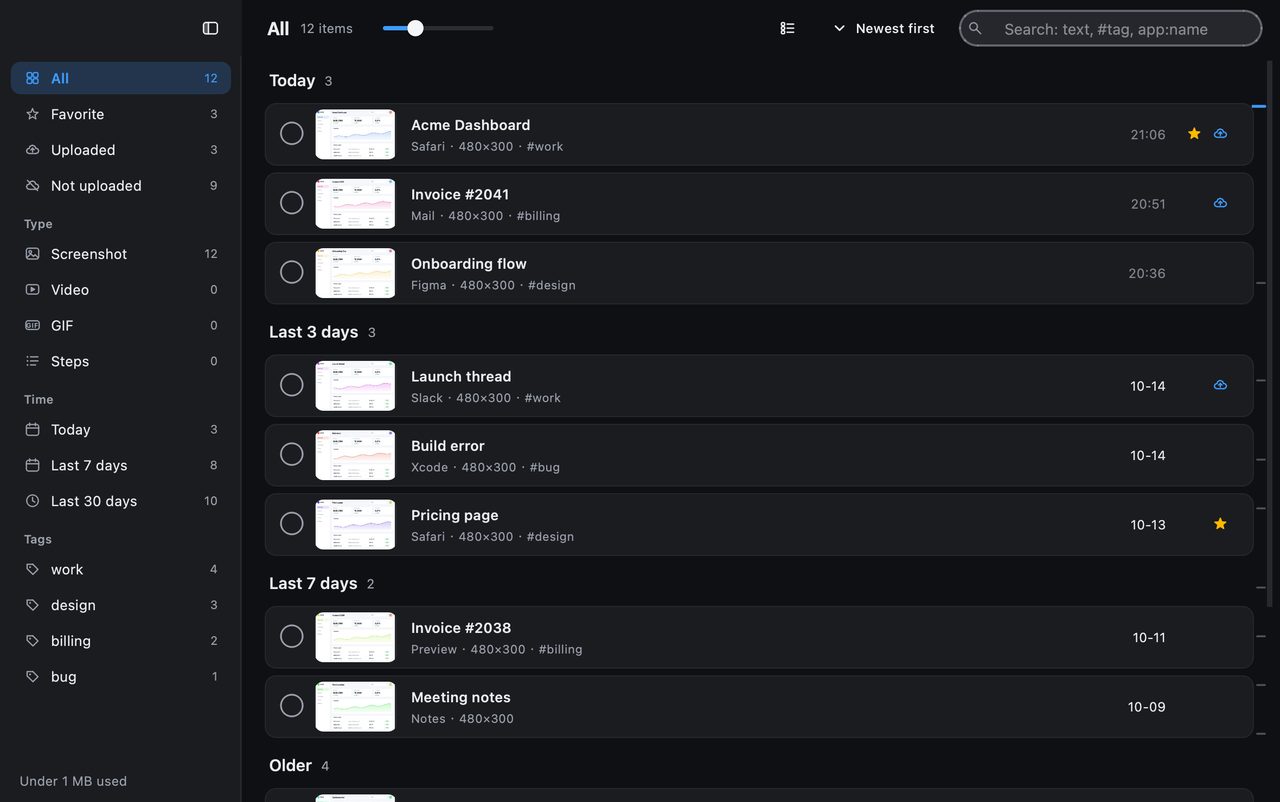
If the folder is already large, retention alone will not fix it today. Open the history and sort or scan for:
- Old full-screen captures you no longer need.
- Large screenshots from high-resolution displays.
- Duplicates from retrying the same capture.
- Media records whose source files you have already saved elsewhere.
Select with the circle on each card (⌘/Ctrl-click for more, Shift-click for a range) and delete from the floating bar. Deleting a history entry removes the original, the thumbnail and any app-owned directory attached to it; files you saved yourself, and videos or GIFs you exported, are not touched.
Stop new growth if you do not need history
If you rarely revisit captures, turn off Keep capture history. New captures will not be recorded; existing entries stay until you delete them or retention removes them.
Text indexing has its own switch. If search inside images is not something you use, turning it off stops new OCR work and the index growth that comes with it.
What not to delete
- Saved files: deleting a history entry does not delete a file you saved with Save.
- Exported videos and GIFs: these live where you put them, not in the history folder.
- Favorites you rely on: cleanup skips them, so remove the star first if you want them eligible.
If a capture contains something sensitive, deleting it from history is the right move, and so is checking the retention setting: a shorter window keeps less history on disk.
A quick cleanup routine
- Check the size limit and retention in Settings.
- Delete obvious duplicates and old full-screen captures.
- Unstar anything that no longer needs to survive cleanup.
- Tag the captures tied to open tasks, so they are protected.
- Re-check the folder size after a day; thumbnails and text index update in the background.
FAQ
Does clearing screenshot history delete files I saved?
No. Deleting a history entry removes the capture stored by InSnap, its thumbnail and any directory InSnap owns for that record. Files you saved with Save, and exported videos or GIFs, are separate and remain.
Why are my favorites still taking space after cleanup?
Favorites and tagged captures are excluded from automatic pruning by design. If you want them removed, unstar or untag them first, then delete them manually or let retention handle them.
Where is the history stored?
In InSnap's local application data folder on your machine. It is not synced to the cloud; only files you explicitly upload go to Cloud.
More from the blog

How to Add Text to a Screenshot (and Make It Readable)
Add labels, titles and callouts to a screenshot with readable contrast, the right size and clean placement — plus how to edit them later on Mac and Windows.
October 25, 2026
Auto Zoom for Screen Recordings: What It Does and When to Use It
How InSnap's auto zoom follows your clicks in a screen recording, how the strength settings change the result, and when a static recording is better.
October 25, 2026
How to Make a Before-and-After Comparison Image
One image beats two attachments: capture both states at the same size, stitch them side by side, label them, and send a comparison the reader can scan.
October 25, 2026