 InSnap
How to Take a Screenshot on a Mac: Every Shortcut Explained
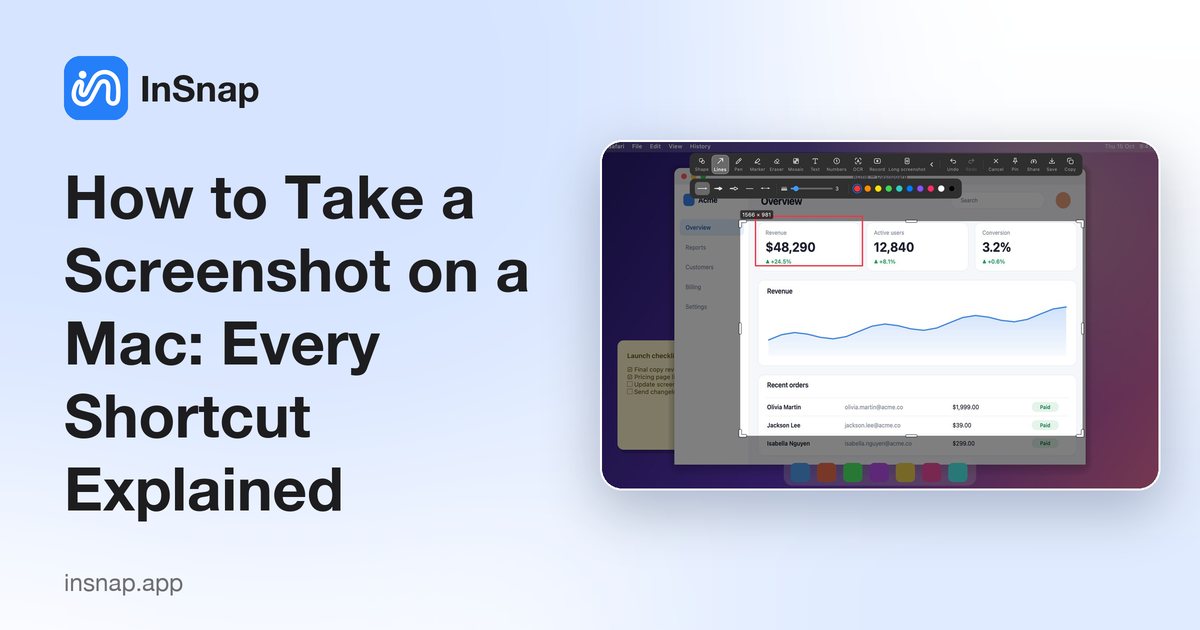
All the macOS screenshot shortcuts in one place: full screen, a selection, a single window, copy to clipboard, record the screen, and where the files go.
macOS has capable screenshot shortcuts built in. This is the complete list, plus what to do when you need more than the basics.
The core shortcuts
| Shortcut | What it does |
|---|---|
| Shift-Command-3 | Capture the whole screen |
| Shift-Command-4 | Drag to capture a selected area |
| Shift-Command-4, then Space | Click a window to capture just that window |
| Shift-Command-5 | Open the screenshot and screen-recording toolbar |
Copy to the clipboard instead of saving a file
Hold Control together with any of the shortcuts above (for example Control-Shift-Command-4). The image goes to the clipboard, ready to paste into a message or document, and no file is created.
Capture a window without the shadow
After pressing Shift-Command-4 and Space, hold Option while you click the window. The screenshot has no drop shadow around it.
Where do screenshots go?
By default they are saved to the Desktop. Press Shift-Command-5, open Options, and pick another folder under Save to. The same menu lets you turn off the floating thumbnail, set a timer, and choose whether the mouse pointer is included.
Record the screen
Shift-Command-5 also records video. Choose Record Entire Screen or Record Selected Portion and press Record. You can include the microphone, but macOS does not record the sound your Mac is playing; for that you need a screen recorder that can capture system audio.
When the built-in tools are not enough
The macOS shortcuts save an image and little else. If you regularly want to annotate, keep a screenshot floating on screen, copy text out of an image, or capture a long page, a dedicated tool is faster. With InSnap, press the capture hotkey (Command-1 by default), drag a box, and use the toolbar to add arrows, text and mosaic, then copy, save or pin the result. Annotation and pinning are free.
FAQ
What is the shortcut for a screenshot on a Mac?
Shift-Command-3 for the whole screen, Shift-Command-4 for a selected area, and Shift-Command-5 for the toolbar with more options and screen recording.
Where are Mac screenshots saved?
On the Desktop unless you change it. Open the Shift-Command-5 toolbar, choose Options, and select a different location.
How do I screenshot only one window on a Mac?
Press Shift-Command-4, then Space, then click the window. Hold Option while clicking to leave out the shadow.
How do I copy a screenshot instead of saving it?
Add the Control key to the shortcut, for example Control-Shift-Command-4. The image is copied to the clipboard.
More from the blog

How to Add Text to a Screenshot (and Make It Readable)
Add labels, titles and callouts to a screenshot with readable contrast, the right size and clean placement — plus how to edit them later on Mac and Windows.
October 25, 2026
Auto Zoom for Screen Recordings: What It Does and When to Use It
How InSnap's auto zoom follows your clicks in a screen recording, how the strength settings change the result, and when a static recording is better.
October 25, 2026
How to Make a Before-and-After Comparison Image
One image beats two attachments: capture both states at the same size, stitch them side by side, label them, and send a comparison the reader can scan.
October 25, 2026