 InSnap
How to Blur or Hide Sensitive Info in a Screenshot Safely
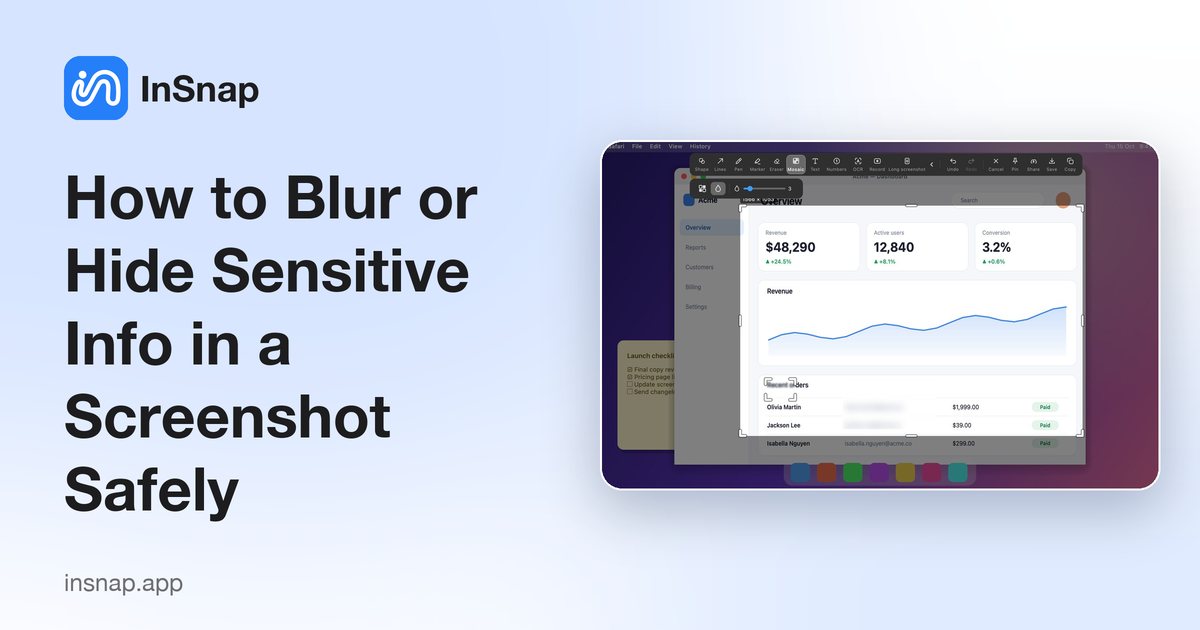
Blur, pixelate or cover? How to hide emails, names, keys and numbers in a screenshot so they cannot be recovered, and how to do it quickly with InSnap.
Screenshots leak more than people expect: email addresses, API keys, customer names, order numbers, tabs in the background. Before you share one, hide what should not be seen, and hide it properly.
Blur, mosaic or solid cover?
- Mosaic (pixelation) replaces an area with large blocks. It reads as "redacted" at a glance, which is useful for names and numbers.
- Blur smooths the area. It looks softer but gives a weaker guarantee, especially with a small radius on large text.
- A solid cover (an opaque filled shape) removes the information completely.
Low-strength blur or fine pixelation over short text can sometimes be partly reversed or guessed. For passwords, API keys, tokens, card numbers and anything you would regret leaking, use a solid cover, or crop the area out. Use mosaic or blur with a strong setting for lower-risk details such as names in a demo.
Hide details with InSnap
- Press the capture hotkey (Command-1 on Mac, Ctrl+1 on Windows) and drag a box around the area you want.
- Choose Mosaic on the toolbar, pick Mosaic or Blur in the style options, and raise the strength.
- Drag over each detail you want to hide. You can move or resize the box afterwards, and undo with the usual shortcut.
- Copy, save or pin the result. The hiding is applied to the exported pixels, so the original details are not in the file you share.
A quick checklist before you share
- Look at the whole screenshot, not only the part you cared about: tabs, notifications, bookmarks and the menu bar.
- Check file names, URLs and window titles in the corners.
- For many similar screenshots, such as a step-by-step guide, apply the same hiding to every one. InSnap's guides can blur the same area across all steps at once (Pro).
- Zoom in on the result to confirm nothing is readable.
FAQ
Is it safe to blur a password in a screenshot?
Not reliably. Cover it completely with a solid shape or crop it out, and change the password if it was ever visible.
What is the difference between mosaic and blur?
Mosaic replaces the area with visible blocks; blur smooths it. Both can be adjusted in strength, and a stronger setting hides more.
Can someone undo the mosaic in a screenshot saved by InSnap?
The mosaic is baked into the exported image, so the original pixels are not stored in that file. Keep in mind that weak settings on large, clear text can still be partly guessable, so use a strong setting or a solid cover for secrets.
More from the blog

How to Add Text to a Screenshot (and Make It Readable)
Add labels, titles and callouts to a screenshot with readable contrast, the right size and clean placement — plus how to edit them later on Mac and Windows.
October 25, 2026
Auto Zoom for Screen Recordings: What It Does and When to Use It
How InSnap's auto zoom follows your clicks in a screen recording, how the strength settings change the result, and when a static recording is better.
October 25, 2026
How to Make a Before-and-After Comparison Image
One image beats two attachments: capture both states at the same size, stitch them side by side, label them, and send a comparison the reader can scan.
October 25, 2026