 InSnap
InSnap's Capture-Screen Shortcuts, Explained
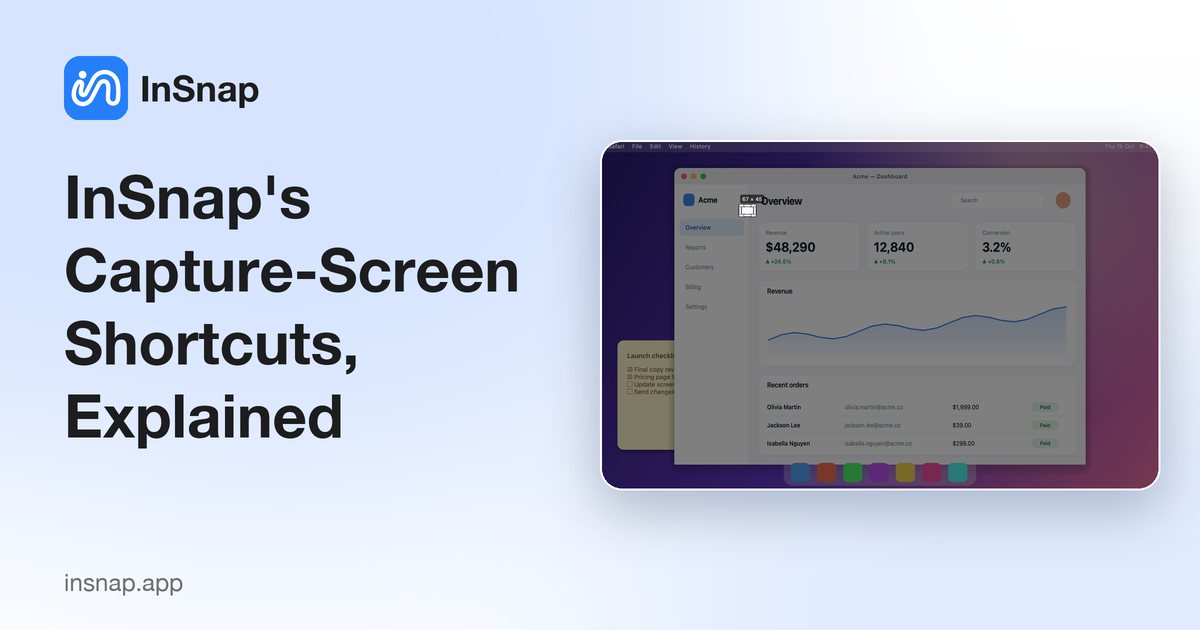
Two shortcuts work only while the capture overlay is open: select the full screen and copy the selection. How they differ from global hotkeys.
InSnap has two kinds of keyboard shortcuts, and confusing them sends people looking in the wrong settings page. Global hotkeys work anywhere; capture-screen shortcuts work only while the capture overlay is open. This page is about the second kind.
What they are
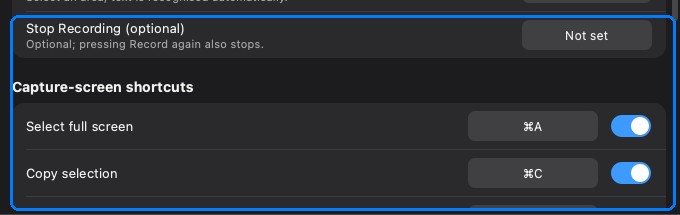
The capture overlay opens on the screen under the cursor. While it is open, two actions have their own shortcuts, both enabled by default:
| Action | Default | What it does |
|---|---|---|
| Select full screen | Command-A / Ctrl-A | Selects the entire display under the cursor |
| Copy selection | Command-C / Ctrl-C | Copies the selected area with its annotations |
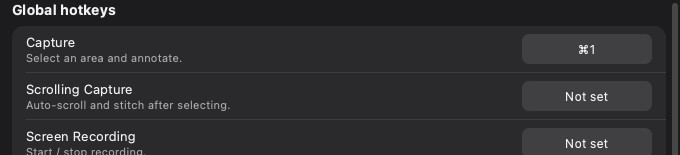
They are configured in Settings › Hotkeys, in the Capture-screen shortcuts section, and each has an on/off switch. Turning one off leaves the action available in the interface, but the key stops working.
Why they are separate
Global hotkeys are system-level registrations. They intercept the combination in every app while InSnap runs, which is why a global Command-1 can collide with a browser tab.
Capture-screen shortcuts are handled inside the overlay. They only exist for the seconds the overlay is open, so they do not take keys away from other applications. That is also why they can safely use common combinations like Command-A and Command-C: while you are capturing, those keys belong to the capture, not to the page behind it.
Select full screen
Command-A selects the entire display. It is the fastest path for:
- A full-screen bug report where the layout matters.
- A screenshot of a presentation or video player.
- A base image you will crop later in the image editor.
Because the overlay only covers one display, the full-screen selection applies to that display, not to every monitor. Move the pointer to the screen you want before pressing the capture hotkey.
Copy selection
Command-C copies the selected area and closes the capture. The copy includes annotations, respects the output options (such as scaling Retina captures to 1x and adding a border) and lands on the clipboard in the format chosen in Settings › Save.
If Command-C does nothing, check two things: the capture-screen shortcut is enabled, and the selection is not empty. A selection that was cancelled or reduced to zero size has nothing to copy.
When to rebind them
The defaults are intentionally the familiar select-all and copy combinations. Rebind them if:
- You use a keyboard layout or app where Command-A or Command-C has a different meaning that you rely on while capturing.
- You want copy to require an explicit key you cannot press by accident.
- You share a machine and prefer a less common combination.
Click the field, press the new combination, and test it in the overlay. The global hotkey page uses the same conflict warnings, so a duplicate inside InSnap is reported immediately.
Global versus capture-screen: a quick test
| Symptom | What it means |
|---|---|
| Nothing happens when you press Command-1 outside InSnap | Global hotkey disabled or conflicting |
| The overlay opens, but Command-C does not copy | Capture-screen shortcut disabled or reassigned |
| Command-1 switches browser tabs | Another app owns it, or the global hotkey was changed |
| Command-A selects page text instead of the screen | The overlay is not focused; click it first |
FAQ
Are capture-screen shortcuts global?
No. They work only while the capture overlay is open and only inside it. Global hotkeys are the ones that work in every application.
Why does Command-C copy the page instead of the selection?
The overlay probably does not have keyboard focus, or the capture-screen shortcut is disabled. Click inside the overlay and check Settings › Hotkeys.
Can I disable the full-screen selection shortcut?
Yes. Turn off its switch in the Capture-screen shortcuts section. The full-screen action remains available from the interface, only the key is disabled.
More from the blog

How to Add Text to a Screenshot (and Make It Readable)
Add labels, titles and callouts to a screenshot with readable contrast, the right size and clean placement — plus how to edit them later on Mac and Windows.
October 25, 2026
Auto Zoom for Screen Recordings: What It Does and When to Use It
How InSnap's auto zoom follows your clicks in a screen recording, how the strength settings change the result, and when a static recording is better.
October 25, 2026
How to Make a Before-and-After Comparison Image
One image beats two attachments: capture both states at the same size, stitch them side by side, label them, and send a comparison the reader can scan.
October 25, 2026