 InSnap
How to Review a Website or Design With Annotated Screenshots
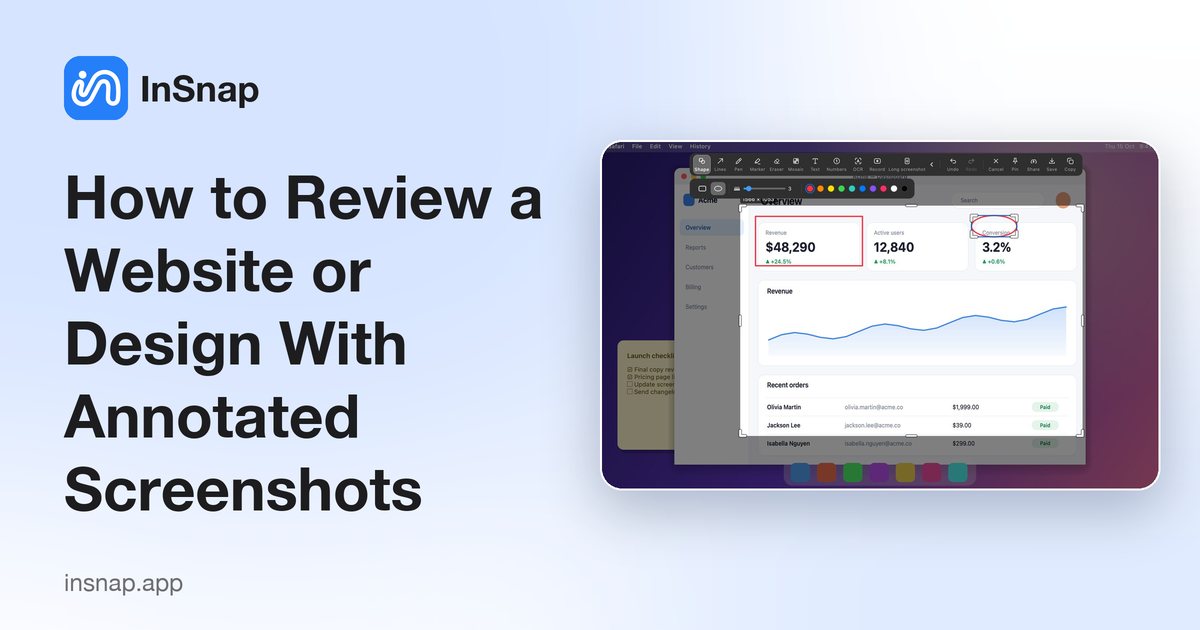
A lightweight design review loop: capture the state, annotate precisely, compare versions, and hand over one focused set of notes instead of a vague thread.
Design feedback goes wrong in predictable ways: the note refers to something that has already changed, three people describe the same issue in three threads, and nobody can tell which version the screenshot came from. A screenshot-based review loop fixes most of that with a small amount of discipline.
Capture the state, not the story
Start from a screenshot of the exact state you are commenting on, not a description of it. In InSnap:
- Press Command-1 on Mac or Ctrl+1 on Windows.
- Hover over the browser window and let the automatic detection box it, or drag a region around the component.
- Include the surrounding context that matters — the viewport width, the surrounding layout, the state of a form — and nothing else.
A capture taken on the page you are reviewing is evidence. A screenshot of a similar page from last week is a source of confusion.
Annotate with a shared vocabulary
The fastest way to make review notes comparable is to agree on what each tool means:
| Tool | Use it for |
|---|---|
| Shape | Grouping a region or outlining a component |
| Arrow | Pointing from a note to the exact element |
| Number | Listing several issues in one screenshot |
| Marker | Highlighting text that needs to change |
| Spotlight (Pro) | Focusing on one area of a busy layout |
| Magnifier (Pro) | Showing a pixel-level detail, such as alignment |
Keep to one meaning per tool across the team. If arrows mean "change this", do not use them for "I like this".
Keep one screenshot per issue
A single screenshot with twelve annotations is hard to discuss. A screenshot per issue is easy to resolve, reference and close.
- Crop tightly around the component, but keep enough context to locate it.
- Number the issues if they are related.
- Put the reasoning in the message, not in a wall of text over the image.
- Include the viewport size and zoom level when layout is the topic; a screenshot at 50% zoom can hide the very overflow you are reporting.
Compare versions with pinned screenshots
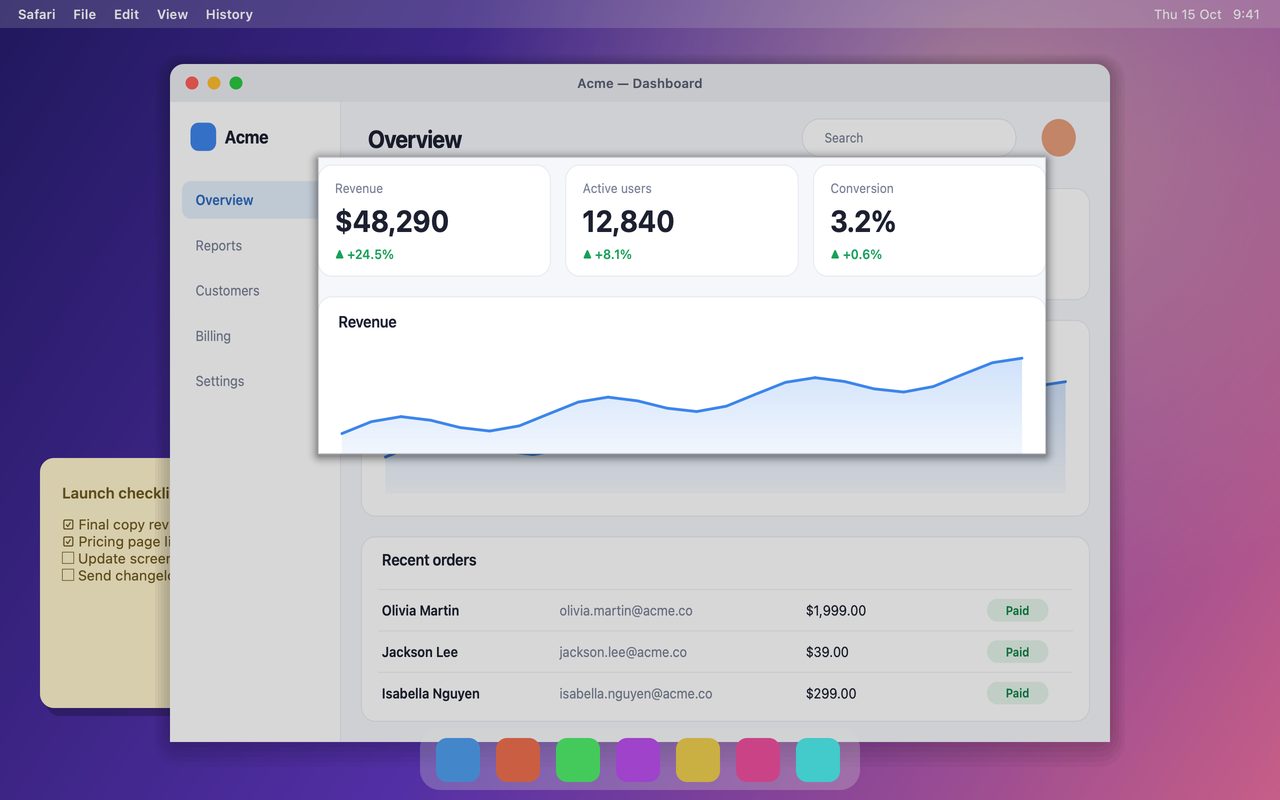
The fastest way to answer "did it change?" is to put both versions on screen at once. Pin the previous screenshot and the current one; pinned windows float above other apps, so you can drag them side by side over the browser and compare without switching tabs.
This is also where the screenshot history helps: past captures are searchable, so the "before" state is usually already there.
Hand over a link or a file
- One issue: attach the annotated image, or share a link if the recipient should not download anything.
- Several issues: a numbered list in the message, each number matching an annotation.
- A recurring review: keep the screenshots in the history, tagged by project or ticket, so the next round starts from the previous state.
If you use InSnap Cloud, the share link can have an expiry date and a password, which is useful for client reviews that should not stay online forever. Cloud is an optional subscription and is not needed for the local workflow.
A review checklist
| Check | Why |
|---|---|
| Is the screenshot from the current version? | Notes on stale images waste a round |
| Is the issue visible without explanation? | Otherwise the annotation is doing too much |
| Is there one issue per screenshot? | Easier to resolve and close |
| Is the viewport or zoom level noted? | Layout bugs depend on it |
| Is anything private visible? | Blur names, emails and internal URLs |
| Is the action clear? | "Move the button left" beats "spacing feels off" |
FAQ
Should I annotate the screenshot or write the feedback in the message?
Both, for different jobs: the annotation shows where, the message explains what and why. Do not put a paragraph inside the image; it will be missed and cannot be searched.
How do I compare two versions side by side?
Pin both screenshots. Pinned windows stay above other applications, so you can place them next to each other and compare while the browser is open.
Can I share the review without the recipient installing InSnap?
Yes. Send the image file, or use a Cloud share link, which opens in a normal browser. Cloud is an optional subscription; the free workflow is to save and attach the image.
More from the blog

How to Add Text to a Screenshot (and Make It Readable)
Add labels, titles and callouts to a screenshot with readable contrast, the right size and clean placement — plus how to edit them later on Mac and Windows.
October 25, 2026
Auto Zoom for Screen Recordings: What It Does and When to Use It
How InSnap's auto zoom follows your clicks in a screen recording, how the strength settings change the result, and when a static recording is better.
October 25, 2026
How to Make a Before-and-After Comparison Image
One image beats two attachments: capture both states at the same size, stitch them side by side, label them, and send a comparison the reader can scan.
October 25, 2026