 InSnap
How to Highlight a Screenshot So the Text Stays Readable
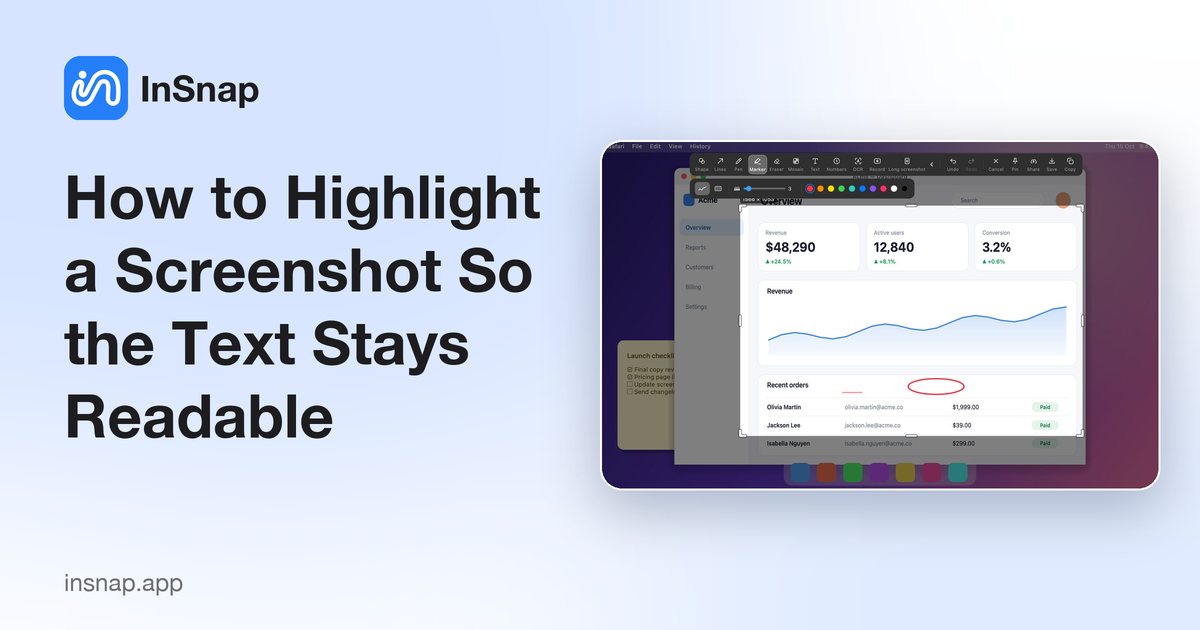
Highlight the point without hiding it: use the marker's translucent blend, snap highlights to whole lines, and keep colors meaningful rather than decorative.
A highlighter is supposed to help someone read faster. Too often it does the opposite: a solid bar covers the words, three colors compete, and the reader has to work out what the marking meant. The difference is mostly technique, not the tool.
Marker versus pen
InSnap has both, and they behave differently:
- Pen draws opaque ink. It is right for circling, brackets and quick diagrams, and wrong for running over text you want read.
- Marker is a highlighter. It draws a translucent tint and blends with what is underneath, so dark text stays dark and readable.
If you are highlighting words, use the marker. If you are drawing attention to a region, a shape outline is often cleaner than either.
Highlight the words that carry the point
The most common mistake is highlighting the whole paragraph. A paragraph of yellow says "this section may be relevant"; two highlighted phrases say "this is the claim". Aim for the shortest span that still makes sense out of context: a number, a status, a warning, a button label.
If the point needs a sentence of explanation, put that in a text callout or in the message around the screenshot, not in a giant highlight.
Snap to the line, not near it
Hand-drawn highlights wobble. They start above the line, end mid-word, and leave a visible gap. InSnap's Snap to line option fixes that: sweep roughly over the text, and the stroke is replaced by clean highlights over the OCR-detected text lines it crossed.
Two practical notes:
- Snap to line needs text recognition, which runs locally. It works best on clear UI text and printed text; very small or stylized type may not be detected.
- If the text has not been recognized yet, the stroke stays as drawn. Sweep again after a moment, or use the area style deliberately.
Keep colors meaningful
Color is information. A small convention beats a rainbow:
- One color for the main point. Yellow is the default for a reason; it reads as "look here" without adding a second meaning.
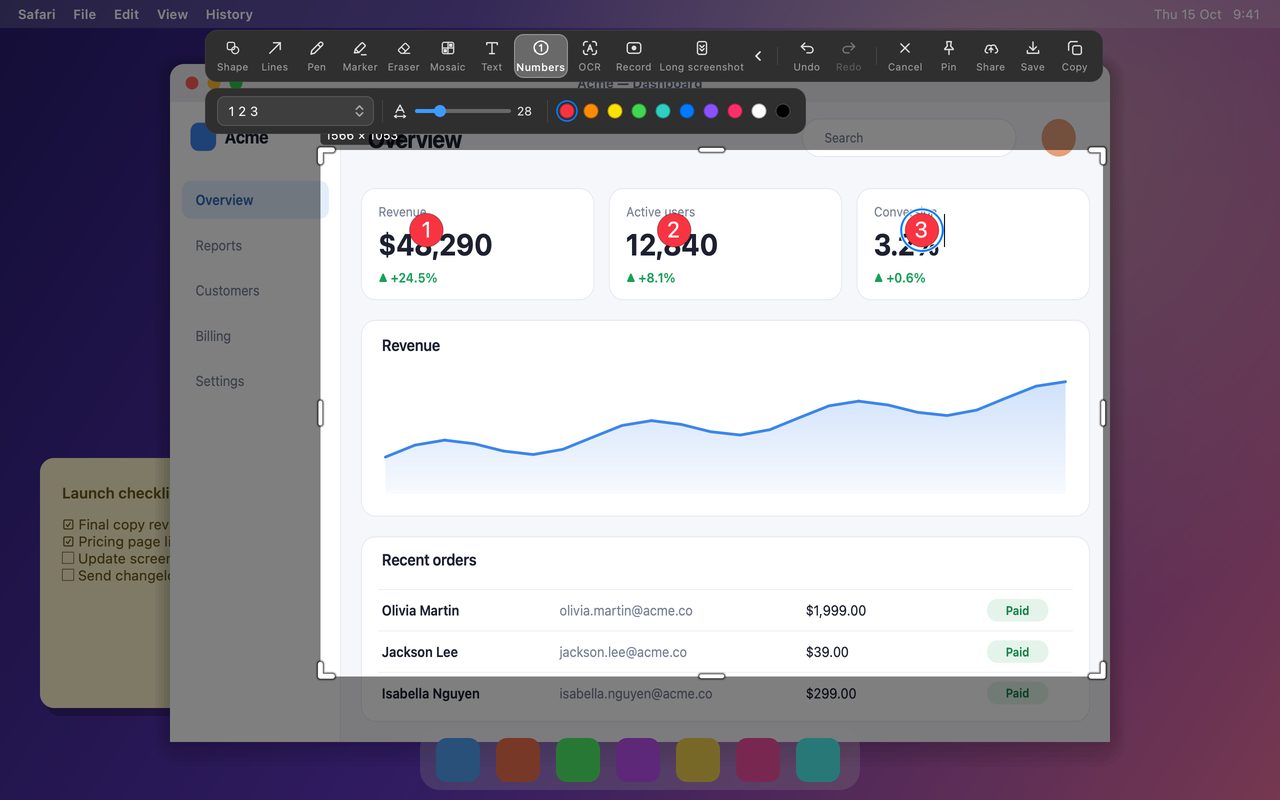
- A second color only for a different category. Red for a blocker, green for a verified state. If you need a third, consider whether numbers or labels would be clearer.
- Avoid colors that match the content. A red highlight over red error text disappears. Pick a contrasting color, or switch to an outline.
If the screenshot will be read by someone else, a one-line legend in the message ("yellow = changed, red = broken") removes the guesswork.
Avoid fighting the screenshot's own colors
Screenshots of dashboards, charts and dark-mode apps already have strong colors. Over them:
- Use a lower-opacity marker, or a thin underline-style stroke rather than a full block.
- Prefer a shape outline in a contrasting color for a chart region; a tinted block may merge with the chart.
- On dark backgrounds, a light-colored marker at low opacity works better than a saturated one.
When another tool is better
Highlighting is for reading emphasis. If the reader's job is different, switch tools:
| The reader should… | Better tool |
|---|---|
| Follow an order | Numbers |
| See where to click | Arrow |
| Read an explanation | Text |
| Compare two areas | Two shapes or two spotlights (Pro) |
| Notice a tiny difference | Magnifier (Pro) |
The test is simple: if you remove the highlight, does the reader lose information or just decoration? Keep the ones that carry information.
FAQ
Does the marker hide the text underneath?
No. The marker is translucent and blends with the screenshot, so text stays readable. Very high opacity or repeated strokes can reduce contrast, so use a light pass over text and a stronger fill only over empty areas.
What is Snap to line, and do I need OCR for it?
Snap to line replaces a rough marker stroke with clean highlights over whole detected text lines. It uses the same local text recognition as the OCR tool, so it needs the text to be recognizable; if detection fails, the stroke stays as you drew it.
Is the marker free?
Yes. Pen and Marker are basic annotation tools included for free, along with shapes, lines, text, numbers, mosaic and blur, and OCR.
Should I highlight in one color or several?
Start with one color for the main point and add a second only for a different category, such as red for a blocker. More colors usually add decoration rather than information.
More from the blog

How to Add Text to a Screenshot (and Make It Readable)
Add labels, titles and callouts to a screenshot with readable contrast, the right size and clean placement — plus how to edit them later on Mac and Windows.
October 25, 2026
Auto Zoom for Screen Recordings: What It Does and When to Use It
How InSnap's auto zoom follows your clicks in a screen recording, how the strength settings change the result, and when a static recording is better.
October 25, 2026
How to Make a Before-and-After Comparison Image
One image beats two attachments: capture both states at the same size, stitch them side by side, label them, and send a comparison the reader can scan.
October 25, 2026