 InSnap
PNG, JPEG and Clipboard Formats: Screenshot Output Settings
Save as PNG or JPEG, scale Retina captures to 1x, add a border, and choose whether Copy puts an image or a file on the clipboard. What each setting changes.
InSnap's Settings › Save page decides what happens after you press Copy or Save. Most of it can stay at the defaults, but three choices are worth understanding: the image format, the Retina scale, and what exactly goes onto the clipboard.
The three decisions
| Setting | Options | What it changes |
|---|---|---|
| Image format | PNG, JPEG | How the saved file is encoded |
| Scale Retina to 1x | On, off | The pixel size of copies and saves |
| Clipboard format | Image only, image and file, file only | What other apps receive when you paste |
Each applies to output, not to the capture itself. The original screenshot and the history record keep their full resolution regardless.
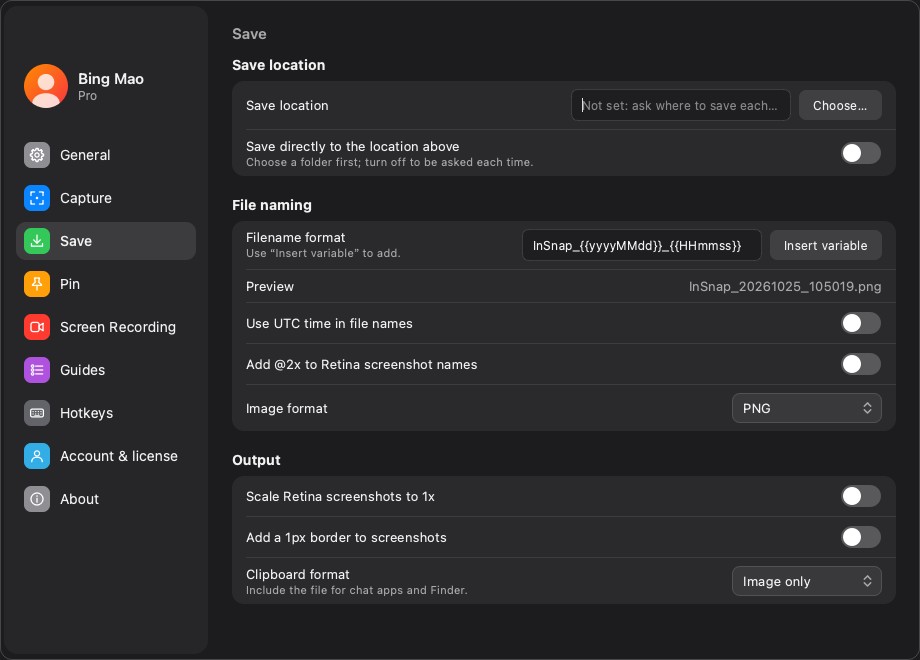
Image format: PNG or JPEG
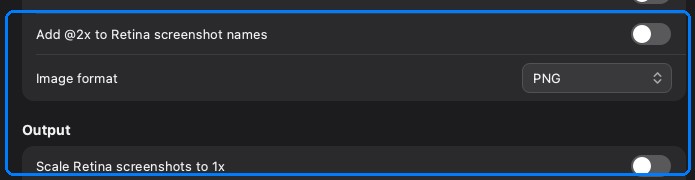
- PNG is lossless and keeps text, UI edges and flat colors sharp. It is the right default for screenshots.
- JPEG is smaller but lossy; thin text and 1px borders pick up artifacts. Use it for photos or when file size matters more than crispness.
A screenshot of a settings page or code should almost always be PNG. A screenshot of a photo or a video frame can be JPEG without visible harm.
Retina: 1x or full resolution
On a Retina display, a capture stores physical pixels — twice the logical size. Scale Retina to 1x halves it on output.
- Keep it off when the image will be viewed on a screen or you may crop further; the extra pixels are useful.
- Turn it on for documents, chat, email and slides where the larger file only makes uploads slower and text is already large enough.
The 1x option does not affect the history original; it only changes the copy or save you make now.
The 1px border
A thin border separates a light screenshot from a white document page and a dark screenshot from a dark background. It costs one pixel and makes screenshots look deliberate rather than pasted.
Leave it on for documentation and slides. Turn it off when the screenshot must match the surrounding page exactly, for example when you are comparing pixel colors.
Clipboard: image, image and file, or file only
The Clipboard format setting controls what Paste receives:
- Image only puts the bitmap on the clipboard. It pastes into anything that accepts images and is the safest default.
- Image and file also writes a temporary PNG and puts its file URL on the clipboard. Some apps prefer a file, and having both covers more destinations.
- File only puts the file URL on the clipboard. Use it when the target app expects a file path rather than image data.
The temporary file lives in the clipboard cache and is not your saved screenshot. It is cleaned up automatically, so do not treat it as an archive.
A recommended setup
| Use case | Format | 1x | Border | Clipboard |
|---|---|---|---|---|
| Bug reports and tickets | PNG | Off | On | Image only |
| Documentation and slides | PNG | On | On | Image and file |
| Chat and email | JPEG or PNG | On | On | Image only |
| Pixel/design comparison | PNG | Off | Off | Image only |
Change one setting at a time and paste into the destination you actually use. A format that looks fine in Preview can still arrive blurry in a chat app that recompresses images.
FAQ
Should screenshots be PNG or JPEG?
PNG for screenshots with text, UI or sharp edges; JPEG for photos and when file size matters. PNG is the safer default because it does not degrade on repeated saves.
Why does my copied screenshot look smaller than the capture?
Scale Retina to 1x is probably on. It halves the pixel dimensions on output; turn it off if you need the full Retina resolution.
What is the difference between “Image only” and “Image and file” on the clipboard?
Image only puts bitmap data on the clipboard. Image and file also writes a temporary PNG and exposes its file URL, which helps apps that expect a file rather than image data.
More from the blog

How to Add Text to a Screenshot (and Make It Readable)
Add labels, titles and callouts to a screenshot with readable contrast, the right size and clean placement — plus how to edit them later on Mac and Windows.
October 25, 2026
Auto Zoom for Screen Recordings: What It Does and When to Use It
How InSnap's auto zoom follows your clicks in a screen recording, how the strength settings change the result, and when a static recording is better.
October 25, 2026
How to Make a Before-and-After Comparison Image
One image beats two attachments: capture both states at the same size, stitch them side by side, label them, and send a comparison the reader can scan.
October 25, 2026