 InSnap
Share a Screenshot as a Link Instead of an Attachment
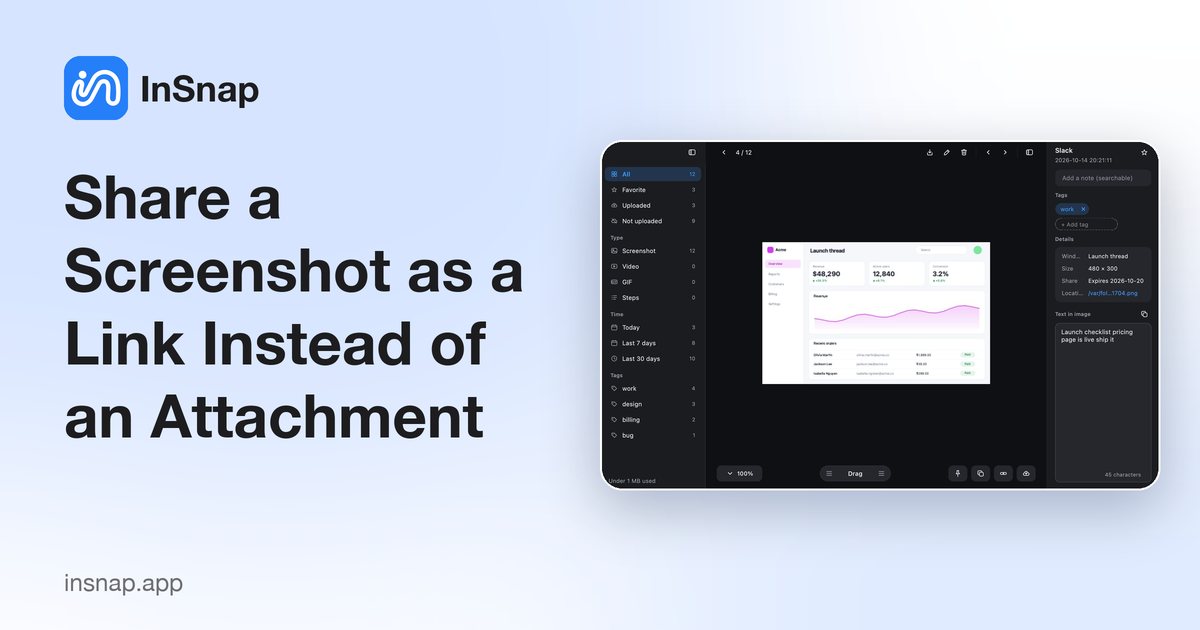
When a screenshot is too big for chat or needs to reach several reviewers, a share link works better. What to check, and how expiry and passwords work.
Attachments work until they don't: the file is too large for the chat window, the app recompresses it until small text turns to mush, or five people need the same image and you send it five times. A share link solves that. The recipient opens the image in a browser, and you control who can open it and for how long.
This guide covers when a link is better, what to check in one, and how expiry and passwords work in InSnap Cloud. In short: upload once, copy the link, and set an expiry (seven days by default) plus a password if it may be forwarded.
When a link beats an attachment
A link is usually better when:
- The image is large. Full-resolution screenshots are several megabytes; a link opens at full size instead of hitting an attachment limit.
- The chat compresses images. Many messaging apps recompress attachments, which makes interface text and fine lines fuzzy. A link serves the file as uploaded.
- Several people need it. Paste one link into the thread, the ticket or the document instead of uploading the file into each place.
- Access has to change later. Expiry and password are settings on the link, so you adjust them once rather than resending.
- The screenshot has to stay reachable. Chatter scrolls away; a link in a ticket or wiki stays put until it expires.
An attachment is right for a one-off image to one person, and for anything you would rather not store on a server. InSnap sends a file to Cloud only when you press Upload and have an active Cloud subscription.
What to check in a share link
- The expiry fits the audience. A quick chat question might need a day; a link in a document read next month needs longer, or Never.
- Set a password when the link can be forwarded. Without one, anyone with the link can open the file; the password is a second key.
- You can turn it off. Good link sharing includes a way to disable the link immediately while keeping the file in your storage.
- The image is safe to share. Check the whole screenshot for emails, tokens, customer names, open tabs and window titles before you upload.
- The recipient needs no account. A link opens in a normal browser; only the owner of the Cloud subscription signs in.
How expiry and password work in InSnap Cloud
Every upload creates a share link with an expiry. The default is seven days; in Link settings you can pick 1, 7, 30 or 90 days, a specific date, or Never. The same dialog takes an optional password of 4–64 characters. Without one, anyone with the link can open the image.
Both are settings on the link, not properties baked into the file. Change the expiry or password and the URL you already sent keeps working, so there is nothing to resend. An expired link stops working; give it a new expiry and the same link opens again. Disable now ends the link while the file stays in your cloud storage, and deleting the file or letting the subscription lapse also stops its links.
A link points at one uploaded file. If you re-upload a corrected screenshot, that creates a new link; the old one keeps opening the old image until it expires or you disable it. Expiry keeps a link pasted into an old chat from exposing the image months later.
Sharing a screenshot from InSnap
- Take the screenshot and annotate it: arrows, text, and blur or mosaic over anything private.
- Choose Upload on the capture toolbar, or from the image editor or screenshot history.
- When the upload finishes, InSnap copies the link and shows a card with Copy link and Set password.
- Open Link settings to change the expiry or add a password.
- Paste the link into the chat, ticket or email.
InSnap runs on macOS 14.4+ and Windows 10+. Cloud is optional and separate from Pro: it costs $2.99 per month or $29 per year for 50 GB, and needs a free InSnap account. Screenshots, annotation, pinning, OCR and basic recording stay free and work without an account or a connection; a file leaves your computer only when you upload it.
FAQ
Do recipients need an InSnap account to open a link?
No. A share link opens in a normal browser. The InSnap account belongs to the person who uploads and owns the Cloud subscription.
What happens when a share link expires?
It stops working. The file is not removed, and you can give the link a new expiry later, after which the same URL opens again.
Can I change the password or expiry after I have sent the link?
Yes, without creating a new link. Use Link settings in InSnap, or the account page on the website.
Is InSnap Cloud included with Pro?
No. Pro is a one-time purchase that unlocks the advanced editing, recording and guide tools. Cloud is a separate subscription ($2.99 per month or $29 per year for 50 GB) that adds hosted storage and share links.
Can I share screenshots without Cloud?
Yes. Copy the screenshot and paste it into the chat or email, or save it and attach the file. InSnap's capture and annotation tools are free and need no account.
More from the blog

How to Add Text to a Screenshot (and Make It Readable)
Add labels, titles and callouts to a screenshot with readable contrast, the right size and clean placement — plus how to edit them later on Mac and Windows.
October 25, 2026
Auto Zoom for Screen Recordings: What It Does and When to Use It
How InSnap's auto zoom follows your clicks in a screen recording, how the strength settings change the result, and when a static recording is better.
October 25, 2026
How to Make a Before-and-After Comparison Image
One image beats two attachments: capture both states at the same size, stitch them side by side, label them, and send a comparison the reader can scan.
October 25, 2026