 InSnap
How to Annotate a Screenshot on Mac and Windows
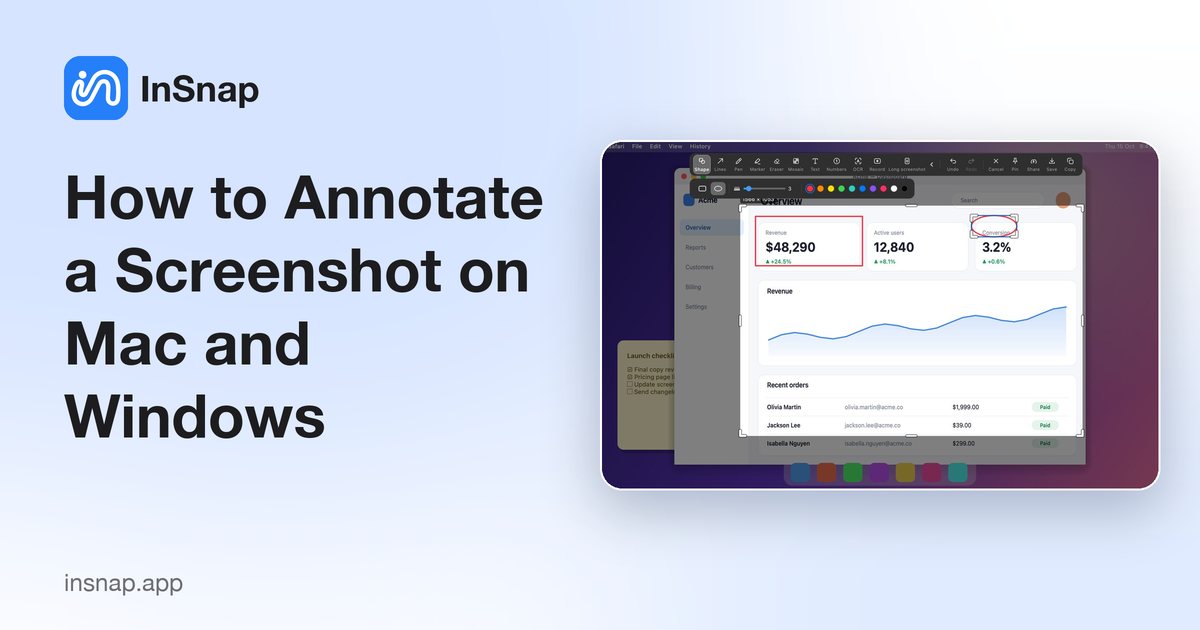
Arrows, boxes, text, numbered steps or blur: which mark to use for each job, and how to annotate a screenshot on Mac and Windows without a design app.
A screenshot with no marks is a question: "look at this". A screenshot with two or three good marks is an answer. The fastest way to annotate one is to do it at the moment you capture — select the area, draw on it, copy — rather than sending the file through a design app afterwards.
Both macOS and Windows include a screenshot tool that can add a few basic marks: a pen stroke, a highlighter, sometimes text or shapes. That is enough for a quick "here" in a chat. It gets awkward when you need consistent arrows, numbered steps, or a blur you can trust. Here is what to use for each job, and how to keep the result readable.
Match the mark to the job
Most bad screenshots are over-annotated. Pick one mark type per message and use it consistently.
| What you want to say | Mark to use | Notes |
|---|---|---|
| "Look here" | Arrow or line | Point at one element, not at a region |
| "This whole area" | Shape (rectangle or ellipse) | Draw around the group, not over it |
| "This text matters" | Marker, or Text | Highlight behind the text so it stays readable |
| "Do this, then this" | Number | Use only when order actually matters |
| "This is wrong" | Shape plus a short Text label | The label saves a follow-up message |
| "Hide this" | Mosaic (with Blur) | Use a strong setting, or a solid cover for secrets |
Two colours are usually one too many. If everything is highlighted, nothing is.
Annotate the screenshot while you take it
- Press the capture hotkey: Command-1 on a Mac, Ctrl+1 on Windows. The screen freezes and a selection frame appears.
- Drag a box around the area. Hover over a window first so InSnap can detect it and its inner elements; the scroll wheel widens the detected range.
- Pick a tool from the toolbar. Shape for boxes and ellipses, Line for arrows, Pen for freehand, Text for labels, Number for steps, Marker for highlighting, Mosaic for hiding details (it includes a blur mode).
- Adjust what you drew. Shapes, arrows, text and numbers stay selected after you draw them, so you can drag, resize, change the colour or thickness, and undo with the usual shortcut.
- Copy, save or pin the result. The marks are baked into the exported pixels, so the receiver sees exactly what you see.
The same tools and hotkeys work on both platforms, so one workflow covers a mixed team.
Annotation is free in InSnap. Spotlight, Magnifier, Watermark and Smart Erase live in the expanded toolbar and are Pro; everyday pointing, boxing, numbering and hiding are covered.
Keep the markup readable
- Size for their screen, not yours. Recipients often view screenshots in a chat window that scales them down; text that is comfortable at full size can be unreadable at half size.
- Leave the evidence visible. An arrow tip should stop at the edge of the thing it points to; a box should sit around a control, not on top of it.
- Crop before you annotate. Fewer unrelated pixels means fewer marks: a tight dialog capture needs one arrow, a full-screen one needs four.
- Use blur as hiding, not decoration. Mosaic and blur are for names, numbers and details that should not be read. For passwords, tokens and anything that must not leak, use a strong setting or crop the area out — see how to hide sensitive info in a screenshot.
- Number sparingly. Numbers imply a sequence. If the order does not matter, arrows are clearer and less formal.
If the screenshot is going into a document or a ticket rather than a chat, pin it on screen while you write the description. InSnap's pin floats above other windows, so you can type and compare without switching back and forth. If the text you need from the image is what matters, OCR reads it locally and lets you select it like a document.
FAQ
Do I need a design app to annotate a screenshot?
No. Both macOS and Windows can add basic marks, and a screenshot tool such as InSnap draws them at capture time and copies the finished image. A design app is only worth it for layout, typography, or a shared asset library.
How do I annotate a screenshot on a Mac without saving a file first?
Use a tool that copies directly to the clipboard. In InSnap, press Command-1, select the area, annotate, then copy — the marked-up image can be pasted straight into Mail, Slack or a document. Nothing is written to disk unless you choose Save.
Can I blur part of a screenshot before sending it?
Yes. Use the Mosaic tool and choose the blur mode, or keep mosaic blocks for a stronger "redacted" look. Raise the strength until the detail is not readable at 100% zoom, and use a solid cover or crop for secrets.
Is annotating a screenshot free in InSnap?
Yes. Shapes, lines, pen, marker, eraser, mosaic and blur, text and numbers are free, as are capture, pinning and OCR. Pro adds Smart Erase, scrolling capture, GIF, video editing, guides, backdrops and stitching, plus Spotlight, Magnifier and Watermark — a one-time $15 for up to 3 devices, including future updates.
More from the blog

How to Add Text to a Screenshot (and Make It Readable)
Add labels, titles and callouts to a screenshot with readable contrast, the right size and clean placement — plus how to edit them later on Mac and Windows.
October 25, 2026
Auto Zoom for Screen Recordings: What It Does and When to Use It
How InSnap's auto zoom follows your clicks in a screen recording, how the strength settings change the result, and when a static recording is better.
October 25, 2026
How to Make a Before-and-After Comparison Image
One image beats two attachments: capture both states at the same size, stitch them side by side, label them, and send a comparison the reader can scan.
October 25, 2026