 InSnap
Guide Recording Missed a Step? Here's Why
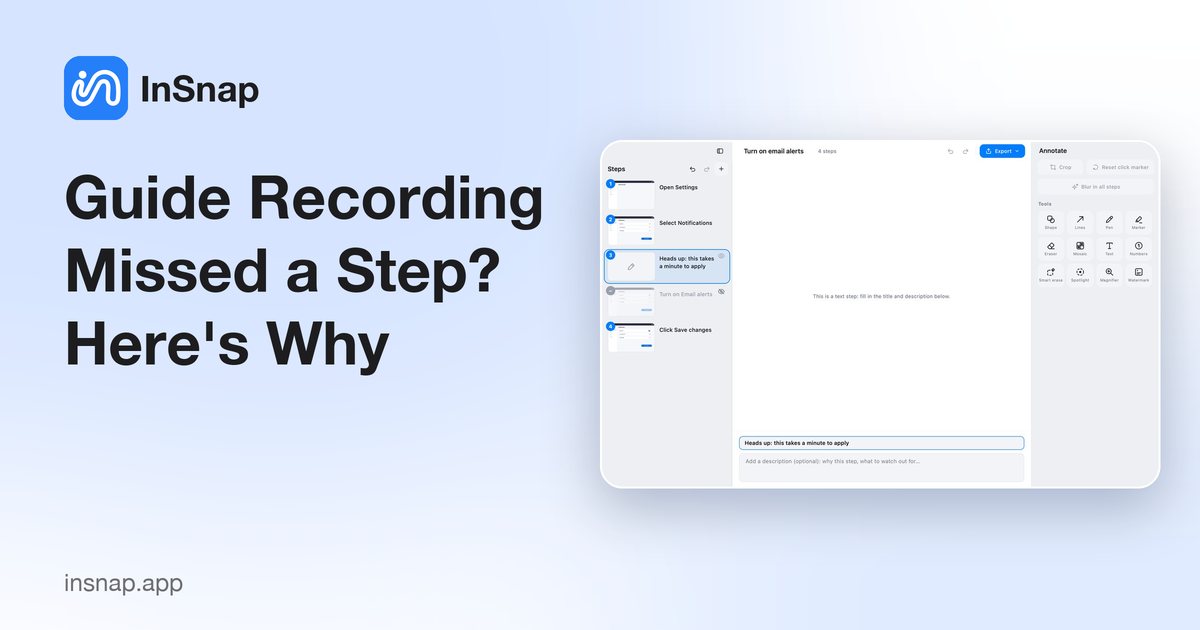
Drags, floating-bar clicks, app scope and hidden steps: the common reasons a recorded guide skips a step, and the fastest way to add the missing one.
A guide recording that skips a step is rarely broken. Most of the time the recorder did exactly what it was told: it records clicks, and the missing action was not a click, happened outside the chosen scope, or is sitting in the guide hidden.
Work through these checks in order; the first two explain most cases.
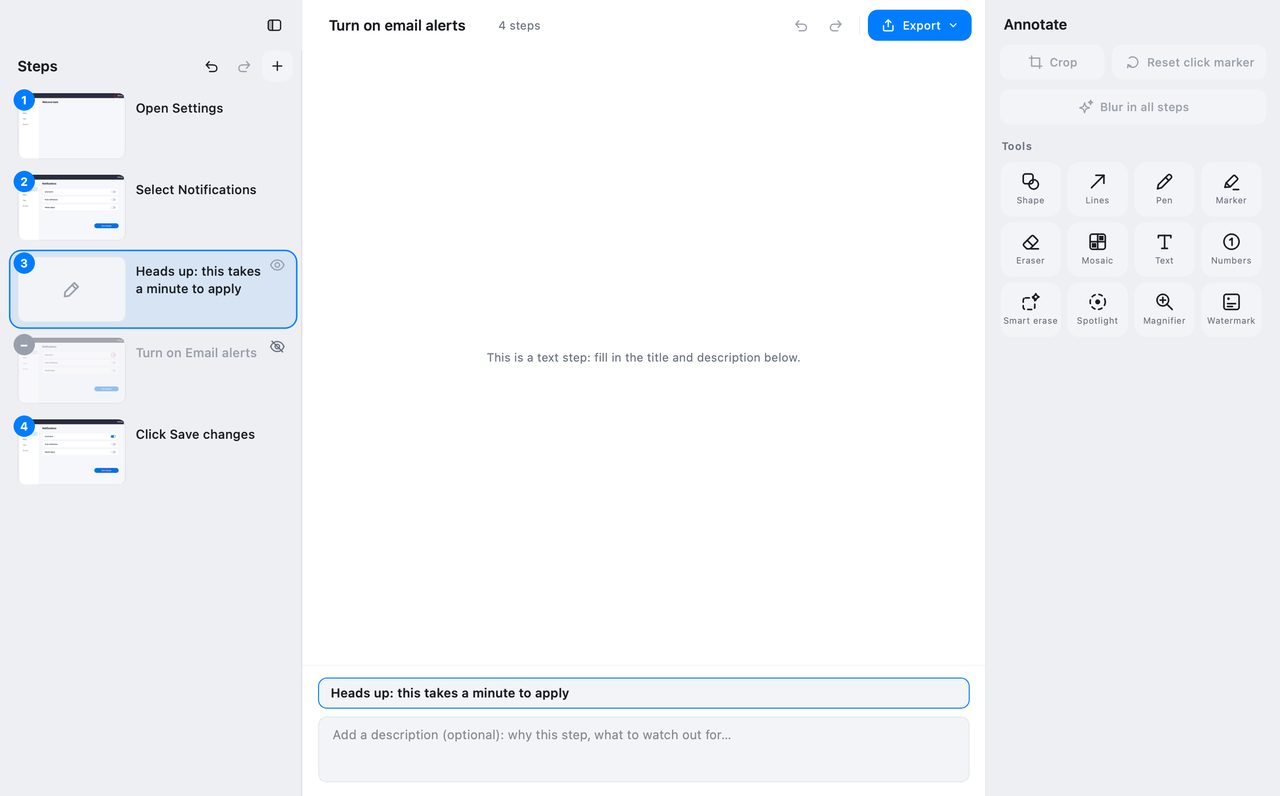
First, check whether the step is hidden
A hidden step stays in the guide but is skipped in the export and not numbered. If the step list looks shorter than the recording, look for a lighter row with a crossed-out eye icon.
Click the eye to bring it back. If the step is there and visible, the problem is elsewhere.
What counts as a step
The recorder turns a click into a step. That has consequences:
- A drag is not a step. Dragging a file, selecting text or moving a slider is recorded as movement, not as a step. For these actions, add a text step or insert a screenshot manually.
- A double-click is one step. The second click within the double-click window is merged with the first, by design. If the two clicks do different things, split them into a manual step.
- Rapid repeats are merged. Two clicks on the same spot within a few hundred milliseconds count as one action.
If the missing action is any of these, an inserted step is the right fix, not a re-record.
Where clicks are ignored
The recorder also filters clicks that are not part of the process:
- Clicks on the recording bar are ignored — you need to be able to pause and stop without those clicks becoming steps.
- Clicks after pausing or stopping are ignored for a moment, so the click that stops the recording does not become a step.
- Clicks outside the selected scope are ignored. In App mode, only clicks inside the chosen application's window are recorded; in Region mode, only clicks inside the selected rectangle.
If you were working in a second window or a different app, that is the explanation. Re-record with the wider scope, or add the step manually.
Add the missing step
You do not need to redo the whole recording. In the guide editor:
- Select the step before the missing action.
- Use Add to insert a step after it.
- Choose a text step and write the instruction, or insert an image step and paste a screenshot you captured separately.
- Add the click marker manually if the step needs one.
For a longer gap, import steps from another guide is often faster than re-recording: record the missing section as its own short guide, then import those steps into the main one. Images are copied into the target guide, so the source can be deleted afterwards.
Prevent it next time
- Check the scope before recording. If the process crosses two windows, use the whole screen or a region that includes both.
- Narrate the non-click actions to yourself. When you drag or type, remember that no step was created; add it later.
- Keep the recording bar out of the flow. Clicks on it are deliberately ignored.
- Review before stopping. The step count in the recording bar is a quick sanity check: if the process has eight actions and the bar says five, something was filtered.
FAQ
Why did my double-click become one step?
Double-clicks are merged so that a normal double-click does not produce two nearly identical steps. If the two clicks are separate actions, add a manual step for the second one.
Can I record just the missing part and merge it in?
Yes. Record the missing section as a short guide, then use the guide editor's import to bring those steps into the main guide. The step images are copied, so the temporary guide can be deleted.
Why were clicks in another window not recorded?
The recording scope limits which clicks count. In App mode only the selected application's window is recorded; in Region mode only the selected rectangle. Choose a wider scope or add the step manually.
More from the blog

How to Add Text to a Screenshot (and Make It Readable)
Add labels, titles and callouts to a screenshot with readable contrast, the right size and clean placement — plus how to edit them later on Mac and Windows.
October 25, 2026
Auto Zoom for Screen Recordings: What It Does and When to Use It
How InSnap's auto zoom follows your clicks in a screen recording, how the strength settings change the result, and when a static recording is better.
October 25, 2026
How to Make a Before-and-After Comparison Image
One image beats two attachments: capture both states at the same size, stitch them side by side, label them, and send a comparison the reader can scan.
October 25, 2026