 InSnap
Quick Record, Record GIF or Record & Edit: Which Mode to Use
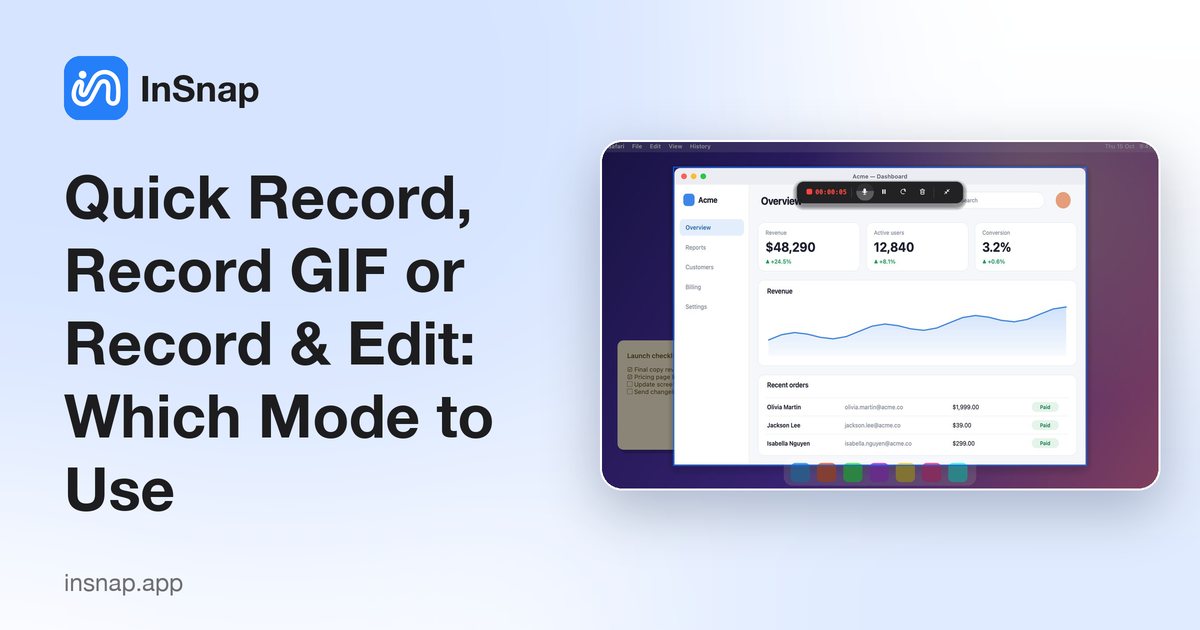
Three recording modes, three outputs: an MP4, a GIF or an editable project. What each one saves, what it costs, and how to choose before you press record.
InSnap's recording panel offers three modes, and the choice determines not just the file format but whether you can edit the result at all. Picking the right one before you record saves a re-take.
The three modes at a glance
| Mode | Output | Editing | Cost |
|---|---|---|---|
| Quick Record | MP4 | None in InSnap; trim in another editor | Free |
| Record GIF | Animated GIF | None beyond trimming/re-recording | Pro |
| Record & Edit | MP4/GIF from an editable project | Full video editor | Free mode; editing effects are Pro |
Quick Record: one take, one MP4
Quick Record is the "just capture it" mode. The system cursor, click ripples and key hints are burned into the video as they happen, and stopping the recording saves an MP4 that plays anywhere.
Use it when:
- The clip is short and the take is likely to be right.
- The recipient just needs to watch it, not edit it.
- You want click and keystroke effects without opening the editor.
Because the effects are burned in, there is nothing to change afterwards. If you need a different cursor style or no effects at all, record again in the right mode.
Record GIF: a loop for chat and docs
Record GIF uses the same capture as Quick Record, then converts the result to an animated GIF. It is built for places where a video player is awkward: a chat message, a README, a ticket comment.
- GIFs autoplay inline and loop, which is ideal for a short interaction.
- They have no audio, limited colors and large files, so keep them short.
- InSnap resizes to a practical width and adapts the frame rate, which keeps a three-second loop reasonable and a thirty-second one heavy.
Record GIF is Pro. If the clip needs sound or length, use MP4 instead.
Record & Edit: the editable project
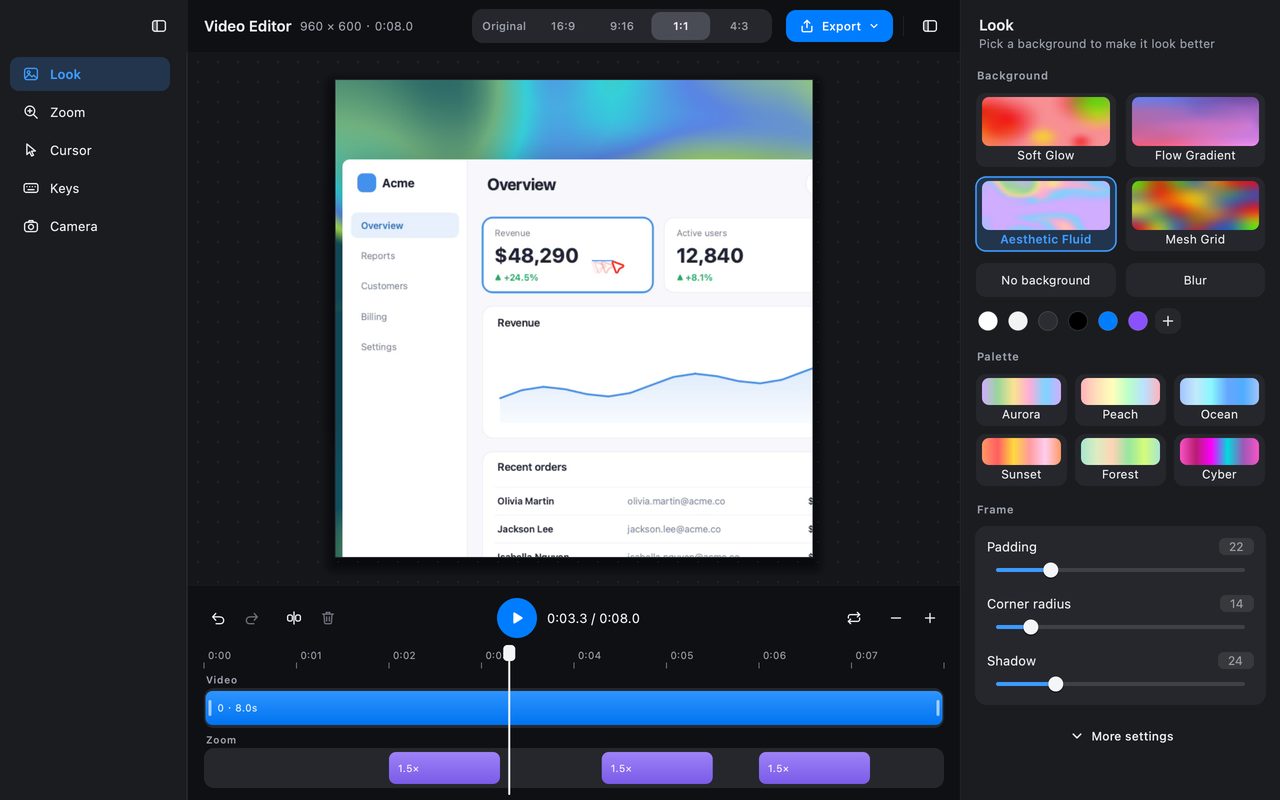
Record & Edit records the screen without burning the pointer and effects into the pixels. Instead, it saves the video together with the mouse and keyboard events, and opens the video editor.
That project is what makes the other features possible:
- Trim and split the timeline.
- Add auto zoom that follows clicks.
- Choose cursor styles and click effects after the fact.
- Add camera picture-in-picture.
- Change the canvas ratio and background.
- Export to MP4 or GIF at the quality you choose.
The recording mode itself is available without a subscription; the video editing effects — auto zoom, camera overlay, backgrounds and high-quality export — are Pro.
Which one to pick
- "Send this to someone who will just watch it." Quick Record.
- "This needs to loop in a chat or a README." Record GIF.
- "I will want to trim, zoom or add a camera overlay." Record & Edit.
- "I am not sure yet." Record & Edit. It keeps the events, so you can export a plain MP4 immediately or edit later.
The one thing you cannot do is add events to a Quick Record. A finished MP4 has no mouse or keyboard data, so auto zoom and cursor effects are unavailable for that file.
Audio and camera
All three modes can record:
- System audio — what the machine plays.
- Microphone — your voice.
- Camera — a small preview bubble. In Quick Record and GIF it is burned into the picture; in Record & Edit it is saved as a separate track and composited in the editor, where you can move or resize it.
Turn on only what the message needs. A silent clip autoplays safely; a camera bubble is useful for a personal message and distracting for a technical one.
FAQ
Can I edit a Quick Record in InSnap's video editor?
No. Quick Record saves a finished MP4 without mouse or keyboard events, so the editor's zoom, cursor and camera tools have nothing to work from. Use Record & Edit if you may want to change the result.
Is GIF recording free?
No. Record GIF is a Pro feature. Quick Record to MP4 is free, and Record & Edit's project is available with its editing effects gated by Pro.
Which mode gives the smallest file?
For a few seconds, a GIF can be smaller than an MP4 and autoplays inline. For anything longer, MP4 is far smaller and supports audio. Record & Edit exports at the quality you choose, so you can trade size against sharpness.
More from the blog

How to Add Text to a Screenshot (and Make It Readable)
Add labels, titles and callouts to a screenshot with readable contrast, the right size and clean placement — plus how to edit them later on Mac and Windows.
October 25, 2026
Auto Zoom for Screen Recordings: What It Does and When to Use It
How InSnap's auto zoom follows your clicks in a screen recording, how the strength settings change the result, and when a static recording is better.
October 25, 2026
How to Make a Before-and-After Comparison Image
One image beats two attachments: capture both states at the same size, stitch them side by side, label them, and send a comparison the reader can scan.
October 25, 2026