 InSnap
Cursor Styles in Recordings: Basic, Circle, Hand and More
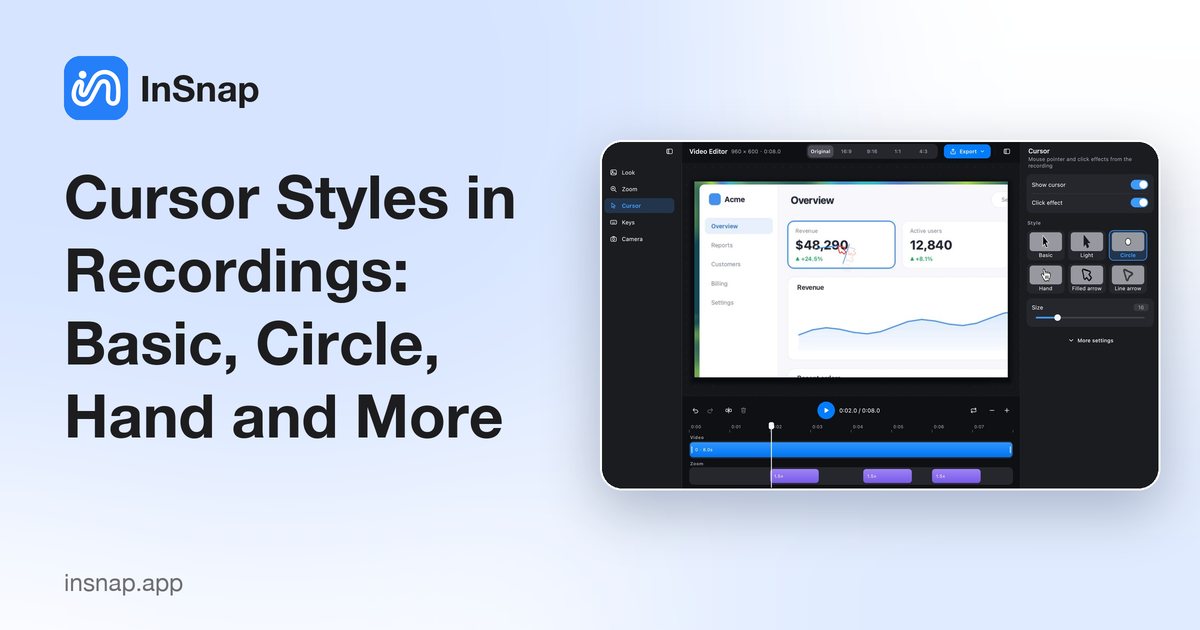
Show or hide the pointer, add clicks and trails, and choose a cursor style that stays visible on a busy screen. What each option changes in the exported video.
A screen recording lives or dies by whether the viewer can follow the pointer. InSnap's video editor has a Cursor panel that controls the pointer's visibility, click feedback, trail and appearance. The settings apply to the exported video, not to the original recording.
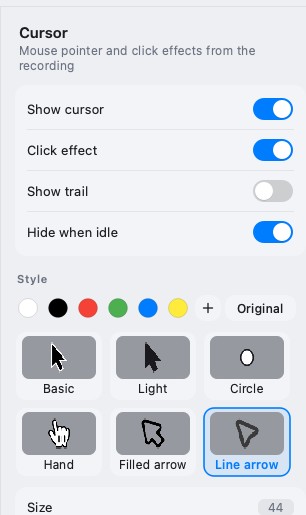
The four switches
| Switch | What it does | Default |
|---|---|---|
| Show cursor | Draws the pointer in the video | On |
| Click effect | A ripple at each click | On |
| Show trail | A short trail behind the pointer | Off |
| Hide when idle | Fades the pointer when it stops moving | On |
- Show cursor off is useful when the recording is about the screen, not the pointer.
- Click effect is the strongest cue that something happened; keep it on for tutorials.
- Show trail helps on fast movements but adds visual noise on slow ones.
- Hide when idle keeps the pointer from sitting on a control and hiding it.
The style presets
Six styles are available:
| Style | Look | Best for |
|---|---|---|
| Basic | The standard arrow | General recordings |
| Light | A lighter arrow | Dark interfaces |
| Circle | A ring around the pointer | Presentations, screen shares |
| Hand | A hand pointer | Click/tap walkthroughs |
| Filled arrow | A solid, high-contrast arrow | Busy backgrounds |
| Line arrow | An outlined arrow | Minimal visual weight |
The color row changes the tint; Original keeps the system cursor's own colors. The size slider makes the pointer larger than life, which is often necessary when the video is watched on a phone.
How it affects the export
The editor renders the pointer from the recorded mouse events. That means:
- The style is applied at export time; the source recording is untouched.
- The pointer position is interpolated between samples, so it moves smoothly.
- Zoom and canvas ratio are applied on top; the cursor scales with the camera.
If the recording was made with Quick Record, there are no separate mouse events; the pointer is part of the pixels. Cursor styles require Record & Edit.
Choosing a style
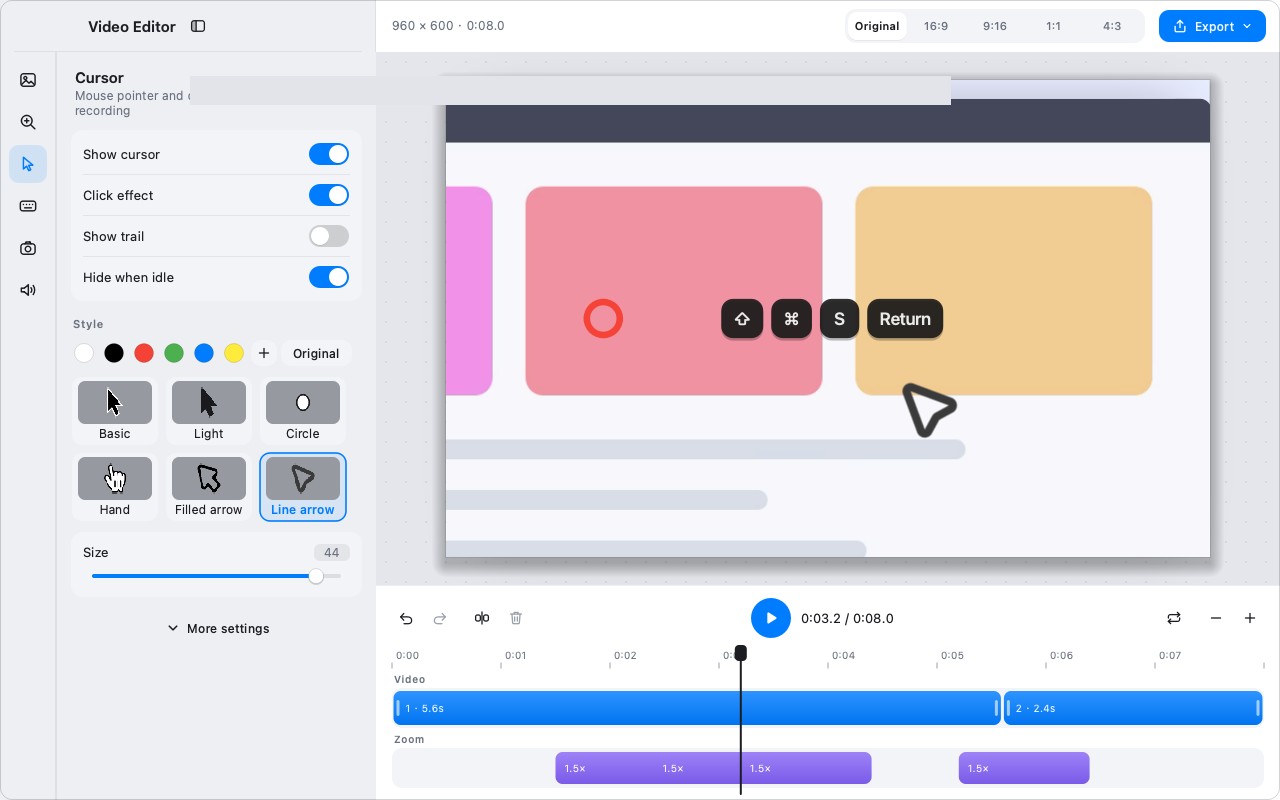
- Dark UI: Light or Line arrow; a black arrow disappears.
- Light UI: Basic or Filled arrow.
- Busy UI: Circle, which surrounds the target instead of covering it.
- Phone viewing: A larger size and a high-contrast style.
- Screen share with narration: Circle plus click effects; the viewer can follow without hunting.
Keep the style consistent across a series. Changing cursor styles between clips in the same tutorial is more distracting than any single style.
Combining cursor style with zoom
When auto zoom is on, the cursor is drawn inside the camera transform, so it grows and shrinks with the zoom. That has two consequences:
- A size that looks right in the wide shot may feel oversized when the camera pushes in.
- A size tuned for the zoomed shot may be too small to see in the overview.
Pick a middle size and watch a few seconds of both states before exporting. If the recording has many zoom segments, a simpler style such as Circle or Line arrow tolerates the scale change better than a detailed hand cursor.
Turning the cursor off
Sometimes the pointer is the problem: it sits on the label the viewer needs to read, or the recording is about the screen layout rather than the interaction. Show cursor off removes it entirely, and Hide when idle is the softer version: the pointer fades when it stops moving and returns when it moves again.
Use the full off switch for a clean product shot and the idle hiding for a walkthrough where the pointer matters only while it moves.
FAQ
Can I change the cursor style on a Quick Record?
No. Quick Record burns the pointer into the video. Use Record & Edit if you want cursor styles, trails or idle hiding.
Does the cursor style affect the click ripples?
They are separate controls. The style changes the pointer; Click effect controls the ripple. You can have a Circle pointer with no clicks or a Basic pointer with ripples.
Are cursor styles a Pro feature?
Video editing effects, including cursor styles, are part of Pro. Basic screen recording to MP4 is free.
More from the blog

How to Add Text to a Screenshot (and Make It Readable)
Add labels, titles and callouts to a screenshot with readable contrast, the right size and clean placement — plus how to edit them later on Mac and Windows.
October 25, 2026
Auto Zoom for Screen Recordings: What It Does and When to Use It
How InSnap's auto zoom follows your clicks in a screen recording, how the strength settings change the result, and when a static recording is better.
October 25, 2026
How to Make a Before-and-After Comparison Image
One image beats two attachments: capture both states at the same size, stitch them side by side, label them, and send a comparison the reader can scan.
October 25, 2026