 InSnap
Cursor, Click and Keystroke Effects in Screen Recordings
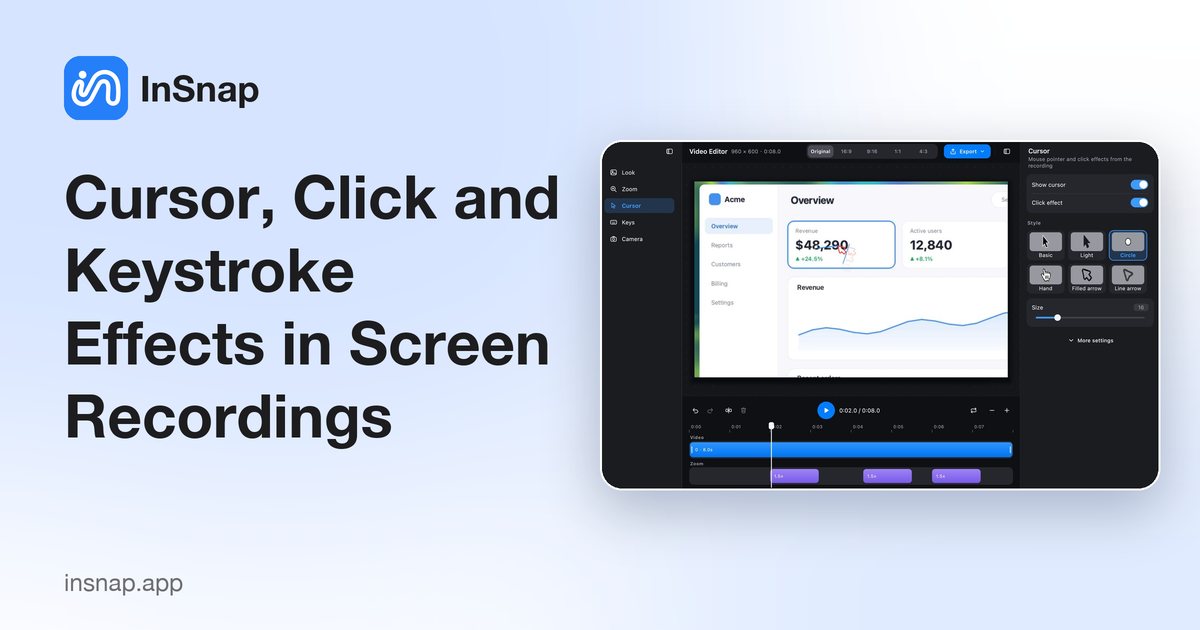
Cursor highlights, click ripples and keystroke overlays make a screen recording easy to follow. What each effect is for, how to keep it subtle, and what to turn off.
A screen recording can be sharp and still hard to follow. The viewer cannot find the pointer, or tell which shortcut changed the window. These are missing cues: the recording shows the result, not the action. Cursor highlights, click effects and keystroke overlays put those cues back, making a tutorial obvious, not a light show.
Why the cursor and the keys go missing
A pointer is small. Watch a wide recording in a smaller player and a normal arrow becomes a speck; fast movement makes it worse, because the eye can follow a drag but not a jump across a dialog.
Clicks are invisible too: the viewer sees the state change and may not connect it to a small icon. Keystrokes are worse: a shortcut is a chord and a result, with nothing in between, and many recordings are watched muted.
What each effect does
Each effect answers a different question, so the right choice depends on what the recording teaches.
| Effect | Answers | Best for | Overdone looks like |
|---|---|---|---|
| Cursor highlight | Where is the pointer? | Mouse movement | A big pointer plus trail, bounce and ghost |
| Click effect | Where did the click land? | Small targets and buttons | A ripple on every click |
| Keystroke overlay | Which keys were pressed? | Shortcut-driven apps | Every typed letter shown again |
A cursor highlight is the most basic and the most useful: instead of relying on the system arrow, it draws a pointer or dot that stays visible at any size. A trail helps when the demo is about moving along a path; on every small movement it is noise.
A click effect confirms the moment of the click, usually with a ripple. It matters most when the target is tiny or the result appears elsewhere.
A keystroke overlay shows the keys you press, usually in a corner. It is the only way to make a shortcut visible, and the easiest effect to overdo: while typing prose, the text is already on screen.
Record now, style later
InSnap records an area with optional system audio, microphone and camera, plus click and keystroke effects, through Quick Record, Record GIF or Record & Edit.
Quick Record writes the effects into the video as it records. Fine for a one-off, but final: clicks and key hints cannot be restyled.
Record & Edit keeps the pointer path, clicks and keystrokes as data, so the effects can be adjusted afterwards:
- Press the capture hotkey (Command-1 on Mac, Ctrl+1 on Windows) and drag the area.
- Click Record on the toolbar.
- Turn on Clicks and Keys (plus System, Mic or the camera if needed), then choose Record & Edit.
- In the editor, the Cursor panel shows or hides the pointer, toggles the click effect and trail, hides the pointer when idle, and sets size and one of six styles.
- The Keys panel shows or hides the overlay, places it in a corner (or you can drag it in the preview), and sets outline or filled style, size and color.
- Trim, split and export to MP4.
Basic recording to MP4 is free. Cursor styles and the editor background are part of InSnap Pro, a one-time $15 purchase. On Mac, keystrokes need the Input Monitoring permission; without it the overlay shows nothing.
Keeping the effects subtle
The goal is for the viewer to notice the action, not the effect.
- Use one cue per action. A visible cursor plus a click effect is usually enough; add a trail only for drag demos.
- Record a smaller area, so the pointer stays large and the effects can stay small.
- Turn on Hide when idle. A ring sitting still over text looks like a blemish.
- Match contrast to the app: a light cursor on a dark interface, a dark one on white.
- Judge at playback size, not full screen in the editor.
What to turn off for a clean demo
Some recordings are better with fewer effects, or none.
- Turn off the trail and the motion ghost unless the video is about movement.
- Turn off click bounce for a calm look; a ripple already marks the click.
- Turn off the click effect for typing or scrolling demos, where repeated clicks say nothing new.
- Turn off the keystroke overlay when you narrate the shortcuts, or when typing rather than invoking commands.
- Reset the cursor to the plain arrow or a dot when it should not draw attention.
FAQ
Should I show the cursor in a screen recording?
Yes, for almost any tutorial. Viewers need to know where the pointer is, especially when the video is scaled down or watched on a phone.
Can I change the cursor style after recording?
With Record & Edit, yes. It keeps the pointer path, clicks and keystrokes as data, so cursor style, click effects and the overlay can be adjusted before export; a Quick Record video is final.
Do I need a special permission to record keystrokes?
On a Mac, yes: macOS requires the Input Monitoring permission for an app to see key presses. Grant it in System Settings › Privacy & Security, then record again; without it the video still records but the overlay stays empty.
Is the cursor style free?
Basic recording to MP4 is free. Cursor styles and the background options in the video editor are part of InSnap Pro, a one-time $15 purchase.
More from the blog

How to Add Text to a Screenshot (and Make It Readable)
Add labels, titles and callouts to a screenshot with readable contrast, the right size and clean placement — plus how to edit them later on Mac and Windows.
October 25, 2026
Auto Zoom for Screen Recordings: What It Does and When to Use It
How InSnap's auto zoom follows your clicks in a screen recording, how the strength settings change the result, and when a static recording is better.
October 25, 2026
How to Make a Before-and-After Comparison Image
One image beats two attachments: capture both states at the same size, stitch them side by side, label them, and send a comparison the reader can scan.
October 25, 2026