 InSnap
Guide Recording Defaults: Editor, Markers and Key Trigger
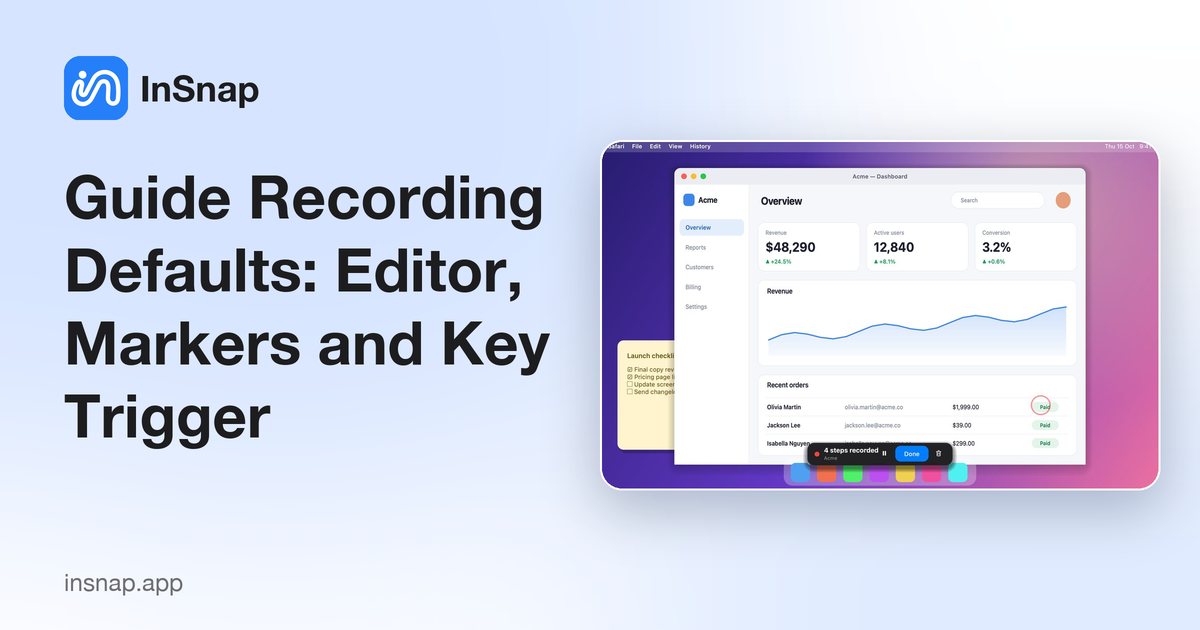
Open the editor after recording, mark each click with a red circle, and use a key to record only the moments you choose. What the three guide defaults change.
Guide recording has fewer settings than screen recording, and each one changes the workflow rather than the output file. They live in Settings › Guides, under Record guide.
The three settings
| Setting | Default | What it does |
|---|---|---|
| Open the editor after recording | On | Opens the guide editor when you stop |
| Mark clicks with a red circle | On | Adds a marker on each captured click |
| Key trigger | Not set | Records a step only when this key is pressed |
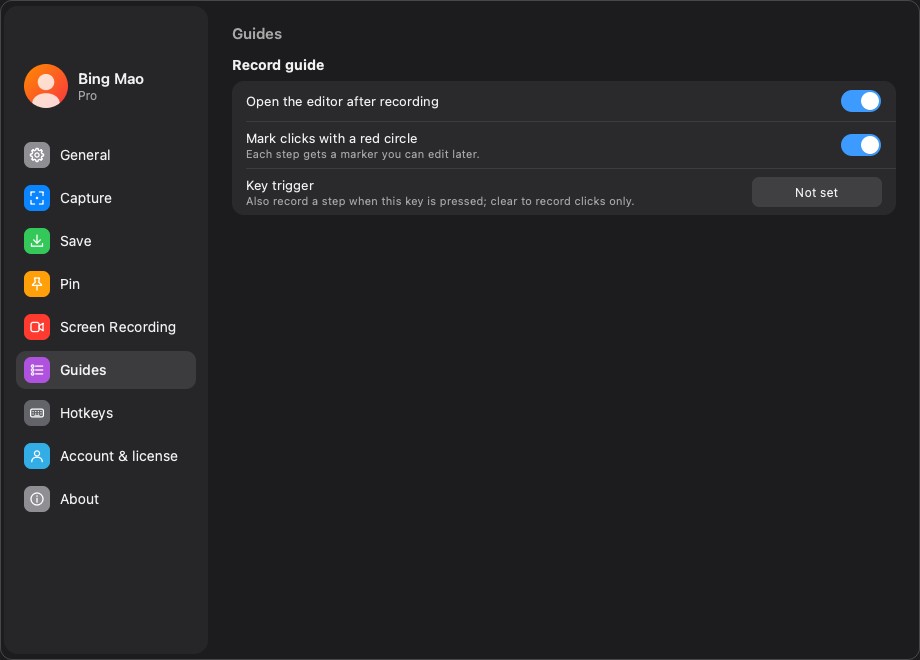
Open the editor after recording
When this is on, stopping a guide recording opens the editor with the steps already loaded. It is the right default: a raw recording is rarely the final document, and opening the editor immediately makes it obvious what was captured.
Turn it off if you record several guides in a row and prefer to edit them later. Stopping then leaves the guide in the history and shows a tray message instead of opening a window.
Mark clicks with a red circle
Each recorded click gets a red circle marker on the step image. The marker is an ordinary annotation: you can move it, resize it, change its color or delete it.
- On is best for software walkthroughs, where the reader needs to see the click target.
- Off is better for clean screenshots where a marker would cover the thing it points at.
You can still add markers manually in the editor, so turning the default off does not remove the ability; it only changes what a recorded step starts with.

Key trigger
The key trigger records a step only when you press the chosen key. Crucially, it listens for the key; it does not intercept it. The key still reaches the app in front.
- Not set means every click becomes a step.
- With a trigger set, normal clicks are ignored for step capture until you press the key, then the next click is recorded.
This is useful when a process includes clicks you do not want in the guide: dismissing a notification, switching tabs, or exploring a menu. Press the trigger before the click that matters.
Because the trigger only listens, a bare Enter or a single letter is allowed. Avoid a key the target app uses for its own action, or you will trigger both.
How the settings interact
| Setting | Effect on the recording | Effect on the editor |
|---|---|---|
| Open editor after recording | None | Opens the editor when you stop |
| Mark clicks with a red circle | Adds a marker shape to each step | Markers are editable annotations |
| Key trigger | Filters which clicks become steps | No effect on existing steps |
The first two are about convenience; the third is about scope. None of them affects the screen recording mode used for videos.
A workflow that works
- Leave Open the editor on unless you are batch-recording.
- Keep red circle on for tutorials; turn it off for pixel-precise UI documentation.
- Set a key trigger only when the process has clicks you do not want to document.
- Review the step count before stopping; it is the fastest way to notice that a click was filtered.
FAQ
Does the key trigger block the key from other apps?
No. It listens without intercepting, so the key still reaches the app in front. That is why a bare Enter is allowed.
Can I change the marker color or remove it later?
Yes. The red circle is a normal annotation shape. Select it in the editor to move, resize, recolor or delete it.
What happens if I turn off “Open the editor after recording”?
The guide is saved and a tray message points to it. You can open it from the guide list or the history later.
More from the blog

How to Add Text to a Screenshot (and Make It Readable)
Add labels, titles and callouts to a screenshot with readable contrast, the right size and clean placement — plus how to edit them later on Mac and Windows.
October 25, 2026
Auto Zoom for Screen Recordings: What It Does and When to Use It
How InSnap's auto zoom follows your clicks in a screen recording, how the strength settings change the result, and when a static recording is better.
October 25, 2026
How to Make a Before-and-After Comparison Image
One image beats two attachments: capture both states at the same size, stitch them side by side, label them, and send a comparison the reader can scan.
October 25, 2026