 InSnap
How to Set Up macOS Permissions for InSnap
Screen Recording, Accessibility, Input Monitoring, Microphone and Camera: what each permission enables, which are optional, and how to grant them without restart loops.
On macOS, InSnap asks for several privacy permissions. They are not interchangeable: each one unlocks a different capability, and two of them require a restart before they take effect. This is the setup order that avoids the usual confusion.
The five permissions
| Permission | Enables | Required? |
|---|---|---|
| Screen Recording | Taking screenshots and recording the screen | Yes |
| Accessibility | Detecting buttons and text fields, reading the browser URL | Optional |
| Input Monitoring | Recording mouse and keyboard events, guides, click/key effects | Optional |
| Microphone | Recording your voice | Only when you enable Mic |
| Camera | Camera preview and picture-in-picture | Only when you enable Camera |
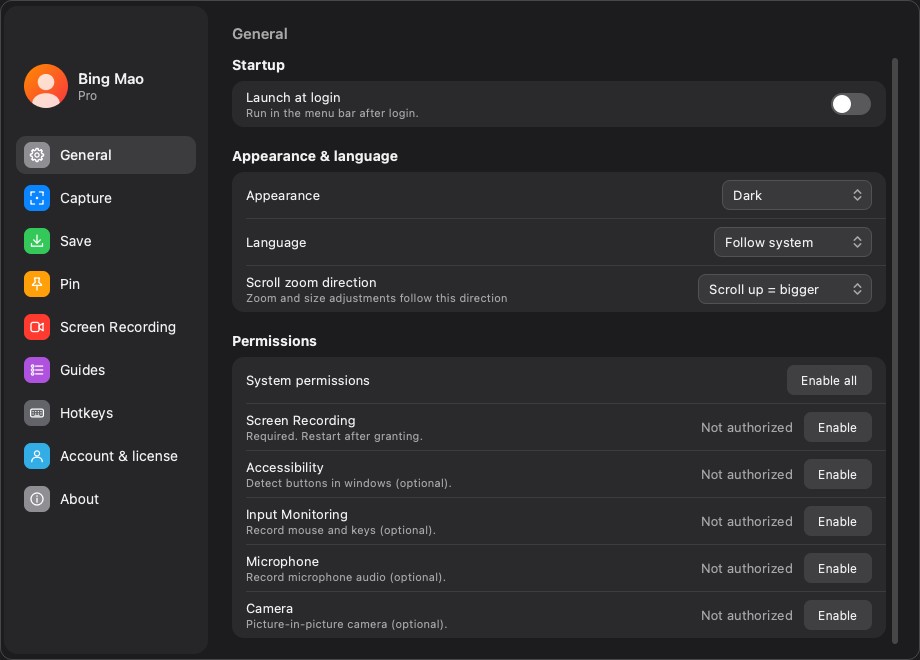
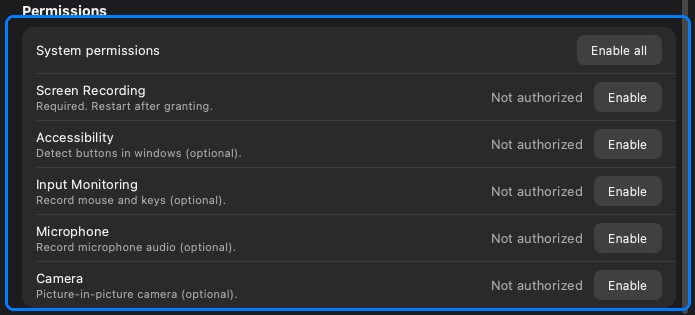
The first three are listed under System permissions in Settings › General; microphone and camera are asked the first time you turn them on in the recording panel.
Grant them from InSnap
In Settings › General › Permissions:
- Find Screen Recording and click Enable.
- macOS opens the privacy prompt or the relevant System Settings panel.
- Turn on InSnap in the list.
- Repeat for Accessibility and Input Monitoring if you want their features.
Enable all walks through the requests in order. It cannot grant anything silently; macOS requires you to flip each switch yourself. The status column updates while the settings window is open, so you can come back from System Settings and see the result.
Screen Recording needs a restart
Screen Recording is read when the app launches. If you grant it while InSnap is running, captures may still come out black until you quit and reopen the app.
- Quit InSnap completely — Command-Q or the menu bar Quit item, not just closing a window.
- Reopen it and take a test capture.
If the toggle already looks on but captures are black, turn it off and on again, or remove InSnap from the list and add it back.
Accessibility: detection, not capture
Accessibility is what lets InSnap see the interface as elements rather than pixels:
- Hovering a window can box a button or a text field, not just a window.
- Captures can record the browser URL, if that option is enabled.
- Guides can name the clicked control instead of saying “clicked in App”.
Without it, capture still works; you lose the element-level detection and URL recording. InSnap says “Not authorized” and offers the System Settings shortcut.
Input Monitoring: events, not pixels
Input Monitoring is for recording what you do, not what the screen shows:
- Mouse and keyboard events for Record & Edit.
- Click ripples and key overlays in recordings.
- Guide recording, where each click becomes a step.
If it is off, recording still produces video; the event tracks and guide steps are what go missing.
Microphone and camera are on demand
InSnap does not ask for microphone or camera at launch. The prompt appears when you enable Mic or Camera in the recording panel, which is easier to understand in context.
- Deny them and the rest of recording still works.
- If you denied once, macOS will not ask again; use the permission card or System Settings to change it.
What happens if you skip one
| Missing | What still works | What does not |
|---|---|---|
| Screen Recording | Nothing useful | Capture and recording |
| Accessibility | Capture and recording | Element detection, URL recording |
| Input Monitoring | Screenshots; video without events | Guides, click/key effects, event tracks |
| Microphone | Screen and system audio | Voice narration |
| Camera | Everything else | Camera preview and PiP |
FAQ
Why are my screenshots black after granting Screen Recording?
The permission is applied at launch. Quit InSnap completely and reopen it; closing the settings window is not enough.
Do I need Accessibility to take screenshots?
No. Screenshots work without it. Accessibility adds element-level window detection and browser URL recording.
Does InSnap ask for microphone and camera at startup?
No. It asks when you enable Mic or Camera in the recording panel, and the rest of the app works if you decline.
More from the blog

How to Add Text to a Screenshot (and Make It Readable)
Add labels, titles and callouts to a screenshot with readable contrast, the right size and clean placement — plus how to edit them later on Mac and Windows.
October 25, 2026
Auto Zoom for Screen Recordings: What It Does and When to Use It
How InSnap's auto zoom follows your clicks in a screen recording, how the strength settings change the result, and when a static recording is better.
October 25, 2026
How to Make a Before-and-After Comparison Image
One image beats two attachments: capture both states at the same size, stitch them side by side, label them, and send a comparison the reader can scan.
October 25, 2026