 InSnap
How to Record Your Screen With Sound on Mac and Windows
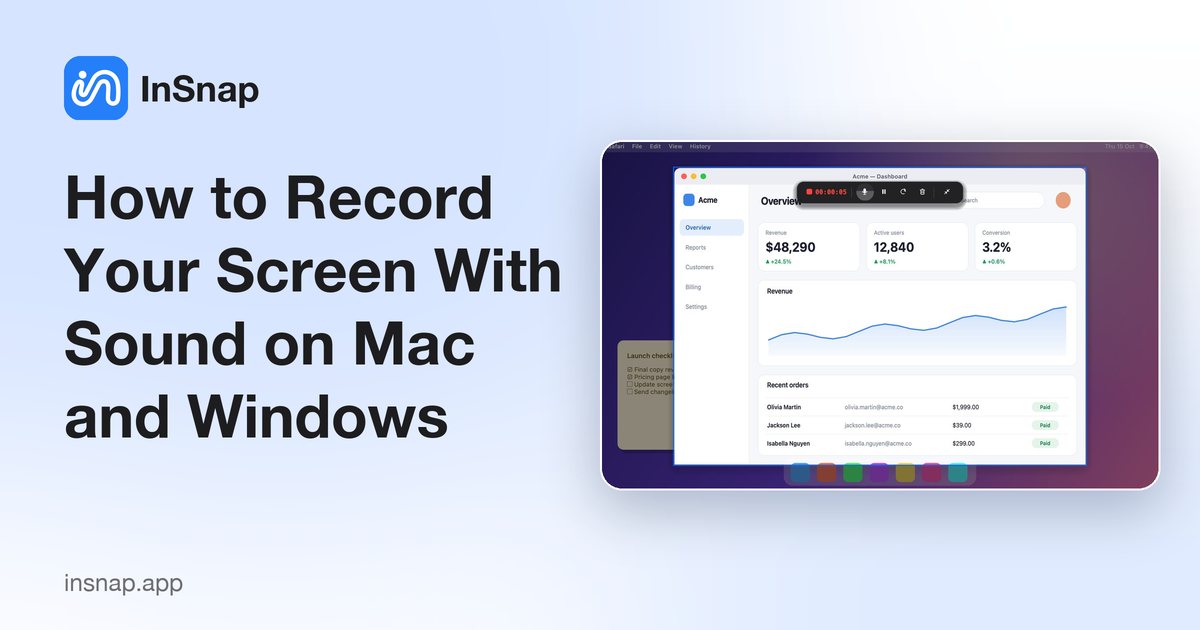
How to record your screen with system audio and microphone on Mac and Windows: what the built-in recorders can and cannot capture, and how to do it with InSnap.
Recording the screen is easy; recording it with the right sound is where people get stuck. There are two kinds of audio: your microphone (your voice) and system audio (what the computer is playing). Built-in tools differ in which they capture.
What the built-in tools capture
- macOS (Shift-Command-5): records the screen and optionally the microphone. It does not record system audio.
- Windows 11 Snipping Tool and Xbox Game Bar: record the screen; the Game Bar is aimed at app windows. Check the audio options in each tool, as what is captured differs by version.
If you need to capture what the computer is playing, for a demo, a tutorial or a video call, use a recorder that supports system audio.
Record with system audio, microphone and camera in InSnap
- Press the capture hotkey (Command-1 on Mac, Ctrl+1 on Windows) and drag the area you want to record.
- Click the Record button on the toolbar. A panel offers Quick Record, Record GIF and Record & Edit.
- Turn on System (system audio), Mic, the camera, and the Clicks and Keys effects as needed.
- Recording starts. Pause and resume from the small toolbar, then stop to save.
Basic recording to MP4 is free. Record & Edit opens the recording in a built-in editor where you can trim, split and export MP4, and where Pro adds automatic zoom that follows your clicks.
On macOS, grant the permissions
The first time, macOS asks for Screen Recording permission (System Settings › Privacy & Security), and for Microphone or Camera when you turn those on. Restart the app after granting Screen Recording.
Tips for clear results
- Record a small area rather than the whole screen; text stays readable when the video is scaled down.
- Do a 5-second test and listen with headphones before a long take.
- Show clicks and keys in tutorials so viewers can follow what you pressed.
- Trim the start and end in the editor instead of re-recording.
FAQ
Can I record my screen with sound on a Mac?
The built-in recorder captures your microphone but not the sound your Mac plays. A recorder with system audio support, such as InSnap, can capture both.
How do I record system audio and my voice at the same time?
Turn on both System and Mic in InSnap's recording panel before you start.
Is screen recording in InSnap free?
Basic recording to MP4 is free. GIF recording, automatic zoom and original-quality export are in InSnap Pro, a one-time $15 purchase.
More from the blog

How to Add Text to a Screenshot (and Make It Readable)
Add labels, titles and callouts to a screenshot with readable contrast, the right size and clean placement — plus how to edit them later on Mac and Windows.
October 25, 2026
Auto Zoom for Screen Recordings: What It Does and When to Use It
How InSnap's auto zoom follows your clicks in a screen recording, how the strength settings change the result, and when a static recording is better.
October 25, 2026
How to Make a Before-and-After Comparison Image
One image beats two attachments: capture both states at the same size, stitch them side by side, label them, and send a comparison the reader can scan.
October 25, 2026