 InSnap
Capture Settings Worth Turning On (and Two to Leave Off)
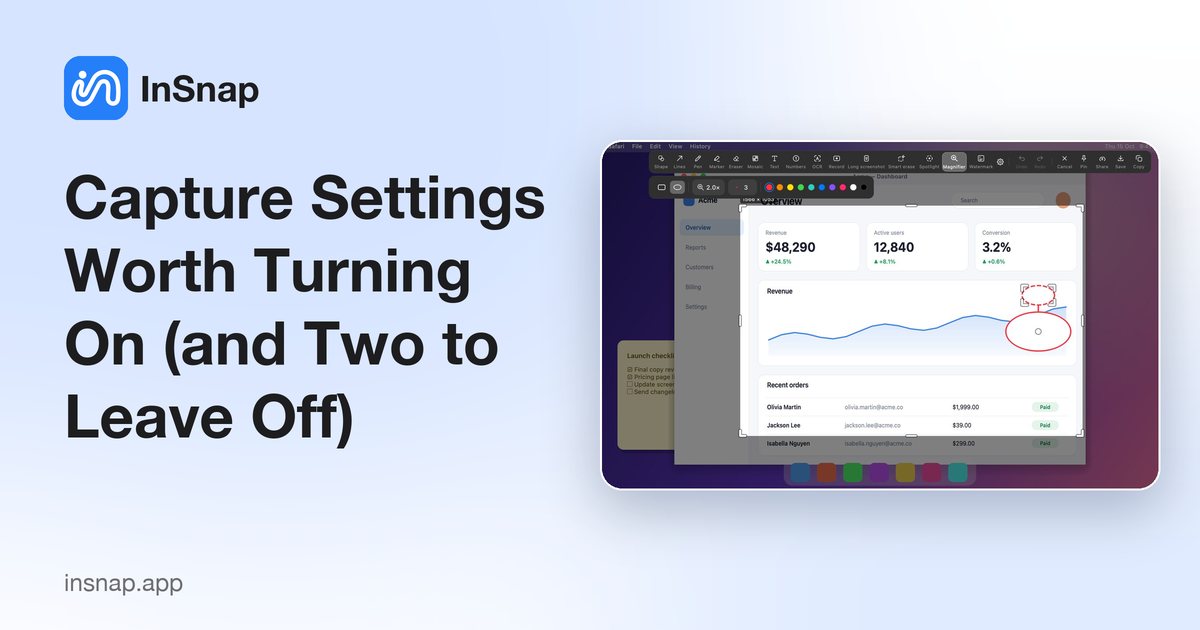
Auto-detection, element detection, the magnifier, the color panel and text indexing: which capture settings earn their keep, and which add noise or permissions.
InSnap's Settings › Capture page is a list of small switches, and the defaults are conservative on purpose. A few of them change the capture experience a lot; others are only useful in specific jobs. This is how to choose.
The three switches that matter most
| Setting | What it does | Turn it on when |
|---|---|---|
| Auto-detect windows | Hover to box a window, wheel to widen the level | You capture windows more than free regions |
| Detect buttons and text fields | Adds element-level boxes inside a window | You have Accessibility permission and capture UI details |
| Show the pixel magnifier | A zoomed grid follows the pointer | You work with exact pixels, borders or alignment |
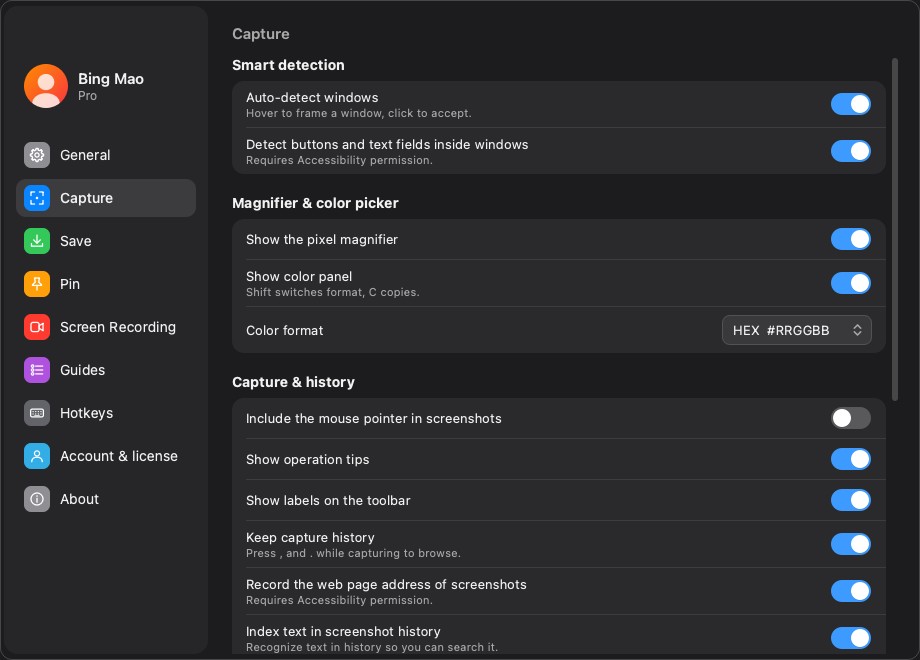
Auto-detection is the single biggest time saver: hover the window, click once, and the selection snaps to it. Element detection goes one level deeper, boxing a button or a field; it needs Accessibility permission, so it is worth enabling only if you have granted it for other reasons.
Magnifier and color panel
Two independent switches:
- Show the pixel magnifier displays a zoomed grid around the pointer. Use it for 1px borders, icon alignment and color sampling.
- Show the color panel displays the value under the pointer; Shift switches RGB/HEX and C copies it.
They are independent: you can turn on the color panel without the magnifier if you only need hex values, or the magnifier without the panel if you are aligning pixels.
A tip: the color panel reads the frozen screenshot, not the live screen. It is measuring the pixels you are about to save, which is exactly what you want for design QA.

Cursor, tips and labels
- Include the mouse pointer in screenshots is off by default. Turn it on for tutorials where "click here" needs a pointer; leave it off for clean documentation. It applies to new captures only.
- Show operation tips displays the shortcut panel in the corner. Useful while learning; turn it off once the shortcuts are muscle memory, especially for presentation screenshots.
- Show labels on the toolbar helps if the icons are not obvious. It makes the toolbar wider, which matters on a small selection.
History and text indexing
- Keep capture history stores the full-screen original, annotations and a thumbnail. Turn it on if you search or revisit captures; turn it off if you want every capture to be ephemeral. Existing history stays until deleted.
- Record the web page address of screenshots adds the URL for browser captures. It needs Accessibility permission and records page addresses, which can be sensitive; enable it only if you search by URL later.
- Index text in screenshot history runs OCR in the background so you can search inside images. It uses local processing and adds an index file; disable it if you never search by text.
A practical setup
| If you mostly… | Recommended |
|---|---|
| Capture windows for docs | Auto-detect on, element detection on, labels on, tips off |
| Capture UI details for design QA | Magnifier on, color panel on, auto-detect on, cursor off |
| Capture tutorials | Cursor on, tips on, history on, text index on |
| Capture sensitive material | History off or short retention, URL recording off, text index off |
Change one switch at a time and take a test capture. Most of these settings only affect new captures, so an old screenshot will not change when you flip them.
FAQ
Do I need Accessibility permission for element detection?
Yes. Detecting buttons and text fields requires it, and so does recording the browser URL. Window-level auto-detection works without it.
Why is the mouse pointer missing from my screenshot?
Include the mouse pointer in screenshots is off by default. Turn it on before capturing; the setting applies to new captures.
Does text indexing upload my screenshots?
No. OCR runs locally and the recognized text stays in the local history database. Nothing is uploaded unless you explicitly share the image.
More from the blog

How to Add Text to a Screenshot (and Make It Readable)
Add labels, titles and callouts to a screenshot with readable contrast, the right size and clean placement — plus how to edit them later on Mac and Windows.
October 25, 2026
Auto Zoom for Screen Recordings: What It Does and When to Use It
How InSnap's auto zoom follows your clicks in a screen recording, how the strength settings change the result, and when a static recording is better.
October 25, 2026
How to Make a Before-and-After Comparison Image
One image beats two attachments: capture both states at the same size, stitch them side by side, label them, and send a comparison the reader can scan.
October 25, 2026